How to Turn Off On-device AI in Chrome (AI innovations settings)
- Chrome Settings has an AI innovations page you didn't turn on
- You want to turn off Chrome's on-device AI features
- You're unsure what data Chrome's AI sends to Google
chrome://settings/ai (Settings → AI innovations) and switch off On-device AI. In our fresh Chrome 157 profile it was on. Chrome says these local AI models power features like scam detection, and that those features might not work when it is off. The switch takes effect right away; there is no Save button.What this test does and doesn't cover
Procedure checked
- "AI innovations" page and its "On-device AI" switch, on by default in a fresh profile
- Chrome's own text on the page: what on-device AI is for and the "Things to consider" list
Result checked
- The switch turns off immediately when clicked
Side effects checked
Not tested in this run
Not tested
- Whether turning it off deletes AI models already downloaded or frees disk space
- Which features stop working with the switch off
- Signed-in profiles, managed (company) Chrome, other countries where more AI features may appear
Screenshots come from our own runs unless a step is marked otherwise.
When to use this
Use it if you don't want Chrome to run AI models on your computer, for example to keep things simple or to save resources. You may also have heard that Chrome downloads AI models; this switch is where Chrome lets you turn on-device AI off.
Steps
Open AI innovations
Chrome menu (⋮) → Settings → AI innovations, or paste chrome://settings/ai into the address bar.
At the top Chrome lists Things to consider:
These features use AI, are in early development, and won’t always get it right When you use these features, relevant data is sent to Google in order to create AI experiences Data sent to Google may be seen by human reviewers to improve Chrome AI’s technology
Further down is On-device AI (outlined). In our fresh profile it was on. Chrome's description: "To power features like scam detection, Chrome can use AI models that run directly on your device. When this is off, these features might not work."
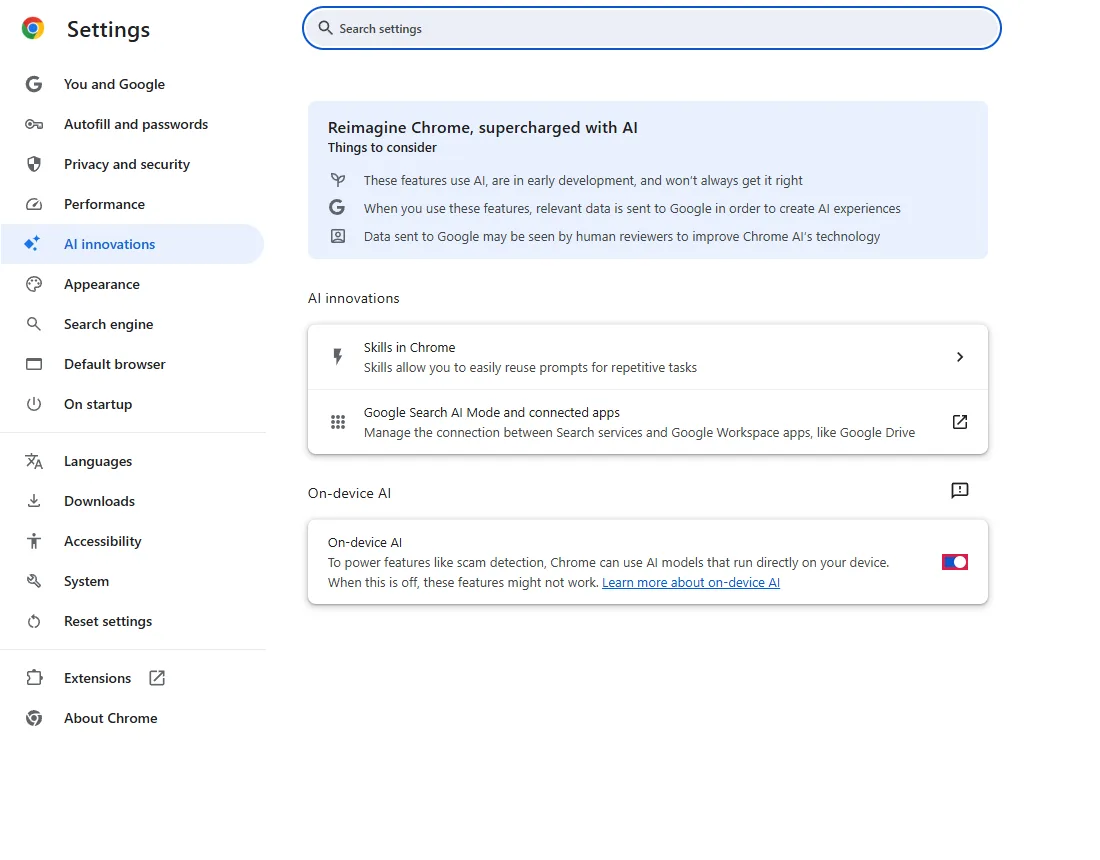
Turn it off
Click the switch. It turns off right away.
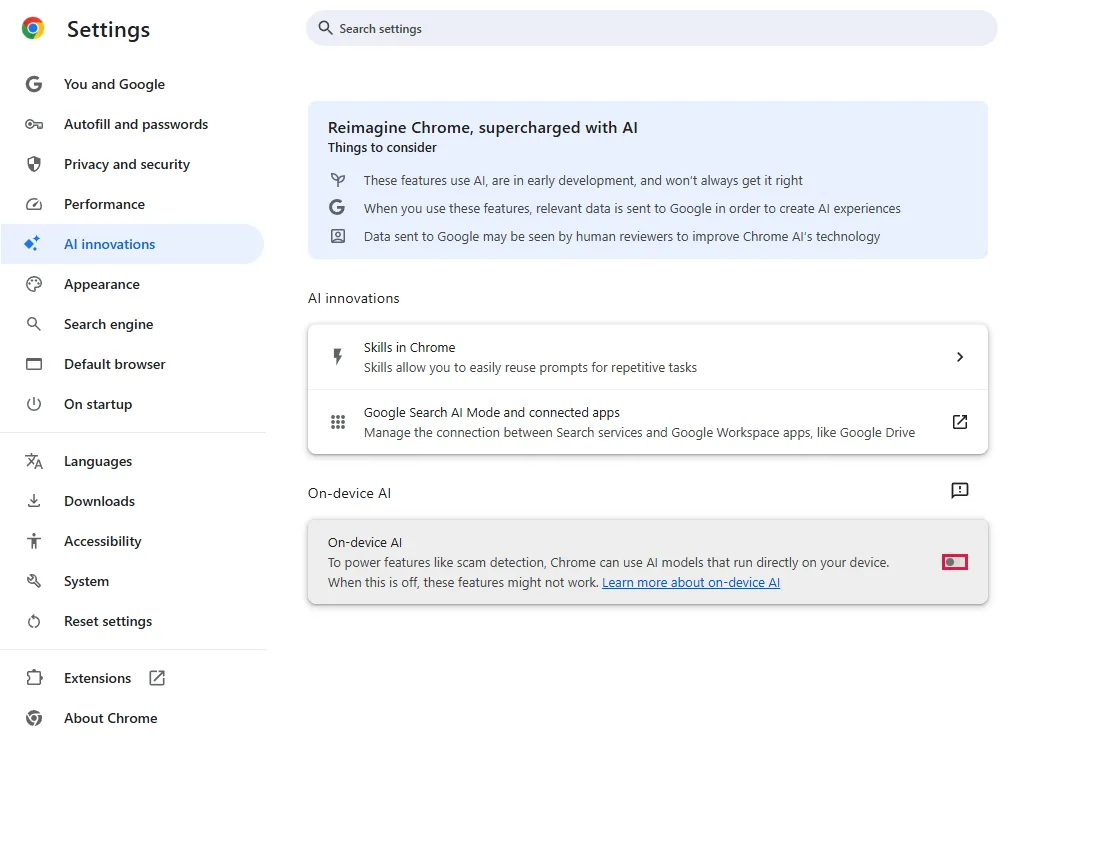
To turn it back on, click the switch again.
Common questions
Does this delete the AI model and free disk space?
We did not test that. Our test profile was new, so there was nothing to measure. Check the help page linked from the setting (Learn more about on-device AI). From official docs, not tested here
Is this the only AI setting in Chrome?
Not necessarily. On our test PC the page also listed Skills in Chrome and Google Search AI Mode and connected apps. Which AI features appear depends on your Chrome version, account and country. From official docs, not tested here
Will scam detection stop working?
Chrome says such features "might not work" with the switch off. If you rely on that protection, leave it on.
If it didn't help
| Situation | What to check |
|---|---|
| The switch is grey and can't be changed | Your organisation may manage Chrome. From official docs, not tested here |
| AI features you don't want keep appearing | Look at the other entries on the same page, and check the extensions you installed: chrome://extensions |
Related guides
Sources
Chrome Help: on-device AI (link on the settings page)
How we make guides: we run each step in a real browser or operating system, capture every screen, and have a person review the result. AI assists with drafting.