How to Turn Off or Hide the Copilot Button in Microsoft Edge
- Edge shows a Copilot button in the top-right toolbar that you never use
- A Copilot icon appeared in Edge after an update
- You want fewer AI or Copilot prompts in Edge
copilot in the search box (or paste edge://settings/?search=copilot), find Show Copilot button in toolbar, and switch it off. The Copilot button leaves the toolbar. Copilot itself isn't uninstalled, and other AI options (new tab page, reading page context) are separate toggles on the same screen.What this test does and doesn't cover
Procedure checked
- Edge's Copilot settings have a "Show Copilot button in toolbar" toggle, on by default
- The same screen has separate toggles for the Copilot new tab page and reading page context
Result checked
- Switching "Show Copilot button in toolbar" off took effect on the toggle right away
Side effects checked
Not tested in this run
Not tested
- Whether the button then disappears from the toolbar (the browser toolbar is outside the page and is not captured)
- The separate Windows/taskbar Copilot, which Edge settings do not control
Screenshots come from our own runs unless a step is marked otherwise.
When to use this
Use it when Microsoft Edge shows a Copilot button in the toolbar (top-right) that you don't want, often after an update added it. Turning off one toggle removes the button. This hides Edge's Copilot entry point; it does not uninstall Copilot, and it's separate from the Windows Copilot on your taskbar.
If you also want to quiet the other AI features, the same settings screen has separate toggles for the Copilot new tab page and for letting Copilot read the current page — turn those off too. From official docs, not tested here
Steps
Open Edge's Copilot settings
Open the Edge menu (⋯, top-right) → Settings, then type copilot in the Search settings box. Or paste edge://settings/?search=copilot into the address bar.
Find Show Copilot button in toolbar. By default it's on.
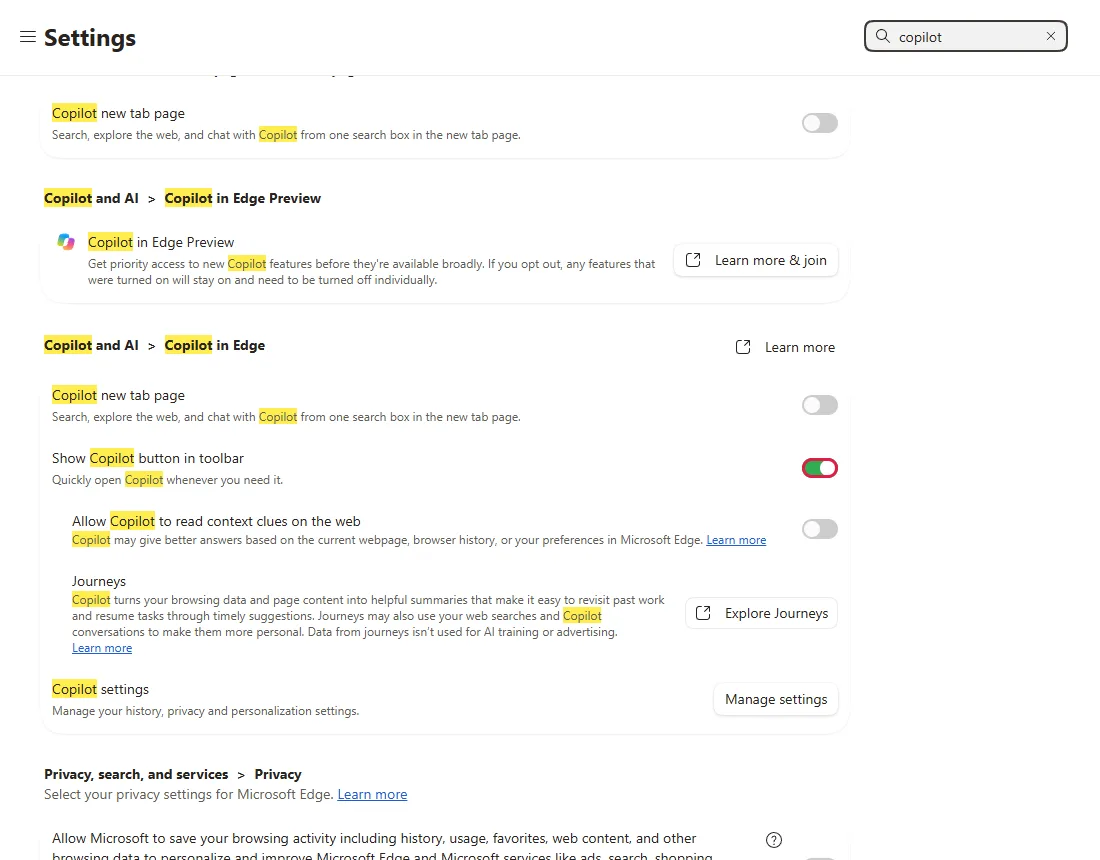
Switch it off
Click the toggle so it turns off. The change applies immediately, and the Copilot button leaves the toolbar.
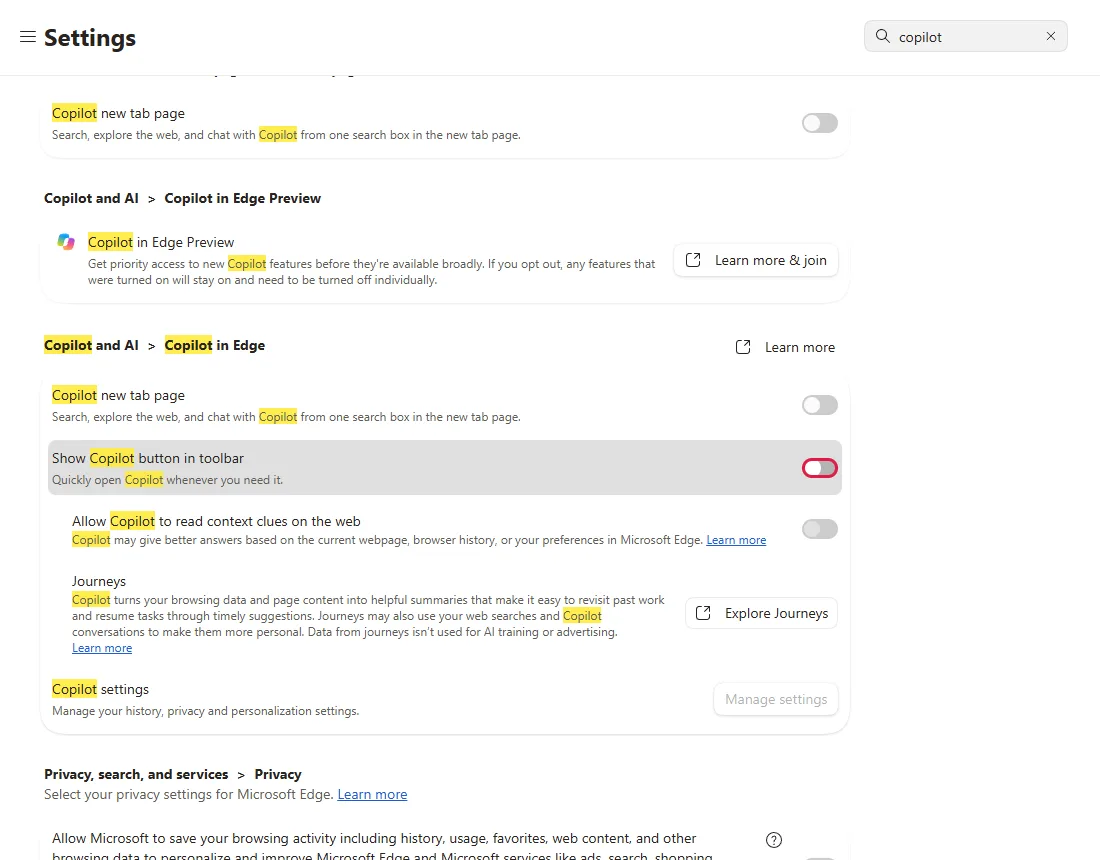
That's the whole fix. To bring the button back later, turn the same toggle on again.
Common questions
Does this remove Copilot completely?
No. It only hides the toolbar button. Copilot stays installed, and other AI entry points are separate toggles on the same screen: Copilot new tab page (Copilot on the new tab page) and Allow Copilot to read context clues on the web. Turn those off too if you want less AI. The Windows Copilot on your taskbar is a Windows setting, not an Edge one. From official docs, not tested here
The button is still there after I turned it off
Fully close every Edge window and reopen it. If the toggle is greyed out or marked managed, a policy may control it (see below). From official docs, not tested here
The setting is greyed out or says it's managed
On a work or school device, your organization can lock Copilot through policy. Open edge://policy to see which policies apply; you won't be able to change a managed setting yourself. From official docs, not tested here
If it didn't help
| Situation | What to check |
|---|---|
| Button comes back after restart | Check edge://policy for a Copilot policy that re-enables it. From official docs, not tested here |
| The toggle is greyed out | A work/school policy controls it; ask your admin, or check edge://policy and edge://management. From official docs, not tested here |
| You meant the Copilot on the Windows taskbar | That's Windows, not Edge. Right-click the Copilot icon on the taskbar and choose Unpin from taskbar (on older Windows 11 builds, Settings → Personalization → Taskbar). From official docs, not tested here |
Related guides
Sources
Microsoft Support: Getting started with Copilot in Microsoft Edge
How we make guides: we run each step in a real browser or operating system, capture every screen, and have a person review the result. AI assists with drafting.