How to Stop Chrome from Translating Pages (or Turn Translate Back On)
- Chrome keeps asking "Translate this page?" on sites you can already read
- Chrome translates a site automatically and you want the original text
- Chrome no longer offers to translate foreign pages
chrome://settings/languages and scroll to Google Translate. Switch Use Google Translate off to stop all translation offers. To stop prompts for one language only, click Add languages next to Never offer to translate these languages and pick that language; to stop automatic translation, remove the language from Automatically translate these languages. Switch the toggle back on to translate again.What this test does and doesn't cover
Procedure checked
- Chrome 157 Languages settings have a "Use Google Translate" toggle, on by default
- The same section lists "Automatically translate these languages" and "Never offer to translate these languages", each with an Add languages button
Result checked
- Switching "Use Google Translate" off took effect on the toggle right away
- The "Never offer to translate" Add languages button opens an "Add languages" dialog
Side effects checked
Not tested in this run
Not tested
- The translate icon and bubble in the address bar (browser toolbar, not captured)
- How a real foreign-language page looks after translation
- Work or school devices where translation is set by policy
Screenshots come from our own runs unless a step is marked otherwise.
When to use this
Use it when Chrome keeps offering to translate pages you can read, or translates a site on its own and you want the original text. The same setting also brings translation back if Chrome stopped offering it.
You have two choices: turn translation off completely, or keep it and exclude only the languages you read.
Steps
Open Chrome's language settings
Open the Chrome menu (⋮, top-right) → Settings → Languages, or paste chrome://settings/languages into the address bar. Scroll down to Google Translate.
Use Google Translate is on by default. Below it you'll see Automatically translate these languages and Never offer to translate these languages. In a fresh profile, your Chrome display language was already on the "never offer" list.
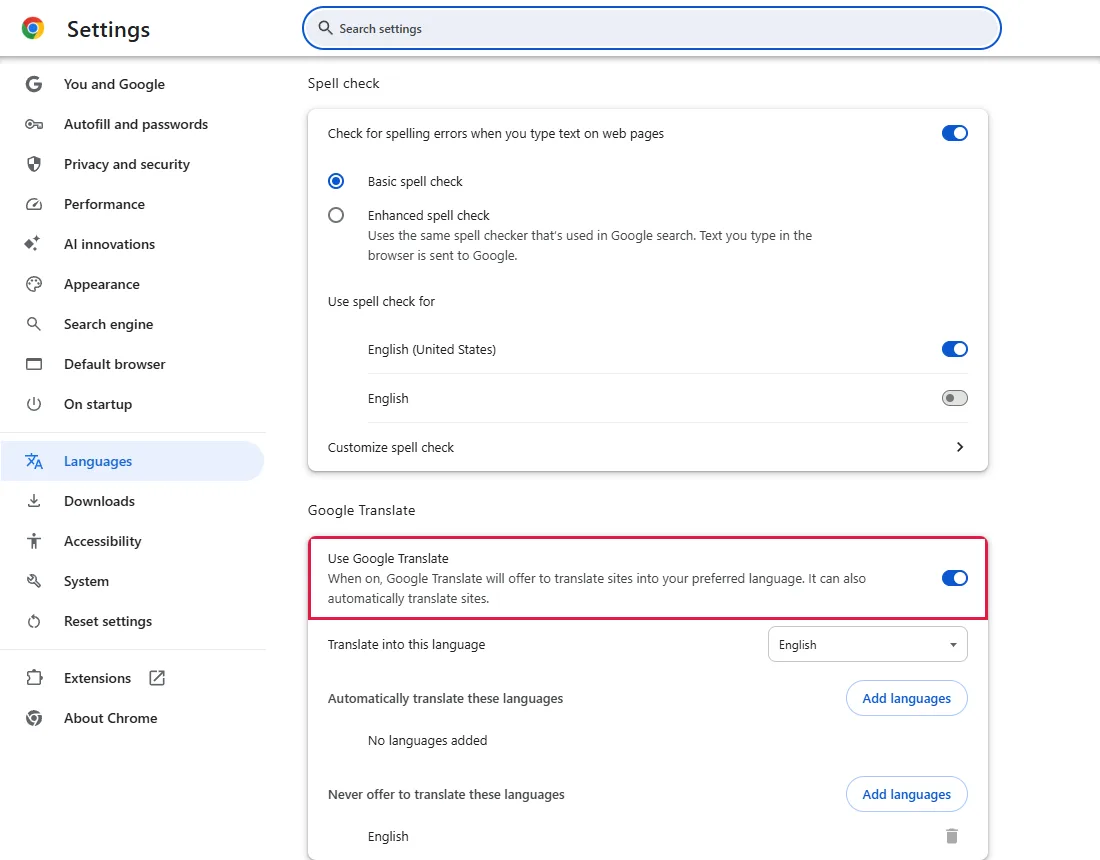
Turn translation off completely
Click the Use Google Translate toggle so it turns off. Chrome stops offering to translate and stops translating pages automatically. From official docs, not tested here
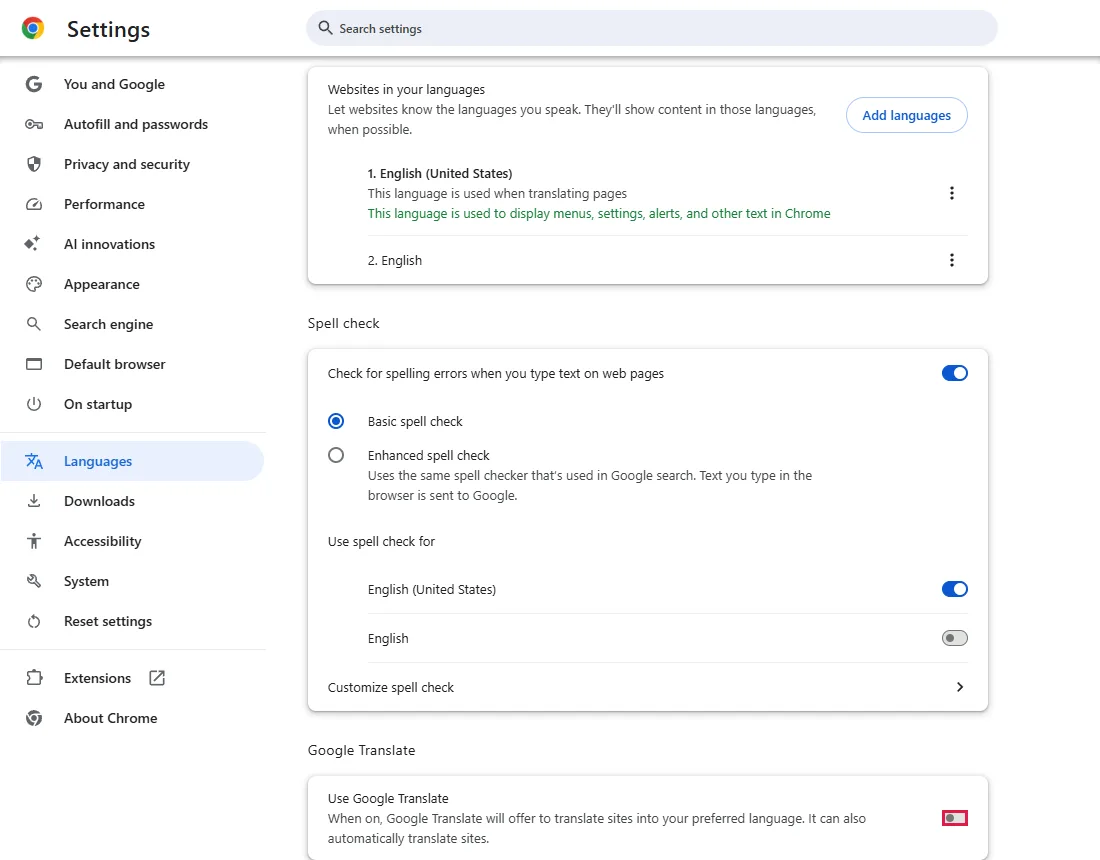
To translate again later, switch the same toggle back on.
Or: never translate one language
If you still want translation for other languages, leave the toggle on. Next to Never offer to translate these languages, click Add languages. In the Add languages dialog, tick the languages you read and click Add. Chrome won't offer to translate pages in those languages. From official docs, not tested here
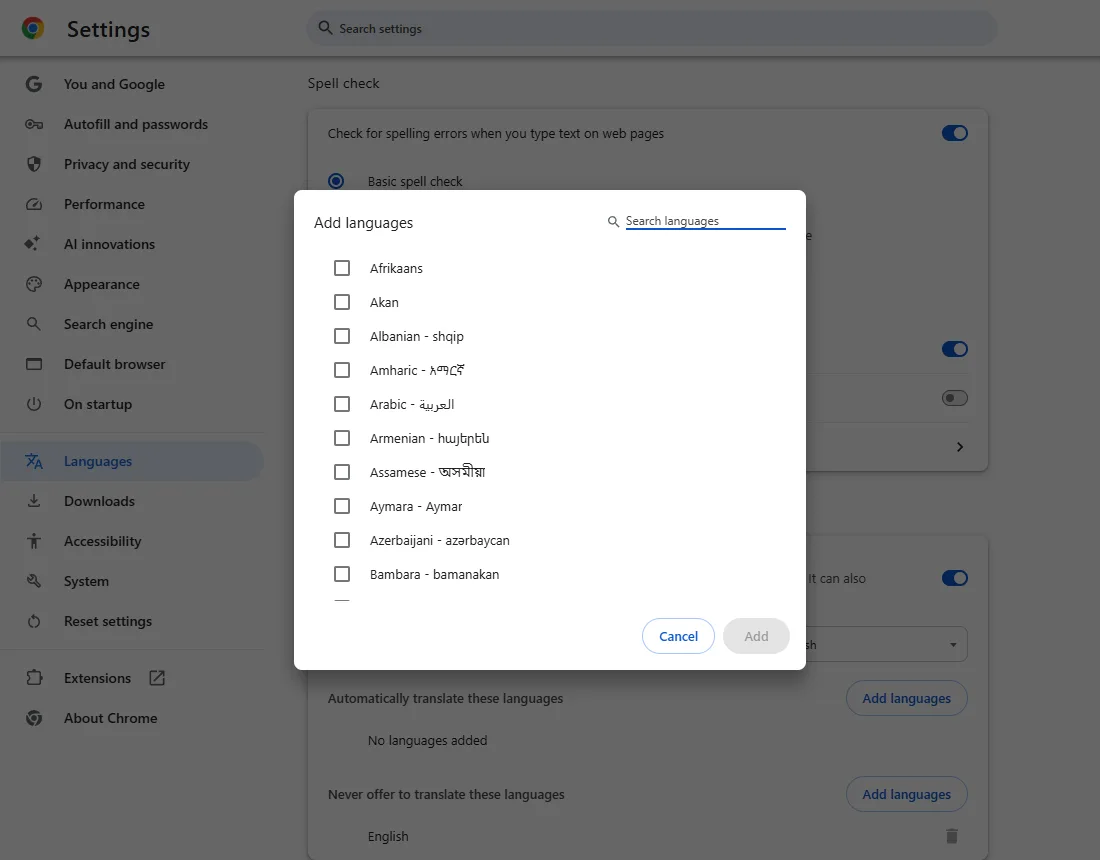
Stop automatic translation for one language
If a language is listed under Automatically translate these languages, Chrome translates those pages without asking. Remove that language from the list to stop the automatic translation while keeping the offer to translate. In a fresh profile this list is empty. From official docs, not tested here
Common questions
How do I translate one page right now?
Right-click the page and look for the translate command, or use the translate icon in the address bar when it appears. Neither is in our screenshots, so check the wording on your screen. To change which language Chrome translates into, use Translate into this language in the settings from step 1. From official docs, not tested here
I turned it off, but one site still shows translated text
If Chrome already translated the open page, use the translate icon in the address bar to show the original, or reload the page. Some sites also serve their own translated versions; then look for a language switcher on the page. From official docs, not tested here
Chrome stopped offering to translate. Why?
Check that Use Google Translate is on, and remove the page's language from Never offer to translate these languages if you want the offer back. If a translation fails, reload the page and try again. From official docs, not tested here
If it didn't help
| Situation | What to check |
|---|---|
| The toggle is grey and can't be changed | Your organisation manages Chrome on this device. Ask your IT admin. From official docs, not tested here |
| Translation still appears on one site | The site's own language version. Use its language menu. From official docs, not tested here |
Sources
Google Chrome Help: Change Chrome languages & translate webpages
How we make guides: we run each step in a real browser or operating system, capture every screen, and have a person review the result. AI assists with drafting.