Everything in Chrome Too Small? Change the Default Page Zoom
- Text and buttons are too small on almost every website
- You press Ctrl and + on every page you open
- A comfortable zoom resets to 100% on the next site
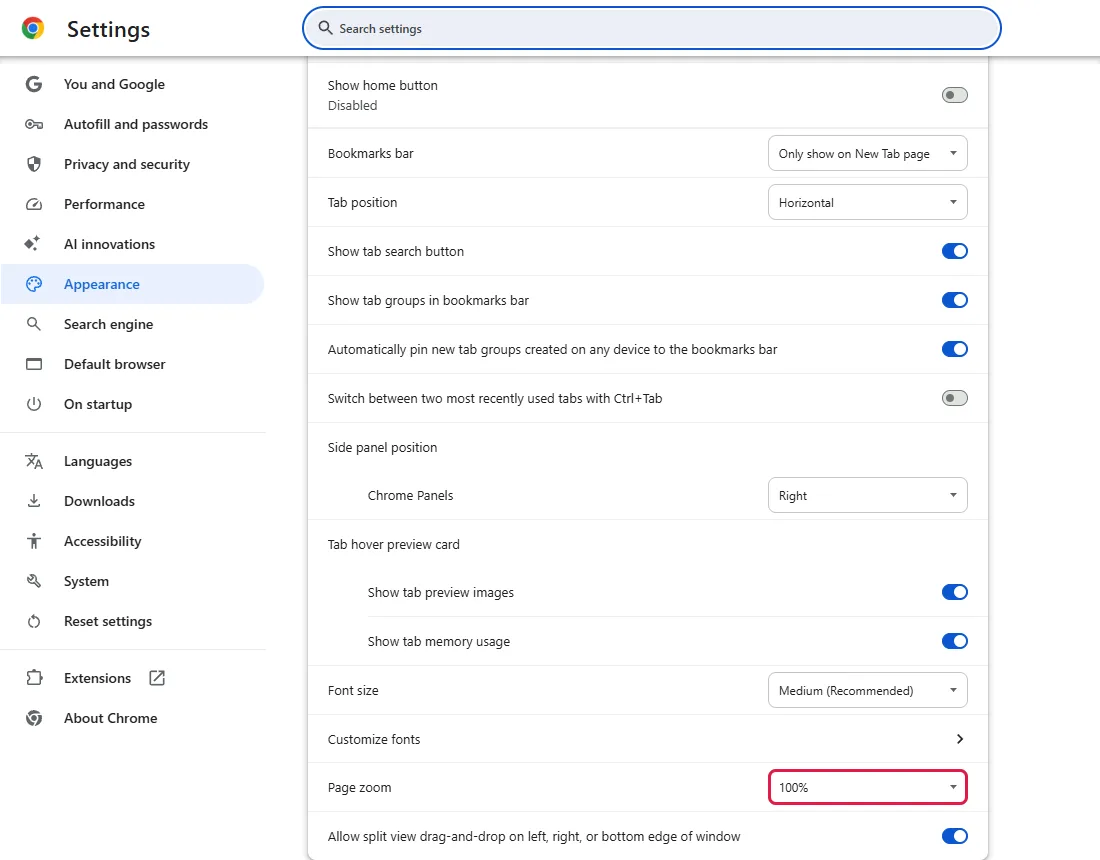
chrome://settings/appearance and change Page zoom from 100% to a larger value, such as 125%. That becomes the default zoom for sites you haven't zoomed individually, so you don't have to press Ctrl and + on each page. In our test the menu was at 100% by default.What this test does and doesn't cover
Procedure checked
- Location of the "Page zoom" menu in Settings → Appearance (chrome://settings/appearance)
- The menu was at 100% in a fresh profile
- The menu label in English, Spanish, Japanese, German and Korean
Result checked
Not tested in this run
Side effects checked
Not tested in this run
Not tested
- Setting the value through automation timed out, so we describe choosing it by hand; the menu itself is shown
- Whether the chosen zoom syncs to your other signed-in devices
- Sites that force their own text size or layout regardless of browser zoom
Screenshots come from our own runs unless a step is marked otherwise.
When to use this
Use it when sites are too small everywhere, not just on one page. Chrome has a per-page zoom (Ctrl and + / -) that only changes the site you are on, so the next site opens at the default zoom again. The Page zoom setting is different: it sets the default zoom Chrome uses for sites you haven't zoomed by hand, so you set it once instead of adjusting each page. From official docs, not tested here
Steps
Open Appearance settings
Chrome menu (⋮) → Settings → Appearance, or paste chrome://settings/appearance into the address bar.
Scroll to Page zoom near the bottom of the section (outlined below). In our fresh test profile it was 100%.
Pick a larger zoom
Open the Page zoom menu and choose a larger value, for example 110%, 125% or 150%. The change takes effect right away and is kept as the default for sites you haven't zoomed individually. There is no Save button. From official docs, not tested here
Check a few sites
Open a couple of ordinary websites in new tabs. Sites you haven't zoomed by hand should open at the zoom you chose. To nudge a single site higher or lower without changing the default, use Ctrl and + / - on that page. From official docs, not tested here
Common questions
How is this different from Ctrl and + on a page?
Ctrl and + / - set the zoom for the one site you are on and Chrome remembers it per site. Page zoom in Settings sets the starting zoom for every site that you have not adjusted by hand. Use Page zoom for an across-the-board change, per-page zoom for one site. From official docs, not tested here
Page zoom or Font size — which should I change?
They are two different menus in the same Appearance section. Font size (just above Page zoom in our screenshot, set to Medium) changes the default text size on pages that respect it — larger text can still shift how a page wraps — while Page zoom scales the whole page, text and images together. If only text is too small, try Font size first; if everything is too small, use Page zoom. From official docs, not tested here
Will this change follow me to my other devices?
We did not test sync. If Chrome sync is on, check Page zoom on each device in case it did not carry over. From official docs, not tested here
The menu is greyed out and I can't change it
On a managed computer (work or school) a policy can lock appearance settings. Open chrome://management to see whether Chrome is managed; if it is, ask whoever manages it. From official docs, not tested here
If it didn't help
| Situation | What to check |
|---|---|
| One site is still too small | Use Ctrl and + on that page; per-site zoom overrides the default |
| You want to undo it, or one site stays zoomed | Set Page zoom back to 100%; to reset a single site, press Ctrl and 0 on that page From official docs, not tested here |
| Only the text is too small, images are fine | Change Font size (same Appearance section) instead of Page zoom |
| Pages look blurry or the whole screen is small | That may be a Windows display setting rather than Chrome; check Windows Display → Scale |
| Menus and toolbar are too small, not the page | Page zoom only affects web pages; that is a Windows scale / resolution setting From official docs, not tested here |
Related guides
Sources
Google Chrome Help: Zoom in or out on your current page
How we make guides: we run each step in a real browser or operating system, capture every screen, and have a person review the result. AI assists with drafting.