How to Delete Cookies for One Site in Chrome (Without Clearing Everything)
- One website is stuck, acting logged-out or showing an error
- You want to reset one site without signing out of all the others
- A site keeps asking you to accept cookies again and again
chrome://settings/content/all, type the domain in Filter sites on page, click the trash icon next to it and confirm with Delete. Chrome removes that site's stored data and resets its permissions, and you are signed out of that site, including in open tabs. Other sites keep their data.What this test does and doesn't cover
Procedure checked
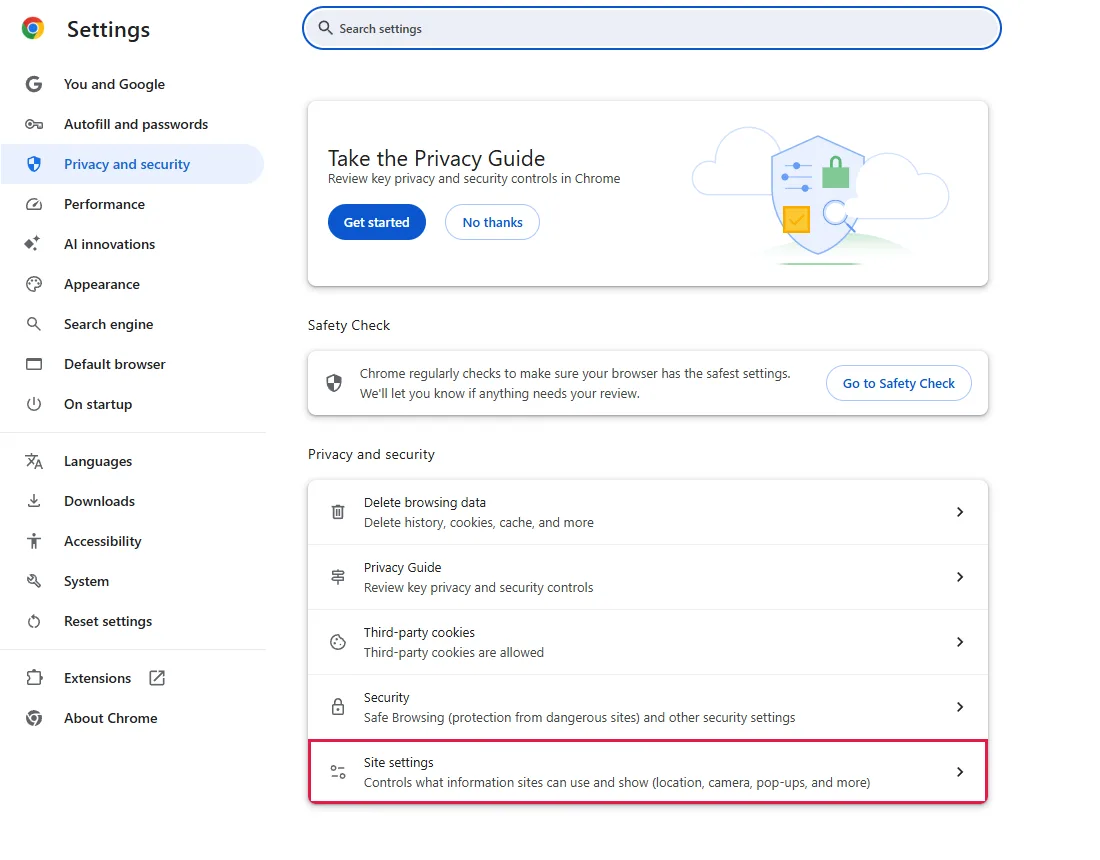
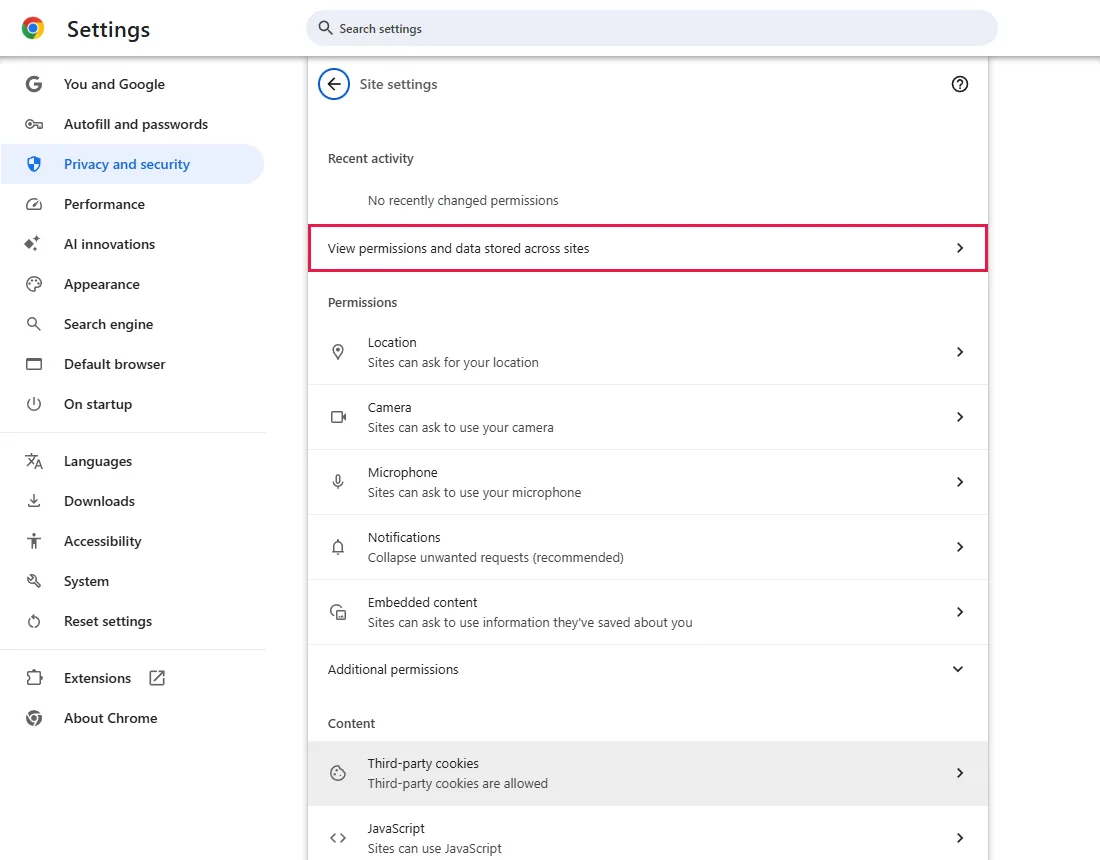
- Path Settings → Privacy and security → Site settings → View permissions and data stored across sites
- The blue button reads "Delete all data" before filtering and "Delete displayed data" after
- Exact confirmation dialog text
Result checked
- github.com disappears from the list after Delete
Side effects checked
- wikipedia.org still listed with its 5 cookies afterwards
Not tested
- Whether this fixes a real sign-in loop (no signed-in test account was used)
- Chrome sync or multiple profiles
Screenshots come from our own runs unless a step is marked otherwise.
When to use this
Use it when one site keeps sending you back to its sign-in page or keeps signing you out, while other sites work. Deleting that site's data clears its saved session, so you sign in from a clean state.
If a page only looks outdated or broken, try a reload that skips the cache first (Ctrl+Shift+R); it doesn't sign you out. From official docs, not tested here
Steps
Open Site settings
Chrome menu (⋮) → Settings → Privacy and security → Site settings.
Open the stored-data list
Click View permissions and data stored across sites. You can skip steps 1–2 by pasting chrome://settings/content/all into the address bar.
Filter by the site's domain
Click Filter sites on page at the top right and type the domain, for example github.com.
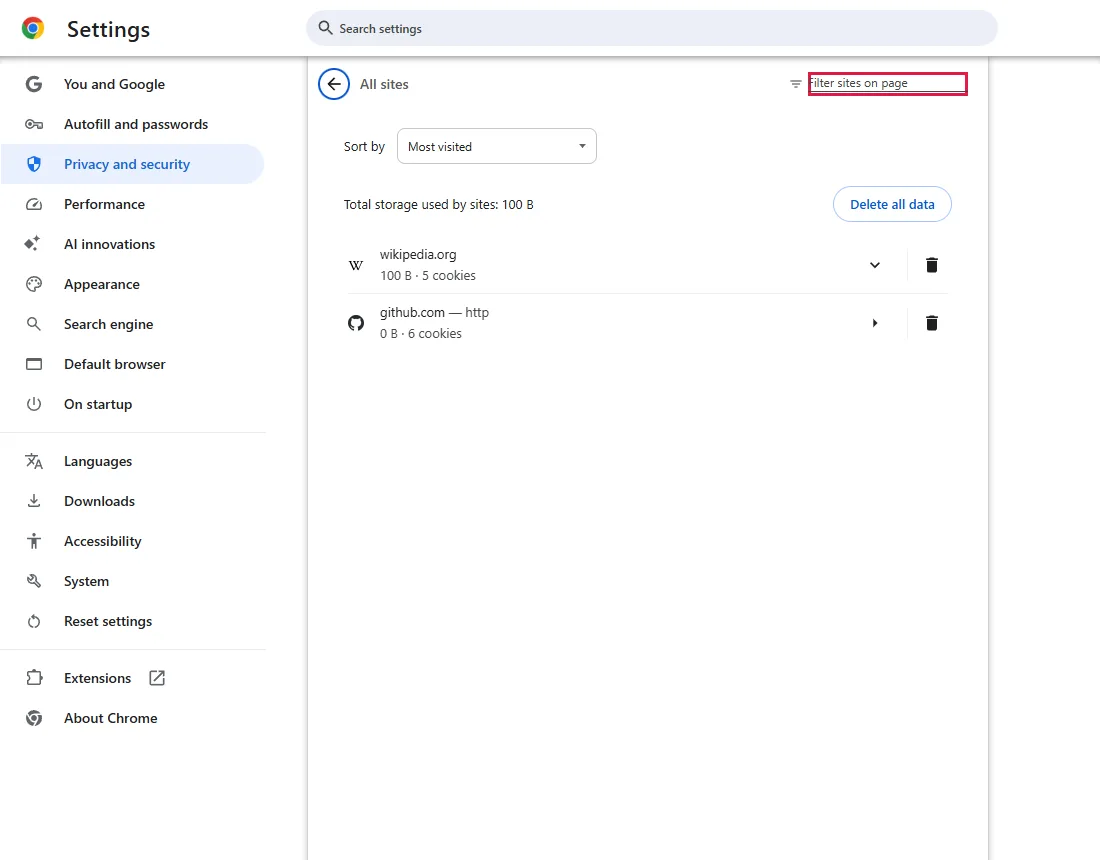
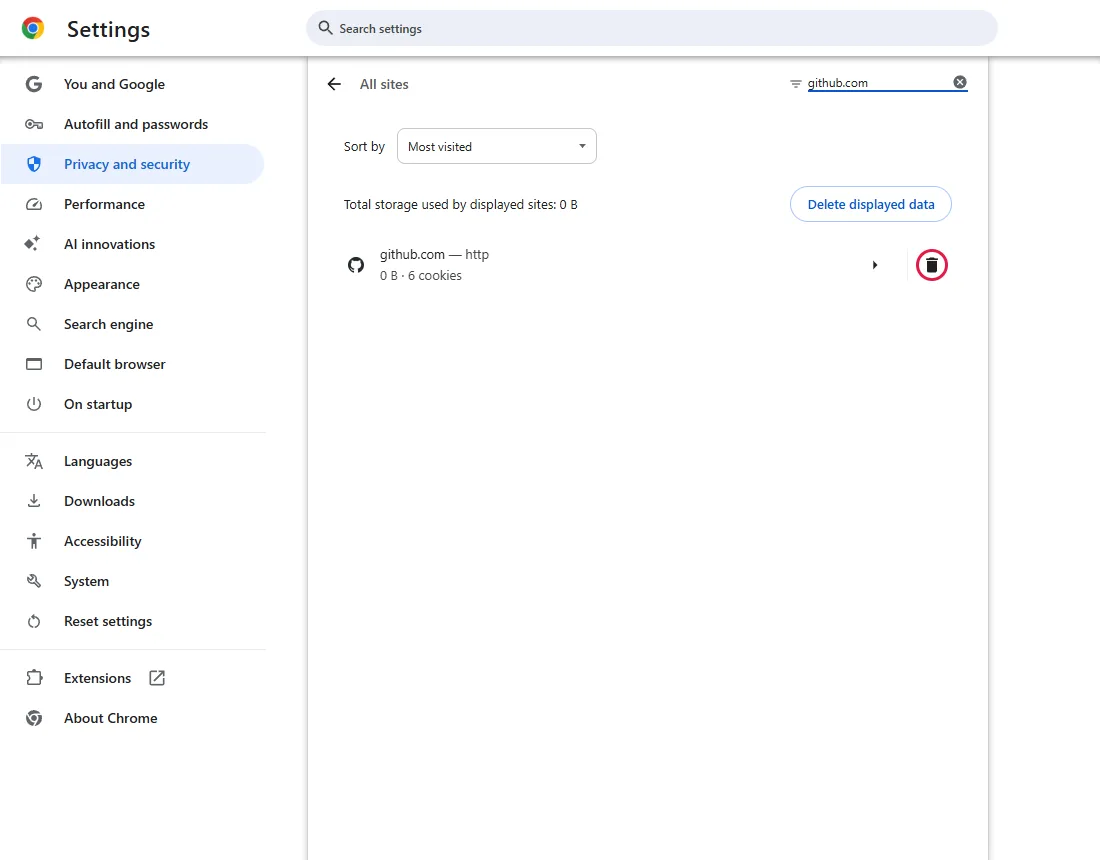
Until you filter, the blue button reads "Delete all data" and applies to every site in the list. After filtering it reads "Delete displayed data". Use the trash icon in the next step instead.
Check the row, then click the trash icon
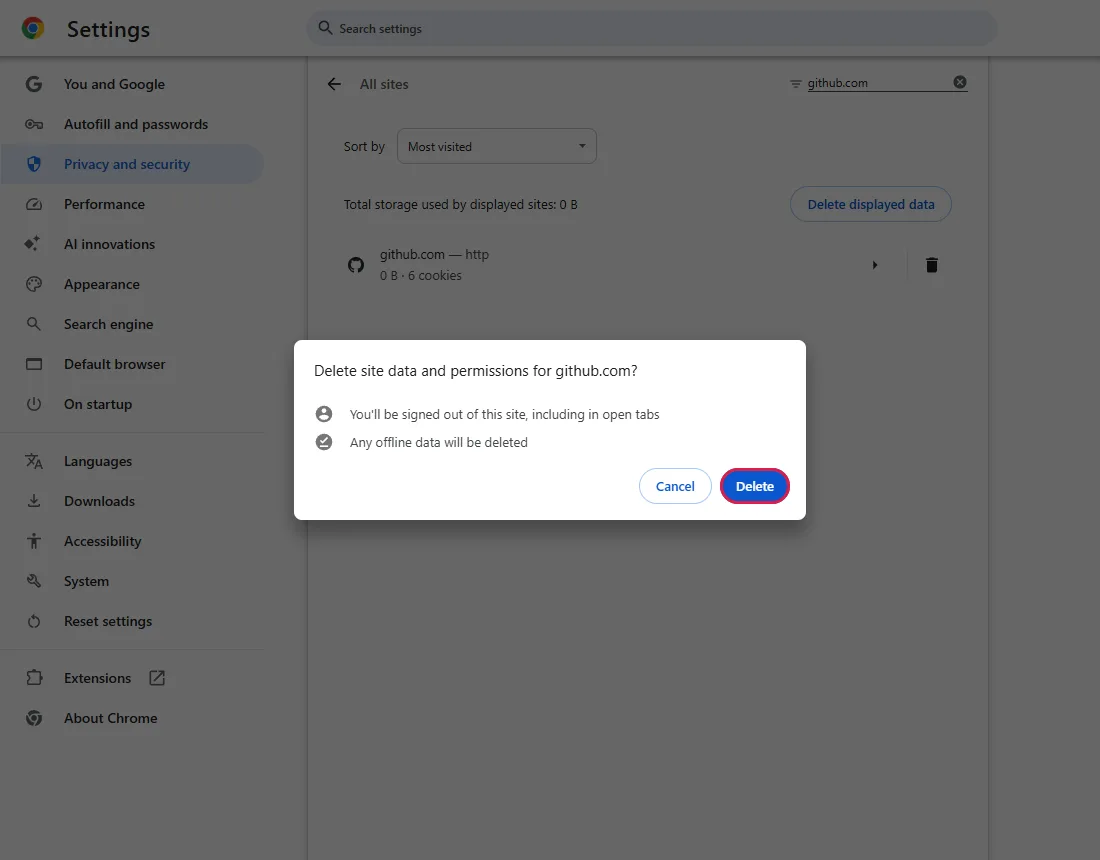
The row in our test read "github.com — http · 0 B · 6 cookies". If several sites match, pick the right one, then click the trash icon at the end of its row.
Confirm with Delete
The dialog reads "Delete site data and permissions for github.com?" with two notes: "You'll be signed out of this site, including in open tabs" and "Any offline data will be deleted". Click Delete.
Check the result
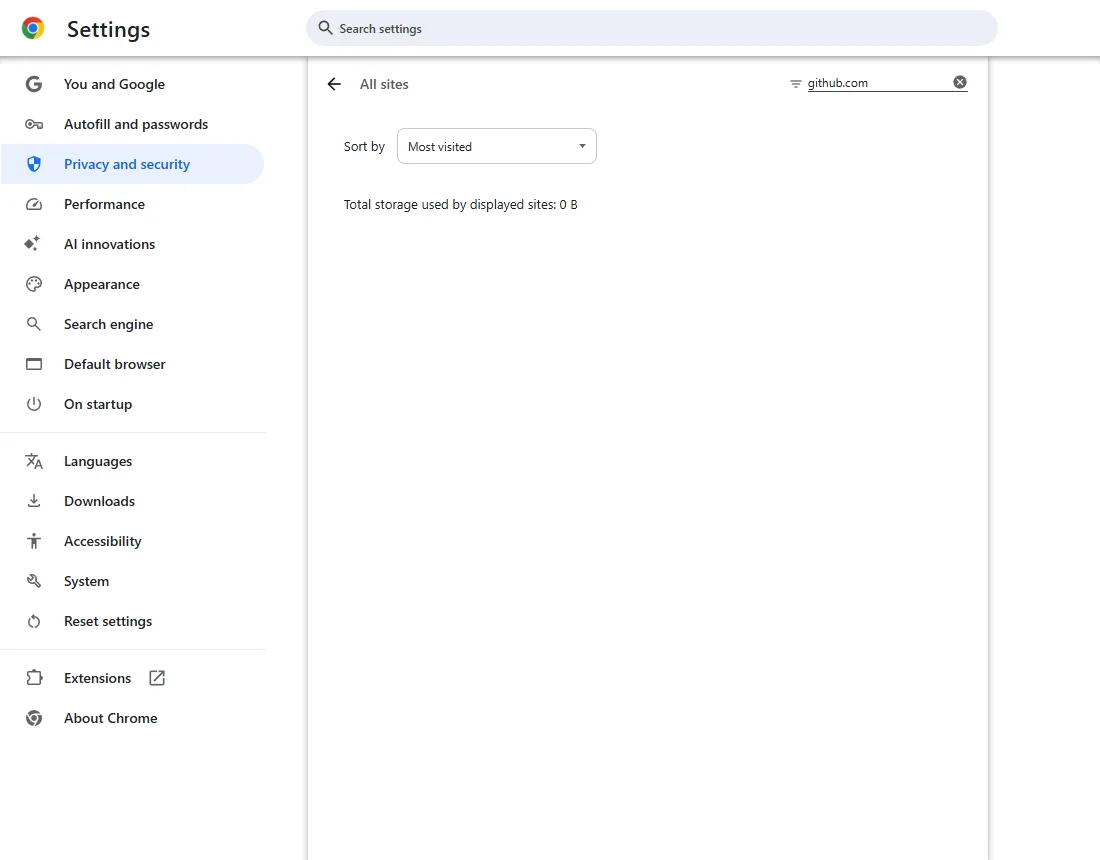
With the filter still applied, the list is empty.
Confirm other sites were kept
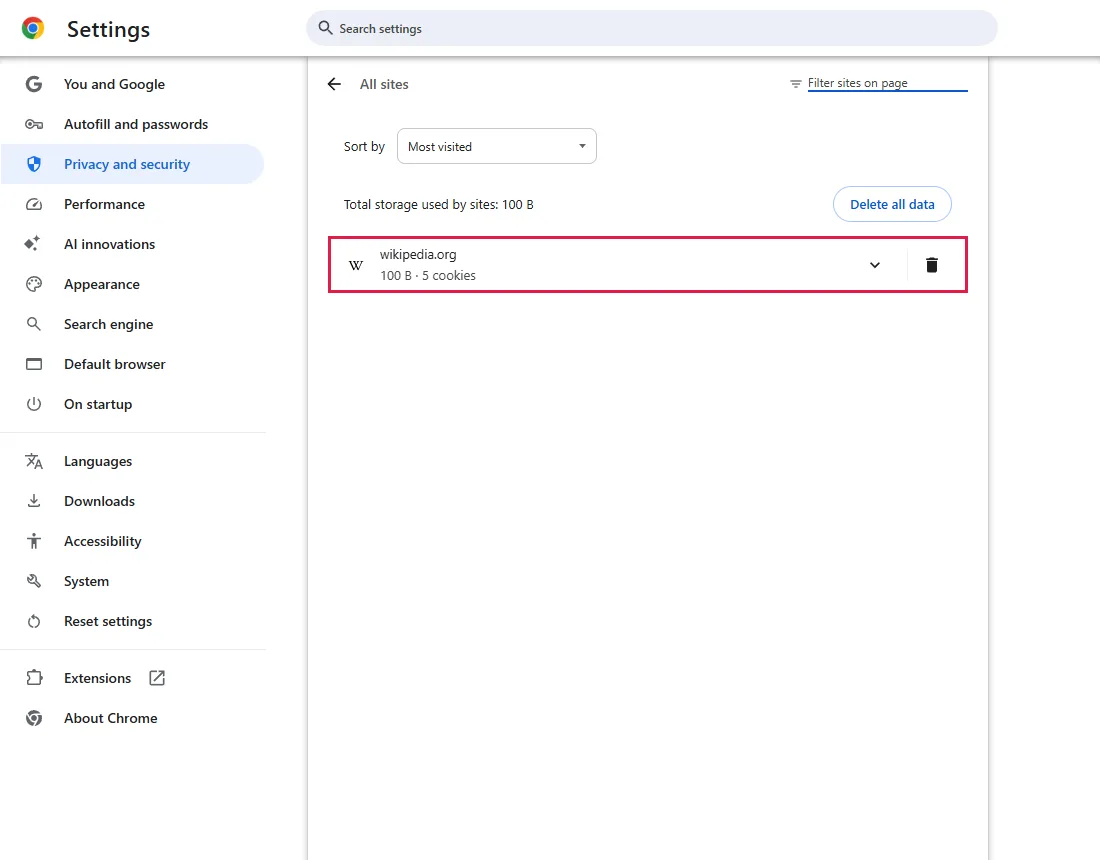
Clear the filter. In our test, wikipedia.org was still listed with its 5 cookies.
Common questions
Does it reset that site's permissions?
Yes. The dialog title says "site data and permissions", so camera, location or notification choices for that site are reset.
Is this the same as "Delete browsing data"?
No. Delete browsing data works on all sites for a time range. This method touches one site. To clear only cached files for all sites while staying signed in, see Clear Chrome's cache without signing out.
If it didn't help
| Situation | What to check |
|---|---|
| The site doesn't appear after filtering | Make sure you're in the Chrome profile where the problem happens. Try a shorter filter, such as github. |
| Still sent back to sign-in | Try the site in an Incognito window (Ctrl+Shift+N). If it works there, turn extensions off one at a time in your normal window. Incognito changes both extensions and stored data, so it doesn't identify the cause by itself. From official docs, not tested here |
| Fails in other browsers and devices too | Check the site's service status before deleting more browser data. |
Related guides
Sources
Google Chrome Help: Delete, allow and manage cookies in Chrome
How we make guides: we run each step in a real browser or operating system, capture every screen, and have a person review the result. AI assists with drafting.