How to Stop a Website From Sending Chrome Notifications
- A website keeps sending pop-up notifications even when it's closed
- Notifications keep appearing in the corner of your screen from a site
- You clicked Allow by mistake and now a site keeps notifying you
chrome://settings/content/notifications. To stop one site, click Add next to Not allowed to send notifications, enter the site (for example https://example.com) and click Add. To stop all sites from even asking, choose Don't allow sites to send notifications. In a fresh profile the default was Sites can ask to send notifications.What this test does and doesn't cover
Procedure checked
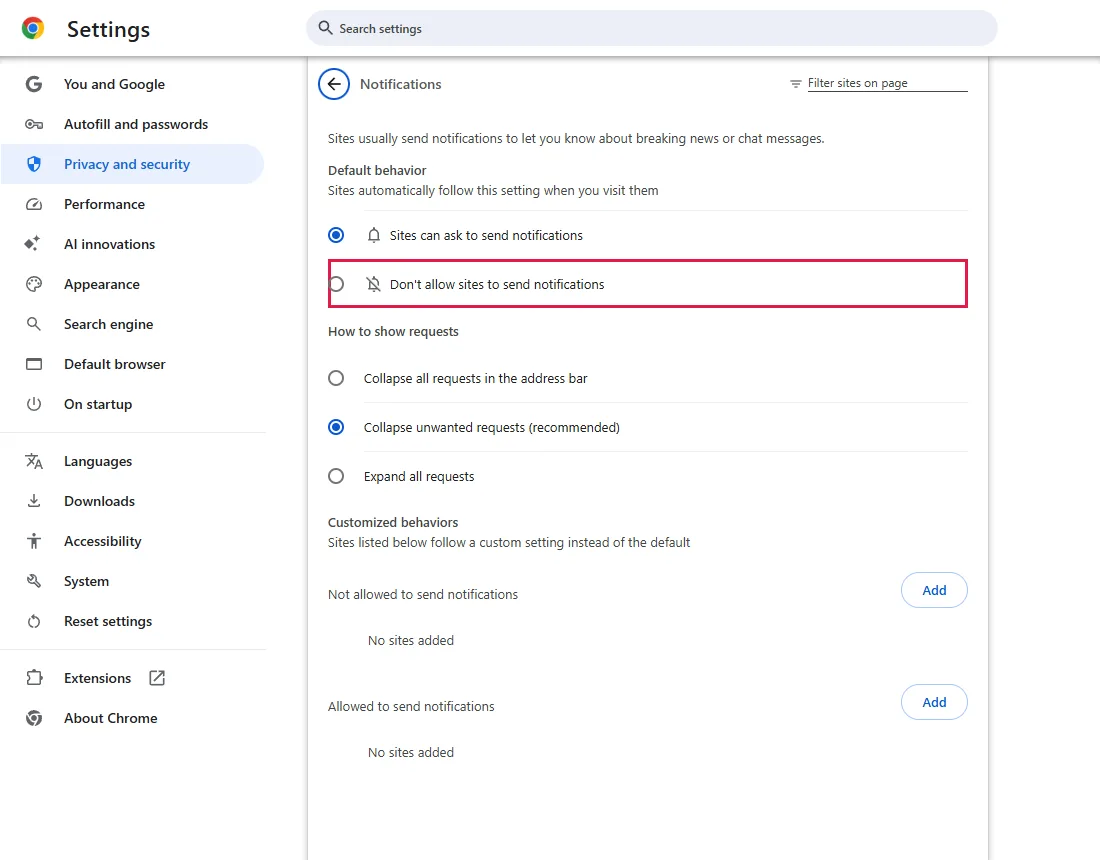
- Default in a fresh profile: "Sites can ask to send notifications"
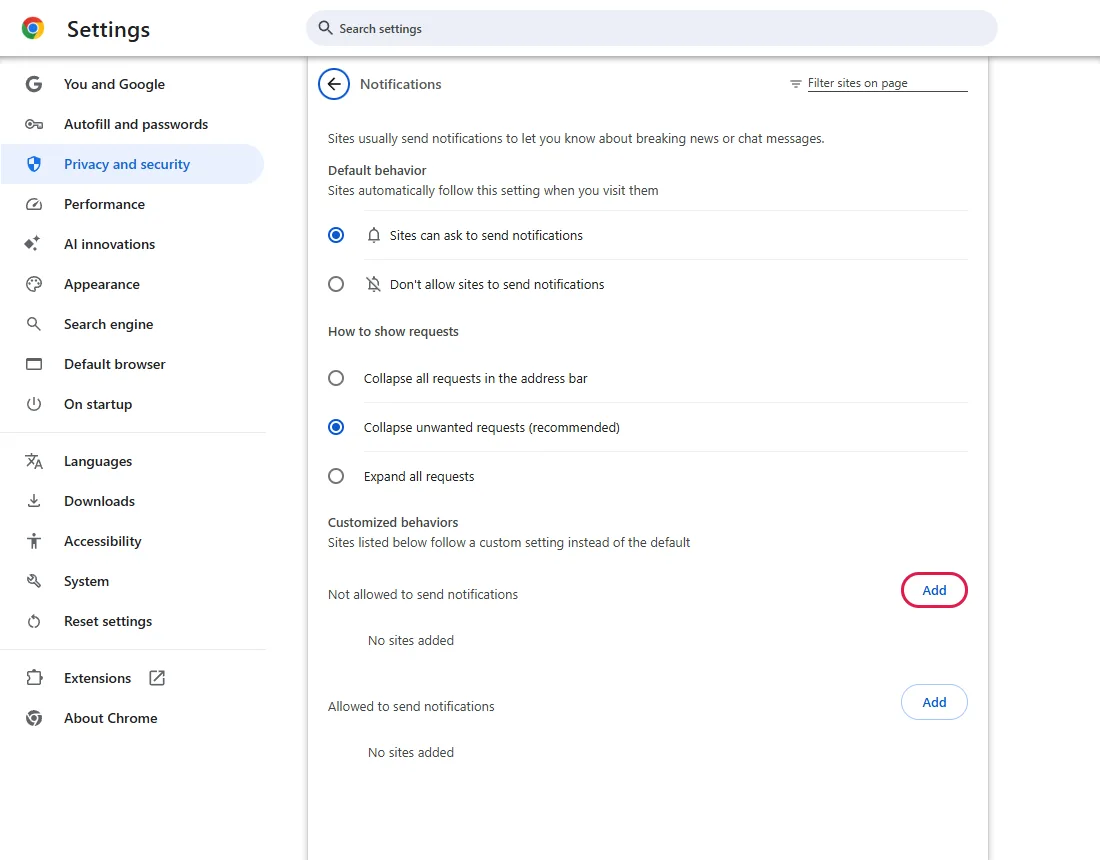
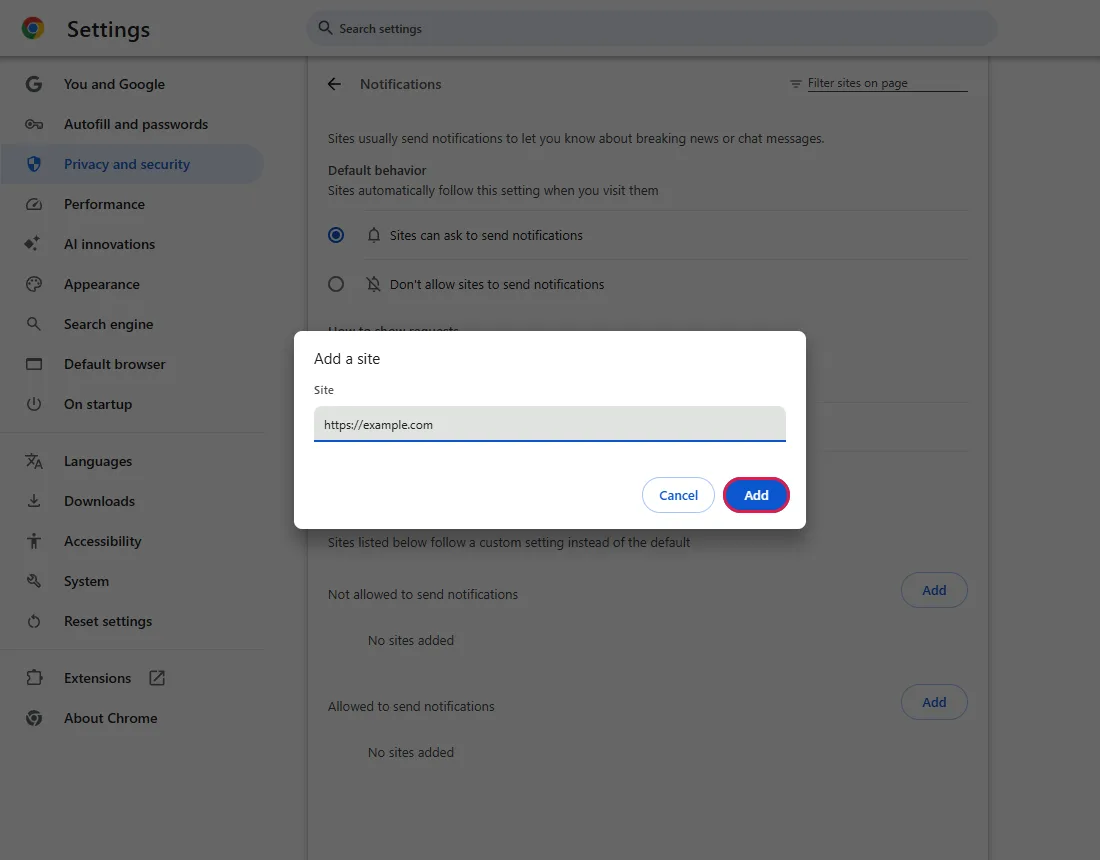
- "Add" next to "Not allowed to send notifications" opens a dialog with a Site field
Result checked
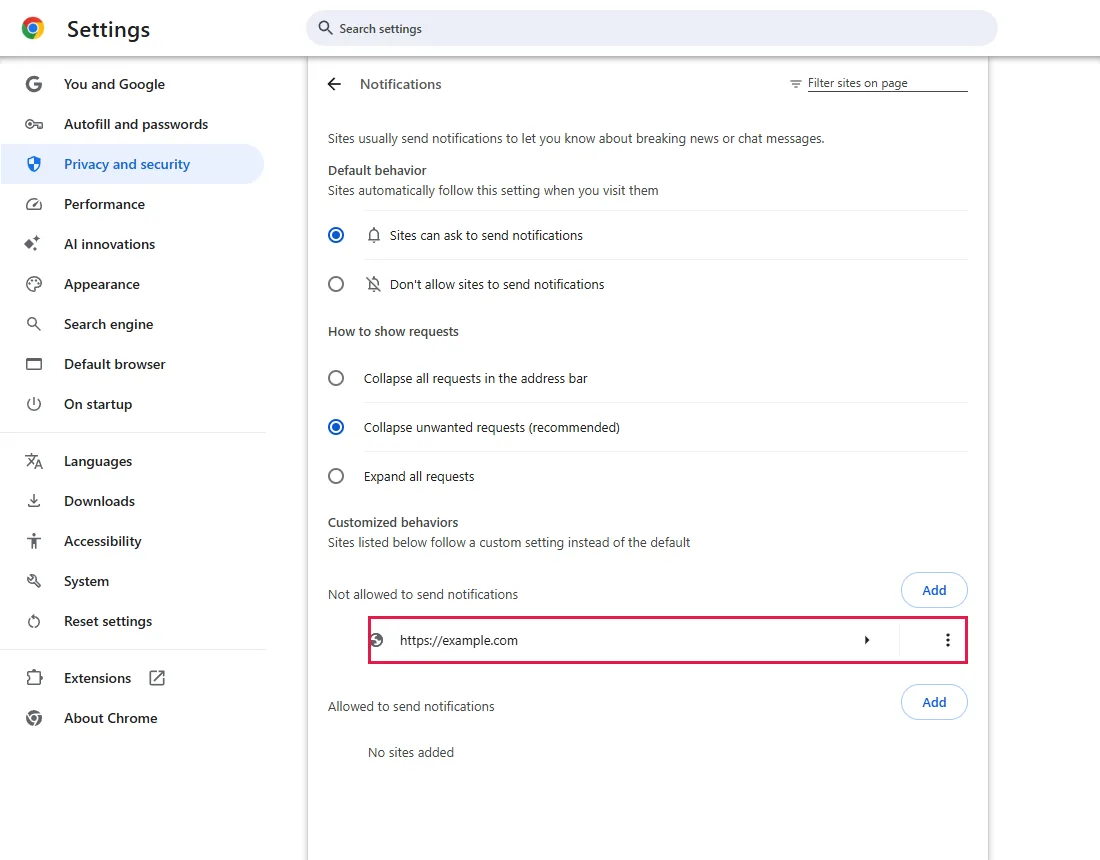
- After adding, https://example.com appeared in the "Not allowed to send notifications" list
Side effects checked
Not tested in this run
Not tested
- A real site that already sends notifications (our fresh profile had none allowed)
- Notifications shown by Windows itself, or by apps other than Chrome
Screenshots come from our own runs unless a step is marked otherwise.
When to use this
Use it when a website keeps showing notifications in the corner of your screen, often ads or fake "virus" warnings, even when you are not on that site. That happens because at some point the site was allowed to send notifications. From official docs, not tested here
A website notification claiming your PC is infected is not proof of an infection. Don't click its links; block the site that sends it as below. From official docs, not tested here
Steps
Open the notification settings
Chrome menu (⋮) → Settings → Privacy and security → Site settings → Notifications, or paste chrome://settings/content/notifications.
Under Default behavior, our fresh profile had Sites can ask to send notifications selected. Don't allow sites to send notifications (outlined) stops all sites from asking.
Find the "Not allowed" list
Further down is Not allowed to send notifications with an Add button (outlined). If the annoying site is listed under Allowed to send notifications, removing it there may only let it ask again; adding it to Not allowed to send notifications blocks it explicitly. From official docs, not tested here
Add the site
Click Add, type the site's address, for example https://example.com, and click Add.
Check the list
The site now appears under Not allowed to send notifications. We checked the list entry; we did not test a site that was already sending notifications.
Common questions
Which site is sending the notifications?
The notification shows the sender's address, usually in small text. Use that address, not a link inside the message. If another notification shows a different subdomain, block that one too. From official docs, not tested here
Will this also stop the site from asking again?
Yes. Sites on the "not allowed" list are blocked and don't ask. From official docs, not tested here
Will this stop pop-up windows or messages inside a page?
No. This setting controls website notifications. Pop-up windows are a separate setting: Allow or block pop-ups for one site. Messages drawn inside a webpage are part of the page itself. From official docs, not tested here
Should I block notifications for all sites?
If you never want website notifications (for example from webmail or chat), choose Don't allow sites to send notifications in step 1. This changes the default for sites that haven't been allowed yet; check the Allowed to send notifications list separately. From official docs, not tested here
If it didn't help
| Situation | What to check |
|---|---|
| Notifications keep coming | They may come from another site address, from an extension, or from a Windows app, not from Chrome. Check chrome://extensions. From official docs, not tested here |
| Many unwanted things changed at once | Search engine or start page changed too? Reset Chrome settings |
Related guides
Sources
Google Chrome Help: Use notifications to get alerts
How we make guides: we run each step in a real browser or operating system, capture every screen, and have a person review the result. AI assists with drafting.