How to Allow Pop-ups for One Site in Chrome (and Keep Blocking the Rest)
- A login, payment or download window never opens in Chrome
- Chrome blocked a pop-up you actually need on one site
- You see Pop-up blocked in the address bar
chrome://settings/content/popups. Next to Allowed to send pop-ups and use redirects, click Add, enter the site's address (for example https://example.com) and click Add. The default stays Don't allow sites to send pop-ups or use redirects, so every other site is still blocked.What this test does and doesn't cover
Procedure checked
- In a fresh profile the default was "Don't allow sites to send pop-ups or use redirects"
- "Add" next to "Allowed to send pop-ups and use redirects" opens a dialog with a Site field
Result checked
- After adding, https://example.com appeared in the allowed list
Side effects checked
Not tested in this run
Not tested
- Whether a real site's pop-up then opens (we checked the setting, not a pop-up)
- The pop-up icon in the address bar
Screenshots come from our own runs unless a step is marked otherwise.
When to use this
Use it when a site you trust needs to open a new window, for example a bank login, a payment page or a file download, and Chrome blocks it. Allowing one site is safer than allowing pop-ups everywhere.
Steps
Open the pop-up settings
Chrome menu (⋮) → Settings → Privacy and security → Site settings → Pop-ups and redirects, or paste chrome://settings/content/popups.
In our fresh profile the default was Don't allow sites to send pop-ups or use redirects. Leave it like that. Below, find Allowed to send pop-ups and use redirects and its Add button (outlined).
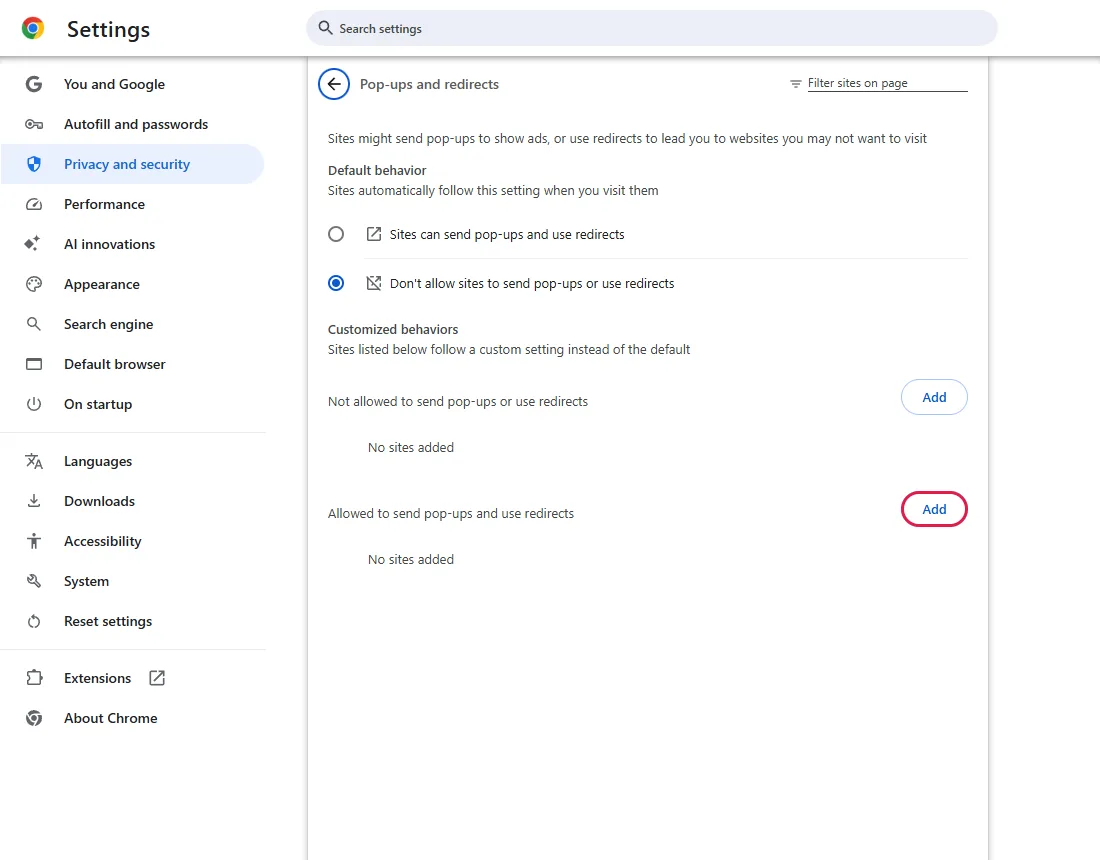
Click Add
A dialog asks for the site.
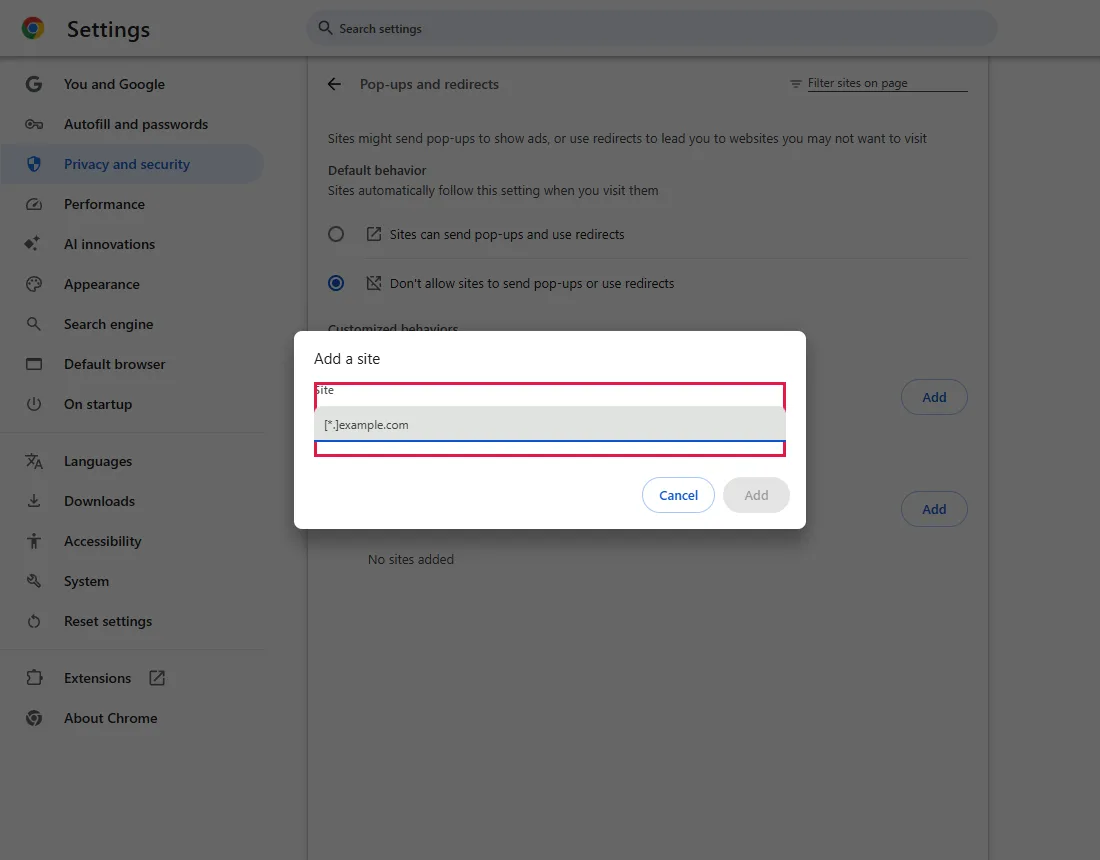
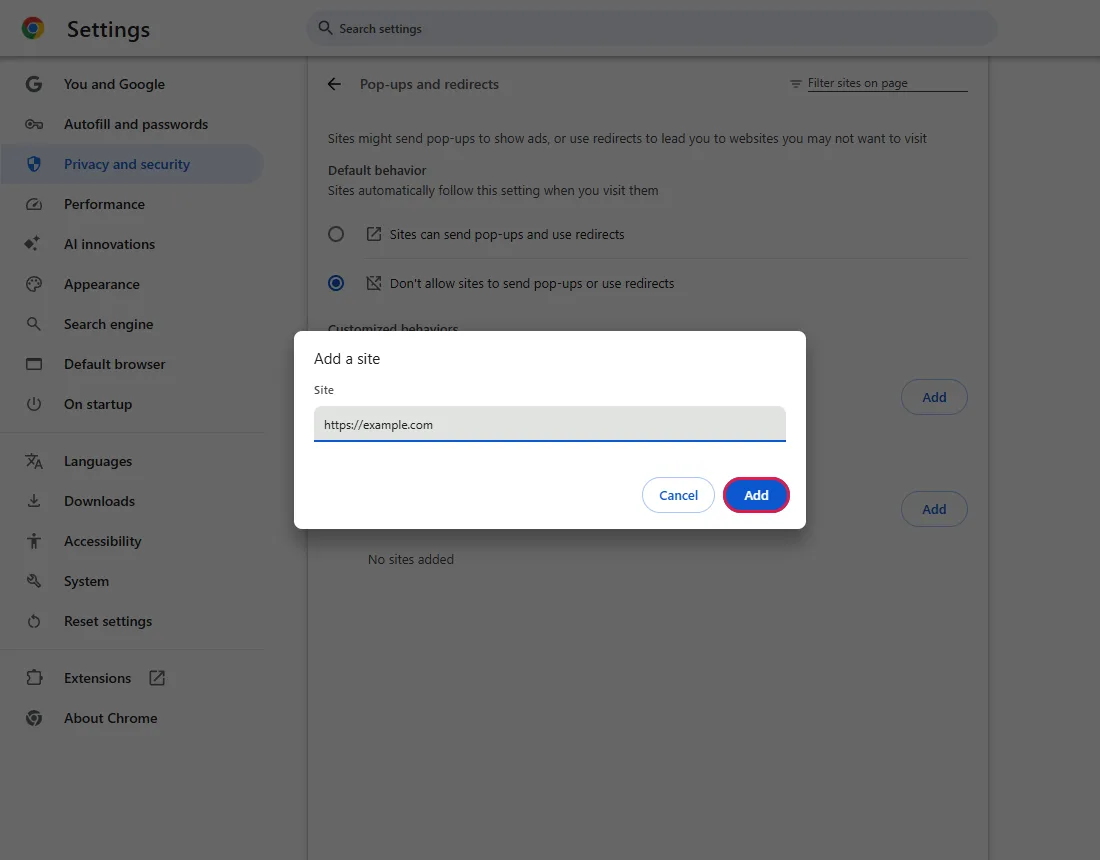
Enter the address and click Add
Type the site's address, for example https://example.com, then click Add.
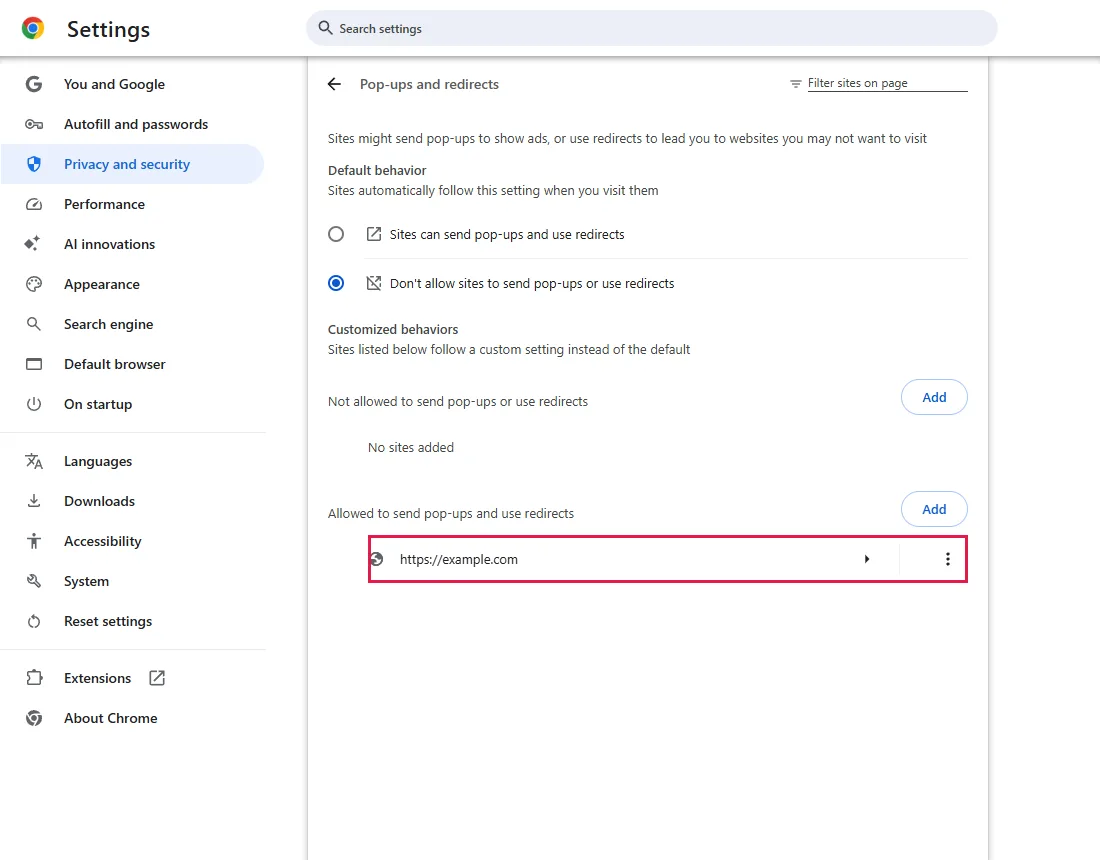
Check the list
The site now appears under Allowed to send pop-ups and use redirects.
Reload the site and try again.
Common questions
How do I remove the site later?
Click the three dots next to the site in the list and remove it. From official docs, not tested here
Should I switch the default to allow pop-ups?
Better not. Pop-ups and redirects are often used for unwanted ads. Allow only the sites that need it.
Can I allow pop-ups from the address bar instead?
Yes. When Chrome blocks a pop-up, an icon appears at the right end of the address bar. Click it, choose to always allow pop-ups and redirects from that site, then click Done. We did not test this icon. From official docs, not tested here
What does [*.] in front of a site mean?
[*.]example.com covers example.com and all its subdomains, such as login.example.com. Typing https://example.com covers that HTTPS site and its pages, but not its subdomains. From official docs, not tested here
If it didn't help
| Situation | What to check |
|---|---|
| Still blocked | Check the exact address: https:// vs http://, and www. or not. Pop-ups can also come from a different domain (for example a payment provider); add that one too. From official docs, not tested here |
| No window, no warning | A pop-up blocker extension may block it: try an Incognito window or check chrome://extensions. From official docs, not tested here |
| The options are greyed out | Your organisation may manage this setting. Open chrome://management to check. From official docs, not tested here |
Related guides
Sources
Google Chrome Help: Block or allow pop-ups in Chrome
How we make guides: we run each step in a real browser or operating system, capture every screen, and have a person review the result. AI assists with drafting.