How to Clear Only Chrome's Cache and Keep Cookies (Tested)
- A page shows an old version and a normal refresh doesn't fix it
- You want to clear the cache but stay signed in to your sites
- Images or styles load broken until you clear cached files
Ctrl+Shift+Delete, leave only Cached images and files checked and click Delete from this device. Unchecking Cookies and other site data keeps your cookies. On our local test site, the cached stylesheet was downloaded again on the next page load and we stayed signed in; real sites may sign you in differently.What this test does and doesn't cover
Procedure checked
- Dialog opened with all four boxes checked and "Last hour" selected (fresh test profile)
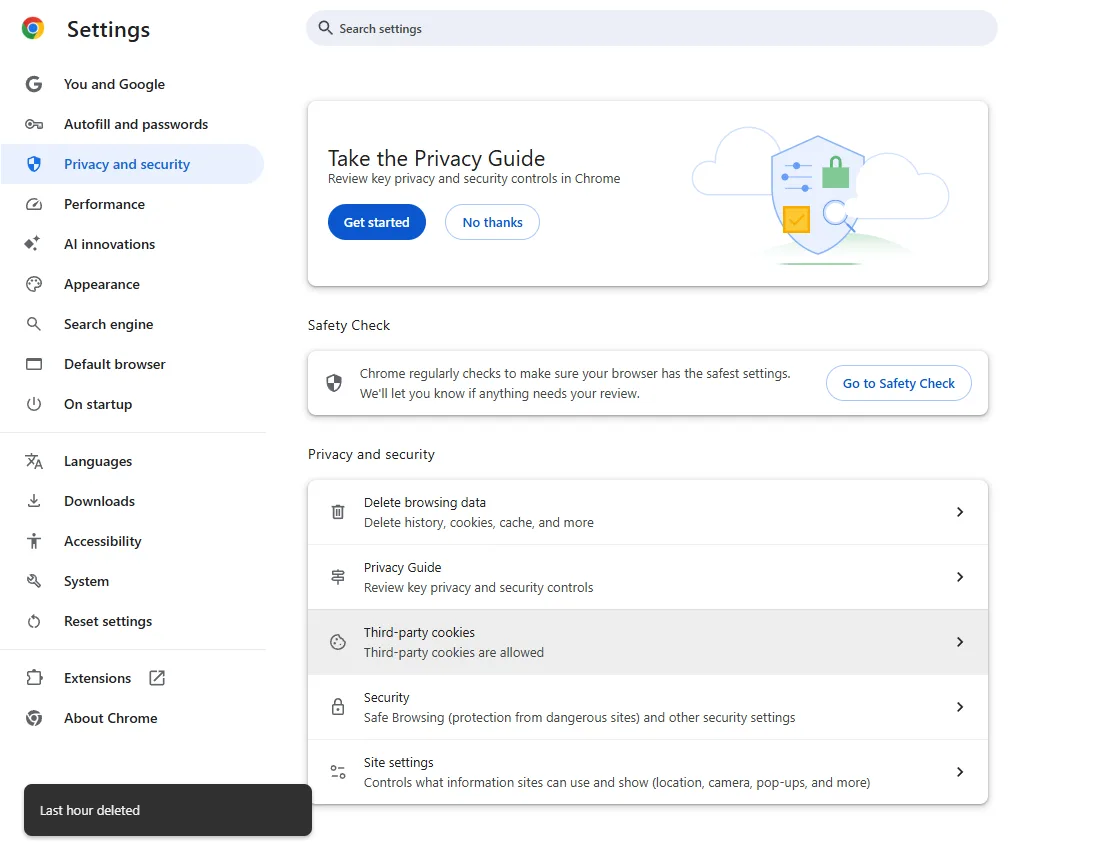
- Only "Cached images and files" can be left checked; toast "Last hour deleted" afterwards
Result checked
- Before deleting, the test site's stylesheet came from the cache (download count stayed at 1)
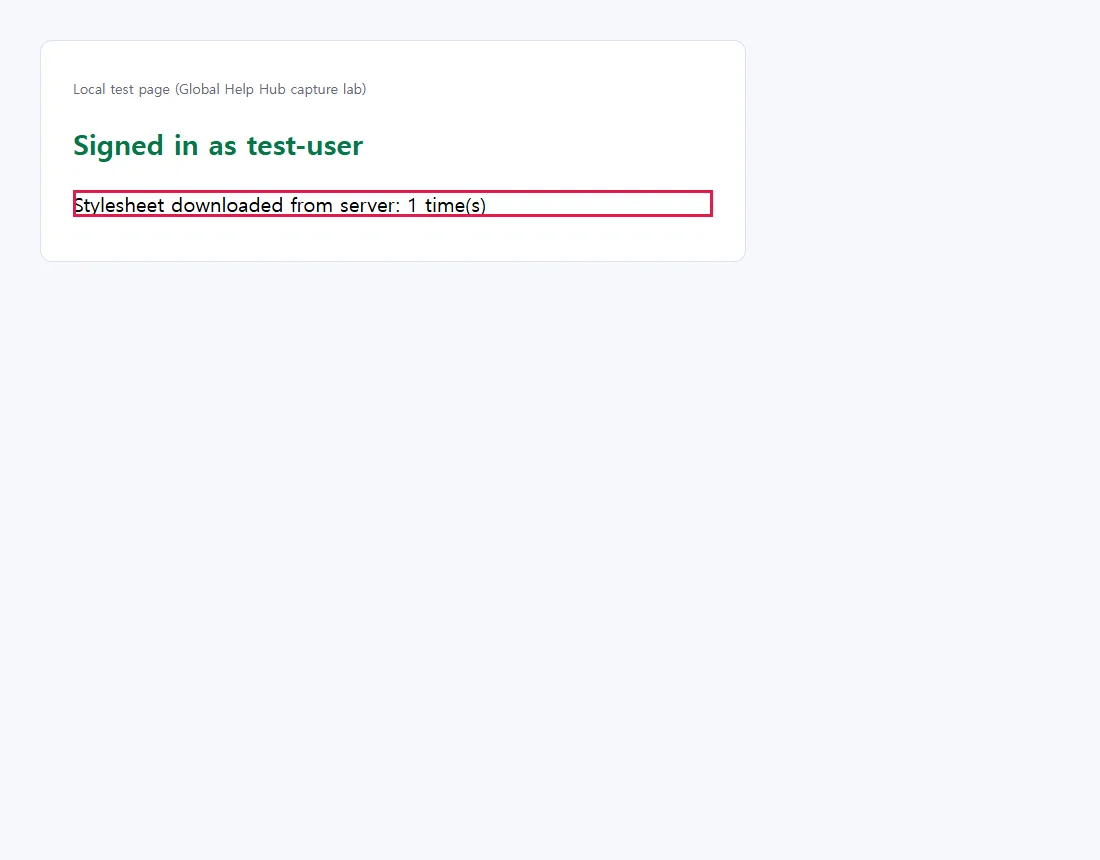
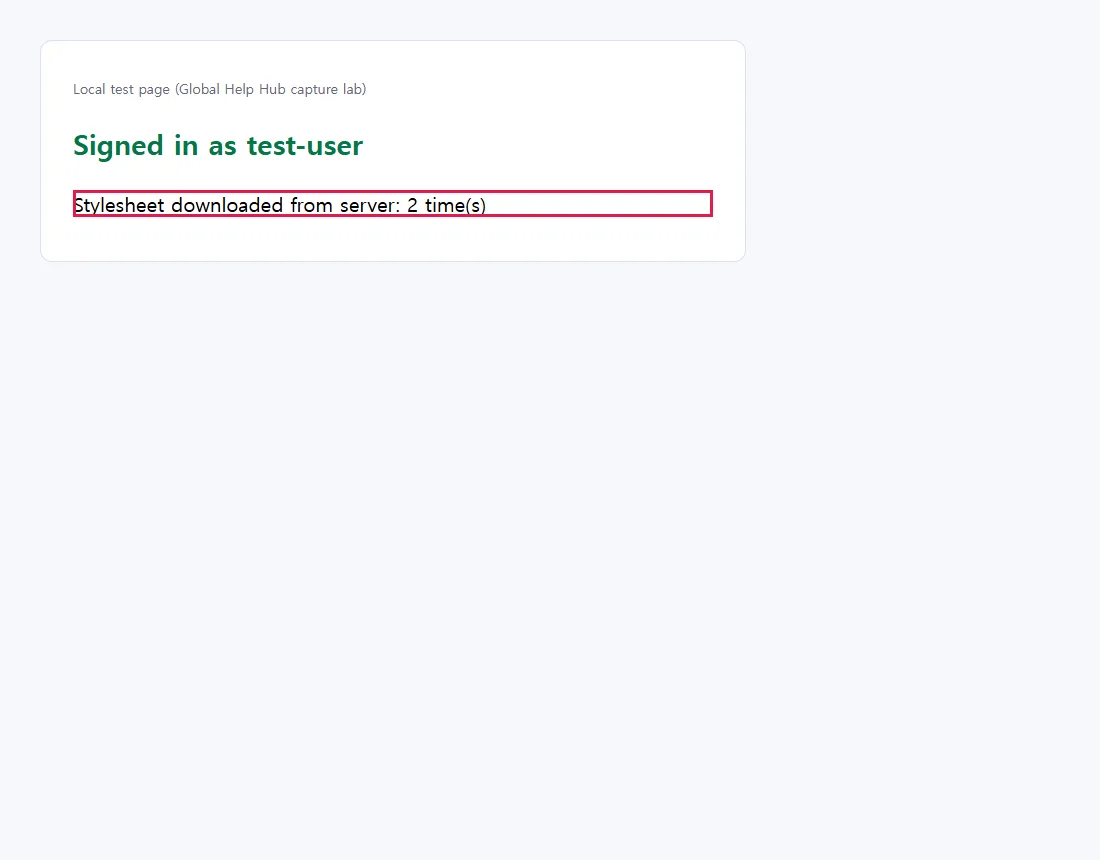
- On the next page load after deleting, it was downloaded again (count 2) and the page still showed "Signed in as test-user"
Side effects checked
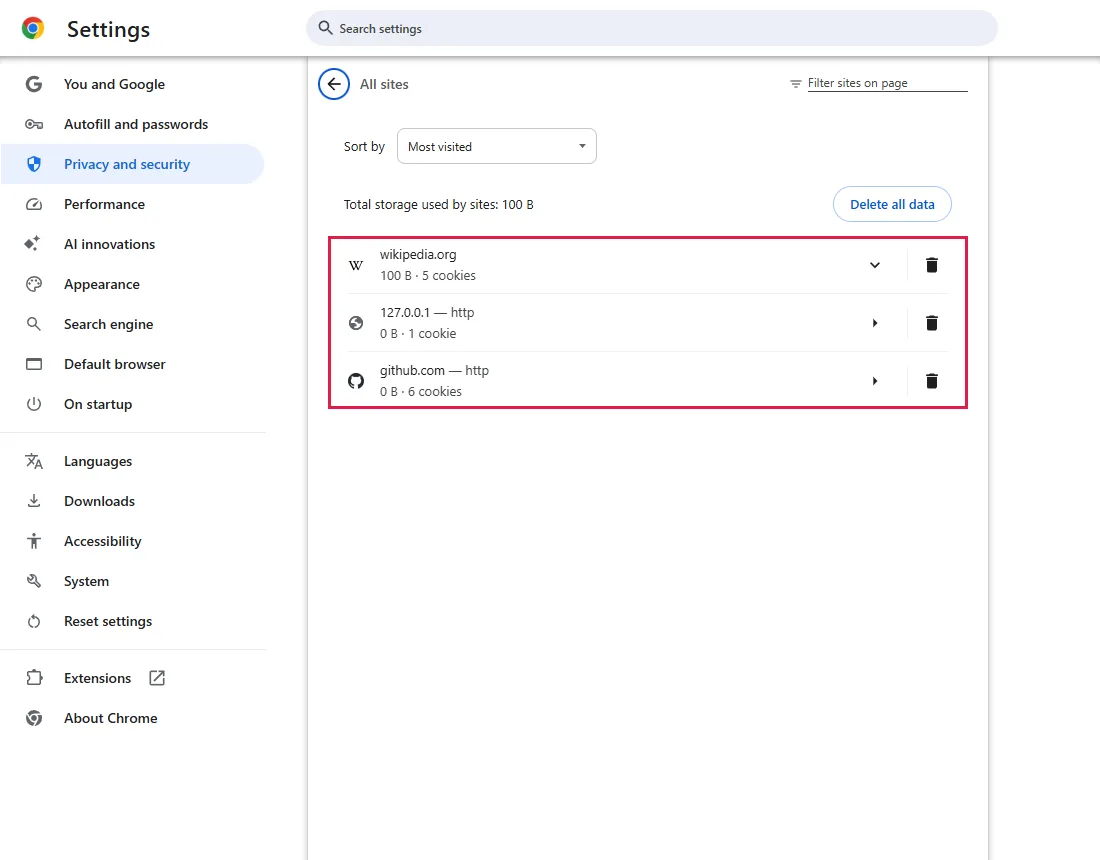
- github.com, wikipedia.org and the test site were still listed with cookies afterwards
Not tested
- Real websites (our test site uses a standard session cookie; other sign-in methods may behave differently)
- Whether every cookie value is unchanged (we checked that the sites are still listed with cookies)
Screenshots come from our own runs unless a step is marked otherwise.
When to use this
Use it when a site shows an old version, a broken layout, or images that don't update, and a normal reload didn't help. Clearing cached files makes Chrome fetch them again; some sites also keep data in other storage, so this doesn't fix every outdated page.
For a single page, try a hard reload first (Ctrl+Shift+R). From official docs, not tested here
How we tested
We used a small test site running on our own PC: it signs you in with a session cookie and counts how often its stylesheet is downloaded. That let us check two things separately: are you still signed in, and was the cached file really fetched again.
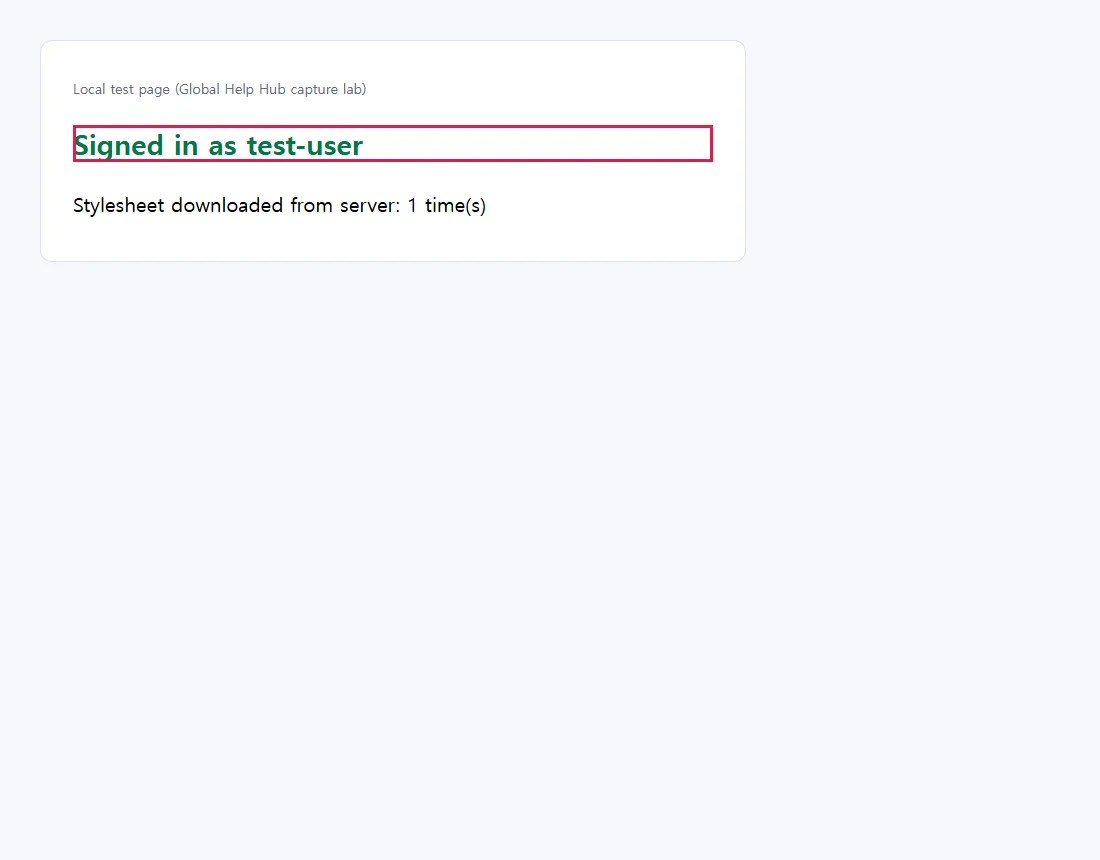
Opening the page again still showed 1 download, so the stylesheet was coming from the cache.
Steps
Open Delete browsing data
Press Ctrl+Shift+Delete, or paste chrome://settings/clearBrowserData into the address bar. From official docs, not tested here
In our fresh test profile the dialog opened with Last hour selected and all four boxes checked, including Cookies and other site data (outlined).
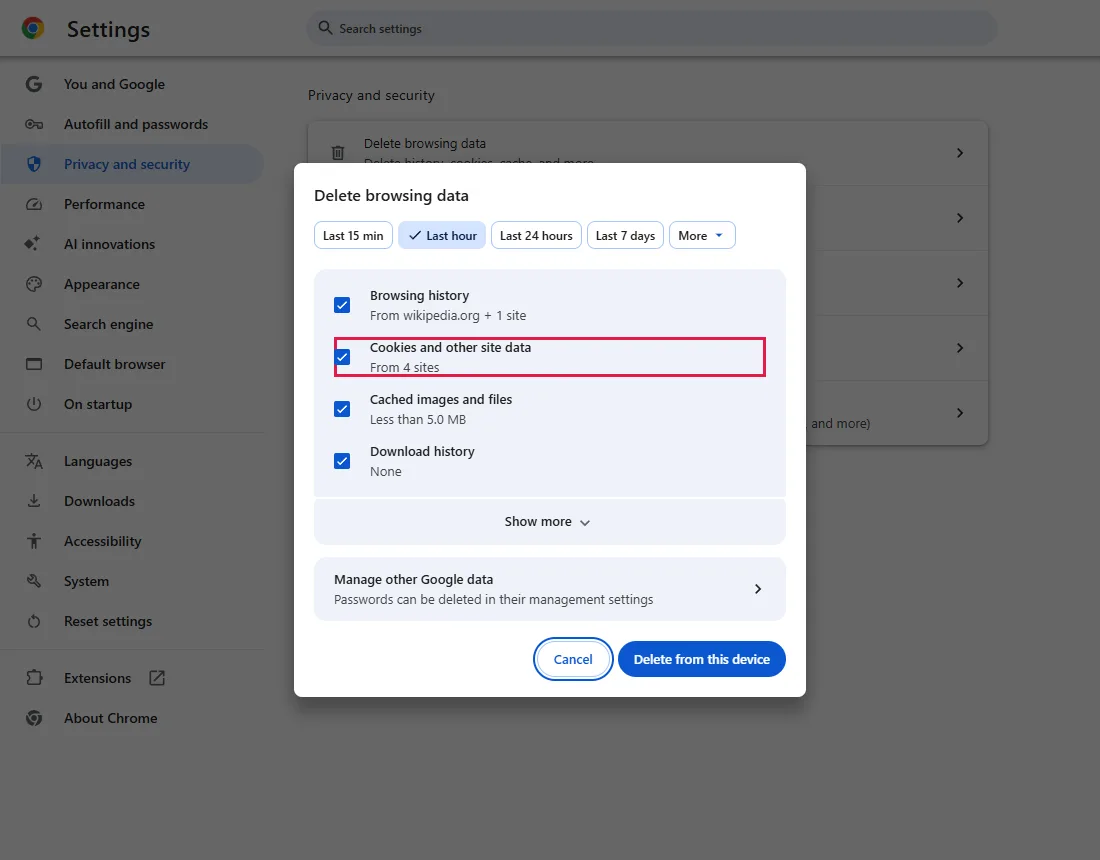
Deleting Cookies and other site data can sign you out of sites. Uncheck it in the next step.
Keep only "Cached images and files"
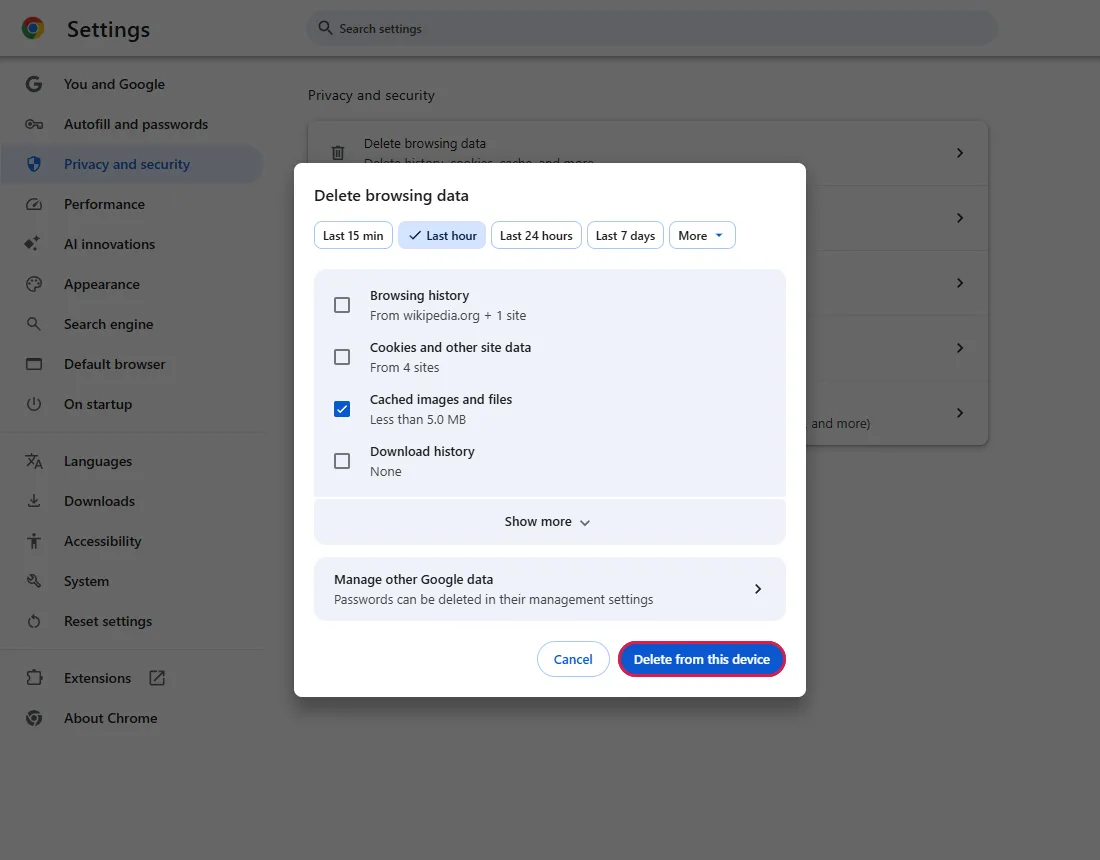
Uncheck Browsing history, Cookies and other site data and Download history. Pick a time range (Last 15 min, Last hour, Last 24 hours, Last 7 days, or More), then click Delete from this device.
Look for the confirmation
A message appears at the bottom left; ours read "Last hour deleted".
Check the result
Open the page again. On our test site the stylesheet was downloaded again right away (2 times), so the cached copy was gone, and we were still signed in. No restart was needed.
Common questions
Will this sign me out?
Not through cookies, if Cookies and other site data stays unchecked. Our test site kept us signed in, and the cookie list still showed every site afterwards:
Sites that sign you in another way may behave differently; we tested a standard session cookie.
Does this delete saved passwords?
Not with these boxes. The dialog's Manage other Google data entry says "Passwords can be deleted in their management settings".
Which time range should I pick?
A cached file can be older than the problem, so a short range may miss it. A longer range removes more, and sites may load a little slower the first time afterwards. From official docs, not tested here
If it didn't help
| Situation | What to check |
|---|---|
| Page still looks old | Try a longer time range under More, or clear only that site's data: Delete cookies for one site (signs you out of that site). |
| Broken in every browser | Compare on another network or device; the cause may be the site, your network, DNS or security software. |
Related guides
Sources
Google Chrome Help: Clear cache & cookies
How we make guides: we run each step in a real browser or operating system, capture every screen, and have a person review the result. AI assists with drafting.