How to Allow Camera or Microphone for a Site in Chrome (When It's Blocked)
- A video-call or meeting site says the camera or microphone is blocked
- The camera icon in Chrome's address bar has a red cross
- You clicked Block by mistake and now the site can't see your camera
chrome://settings/content/camera, find the site under Not allowed to use your camera, and open it. On the site's permission page, set Camera to Allow (and Microphone the same way). Then reload the site. The default for other sites stays unchanged, so only this site is affected.What this test does and doesn't cover
Procedure checked
- The Camera page lists a blocked site under "Not allowed to use your camera"
- A site's permission page has Camera and Microphone dropdowns with Allow / Block / Ask
Result checked
- Changing Camera and Microphone from Block to Allow took effect on the page right away
Side effects checked
Not tested in this run
Not tested
- Whether a real video call then sees the camera (our test run has no camera device)
- The camera/mic icon in the address bar as a shortcut
Screenshots come from our own runs unless a step is marked otherwise.
When to use this
Use it when a site you trust, usually a video call or meeting site, can't use your camera or microphone, and Chrome shows it as blocked. This can happen after you click Block on the permission prompt. Allowing this one site leaves the default for every other site unchanged, so it's safer than allowing all sites.
If the site never asked at all, the camera may be blocked for every site, or Windows or another app may be holding it. The checks below cover both. From official docs, not tested here
Steps
Open the camera settings
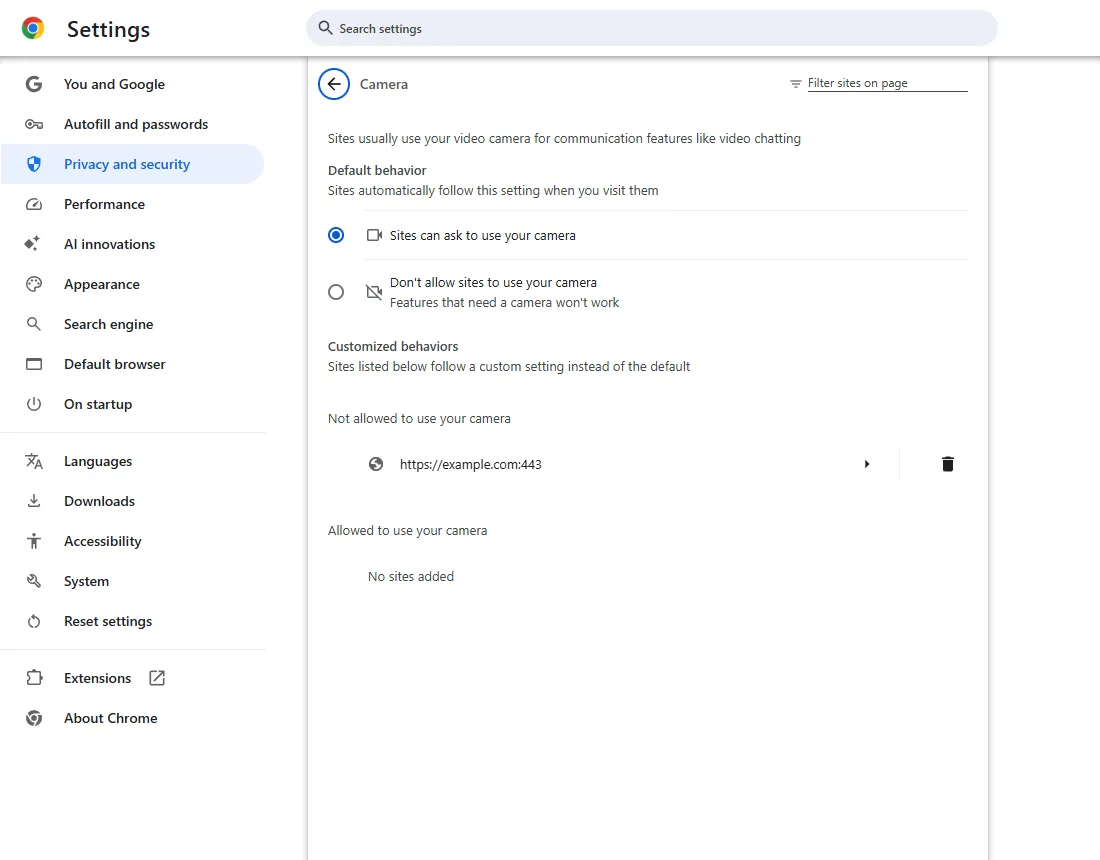
Chrome menu (⋮) → Settings → Privacy and security → Site settings → Camera, or paste chrome://settings/content/camera.
Under Not allowed to use your camera you'll see the blocked site. Click it to open its settings.
Open the site's permissions
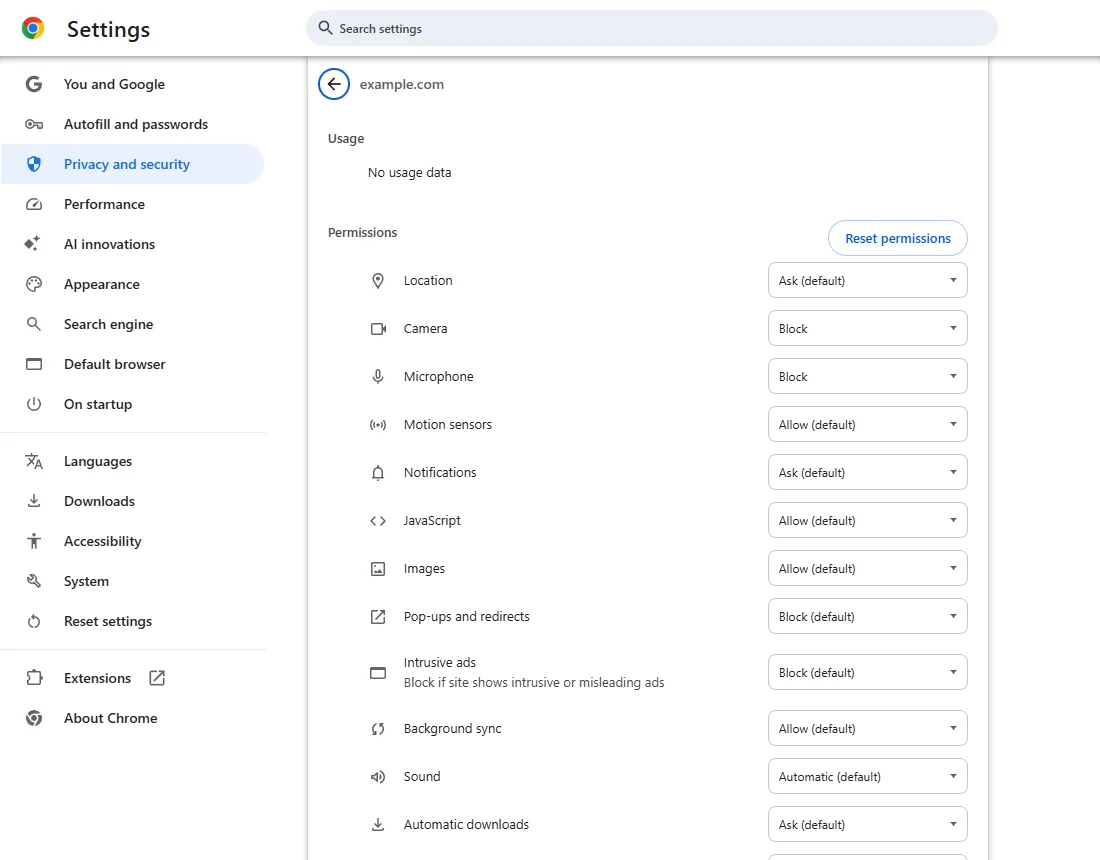
The site's own page shows every permission. In this example both Camera and Microphone are set to Block; yours may differ.
If only the microphone is blocked, you can also start from chrome://settings/content/microphone, which works the same way.
Set Camera to Allow
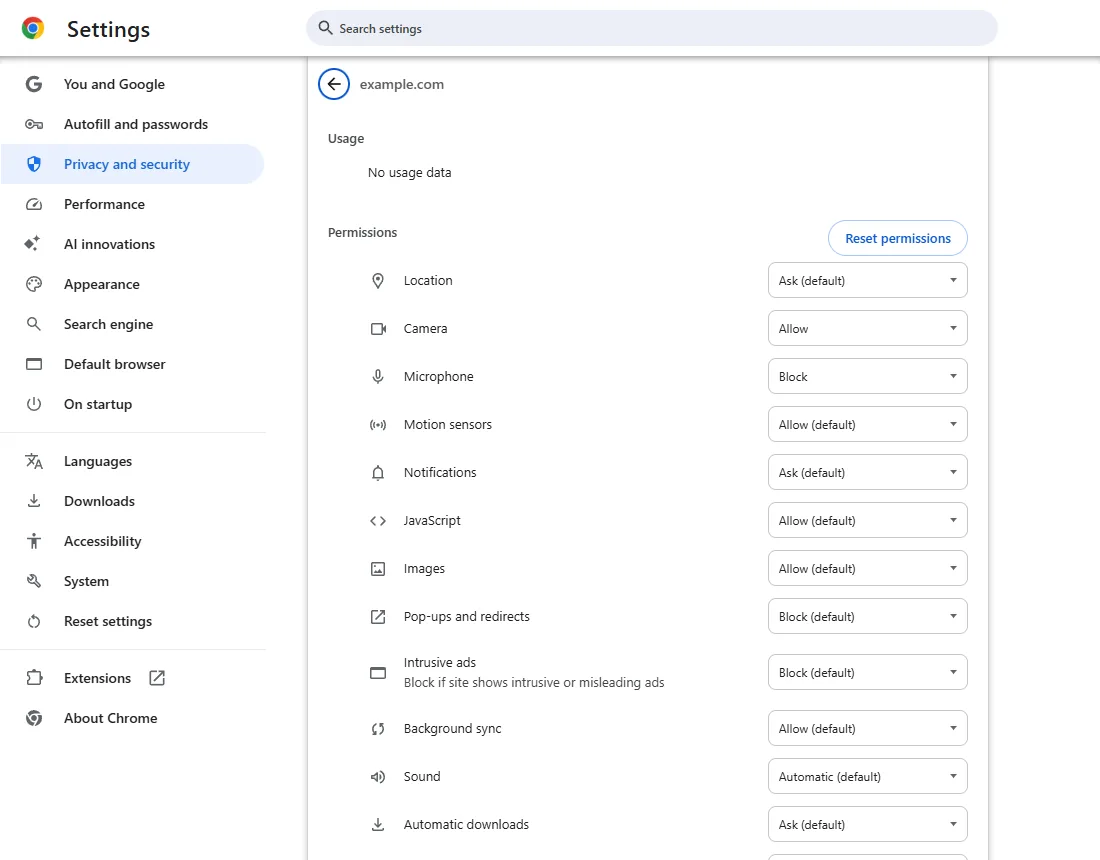
Click the Camera dropdown and choose Allow.
Set Microphone to Allow
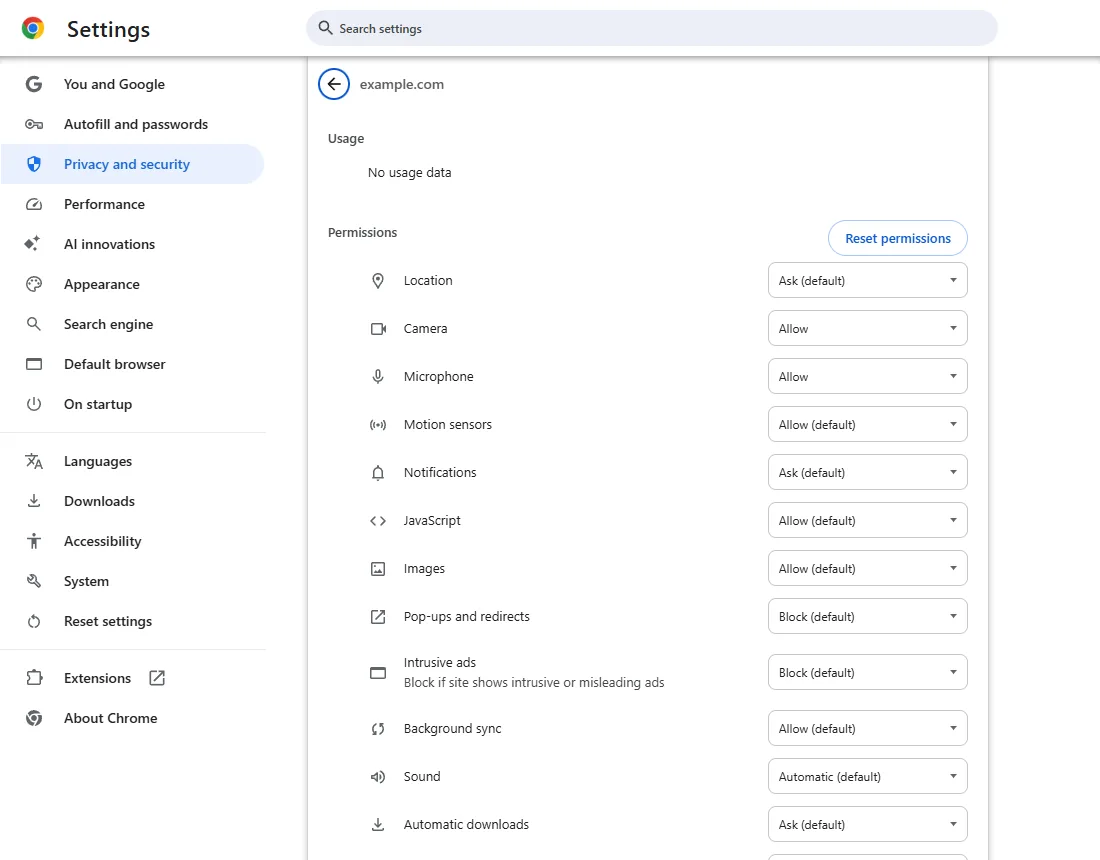
If the call also needs your microphone, do the same for Microphone.
Go back to the site and reload it. Allow removes Chrome's block for this site; it doesn't guarantee the hardware works, so if the camera still doesn't appear, see the checks below.
Common questions
I don't see the site under "Not allowed to use your camera"
That one site isn't blocked, but the camera can still be off for another reason: the Default behavior at the top may be set to Don't allow, the microphone may be blocked instead (check chrome://settings/content/microphone), or a policy may control it. Open the site and click the site controls (tune) icon at the left of the address bar → Site settings to see Camera and Microphone for that site. From official docs, not tested here
What does "Ask (default)" mean?
Chrome can prompt you when the site asks for the camera and no permission is already set for it. Allow skips the prompt for this site; Block refuses it. From official docs, not tested here
Will this allow every site to use my camera?
No. You changed this one site. The Default behavior at the top of the Camera page still controls every other site, and Sites can ask only lets a site prompt you, not use the camera on its own. From official docs, not tested here
The site still can't see the camera after I allowed it
Check in order: close any other app using the camera (another call, the Camera app); make sure the right camera is picked in the site's own device menu; and on Windows open Settings → Privacy & security → Camera (and Microphone), turn on camera access and Let desktop apps access your camera. From official docs, not tested here
If it didn't help
| Situation | What to check |
|---|---|
| No camera prompt and nothing in the blocked list | Check the Default behavior (it may be Don't allow), that the page is https:// not http://, and that the camera isn't embedded from another site. Then check Windows camera privacy settings. From official docs, not tested here |
| It works in another browser but not Chrome | A Chrome extension may be interfering; try an Incognito window or chrome://extensions. From official docs, not tested here |
| The setting is greyed out and says it's managed | A policy may control it. Open chrome://policy to see the policy and chrome://management for management status. From official docs, not tested here |
Related guides
Sources
Google Chrome Help: Use your camera & microphone in Chrome
How we make guides: we run each step in a real browser or operating system, capture every screen, and have a person review the result. AI assists with drafting.