Chrome ERR_NAME_NOT_RESOLVED: How to Fix "server IP address could not be found"
- Chrome says the server IP address could not be found
- The page fails with ERR_NAME_NOT_RESOLVED
- One site won't open but other sites work
chrome://settings/security → Use secure DNS → pick a provider such as Cloudflare or Google, and chrome://net-internals/#dns → Clear host cache.What this test does and doesn't cover
Procedure checked
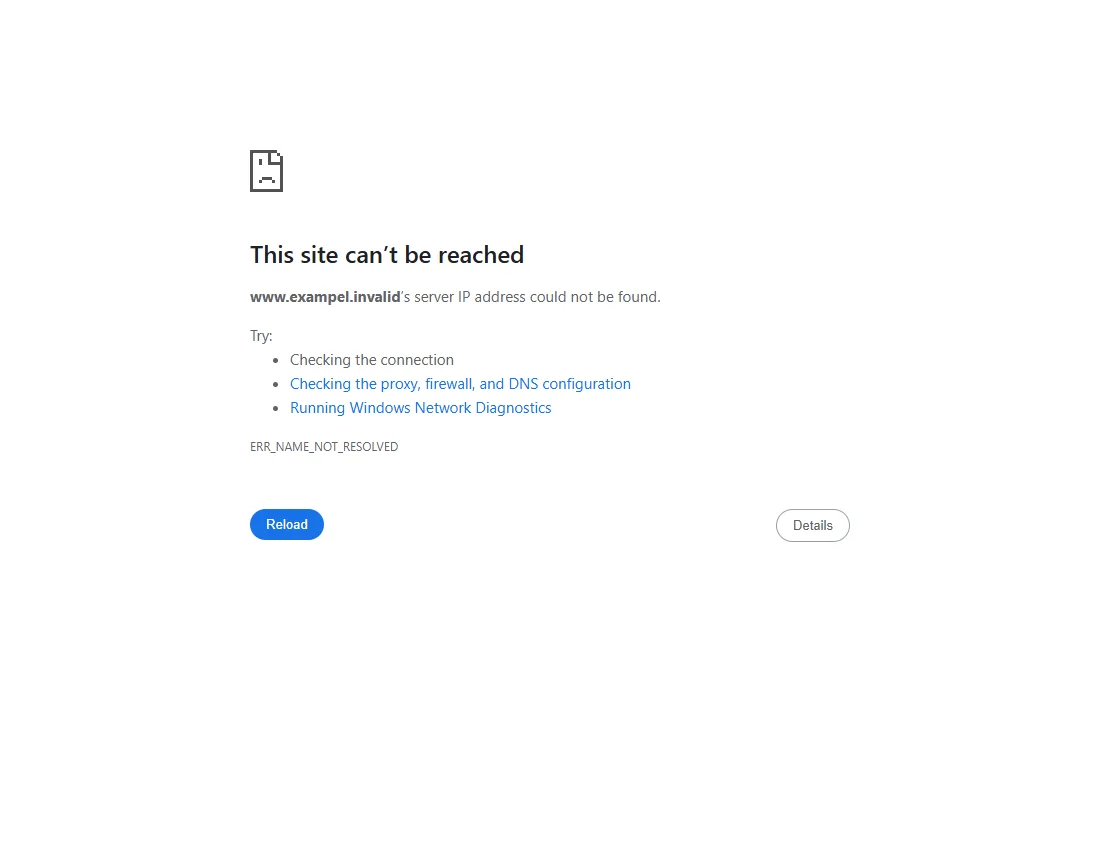
- Chrome 157 error page text for a name that does not exist (heading, message, suggestions, ERR_NAME_NOT_RESOLVED)
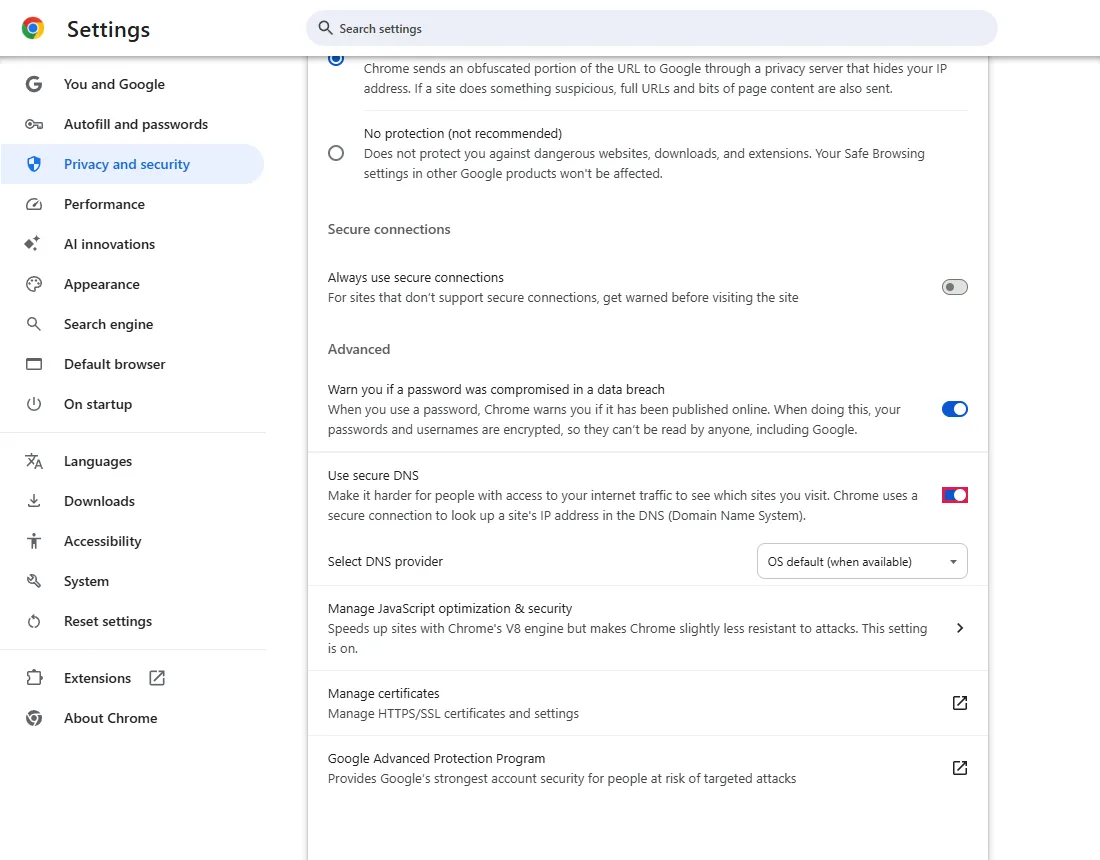
- "Use secure DNS" was on with "OS default (when available)" in a fresh profile; provider list: Cloudflare, Google, OpenDNS, CleanBrowsing, custom
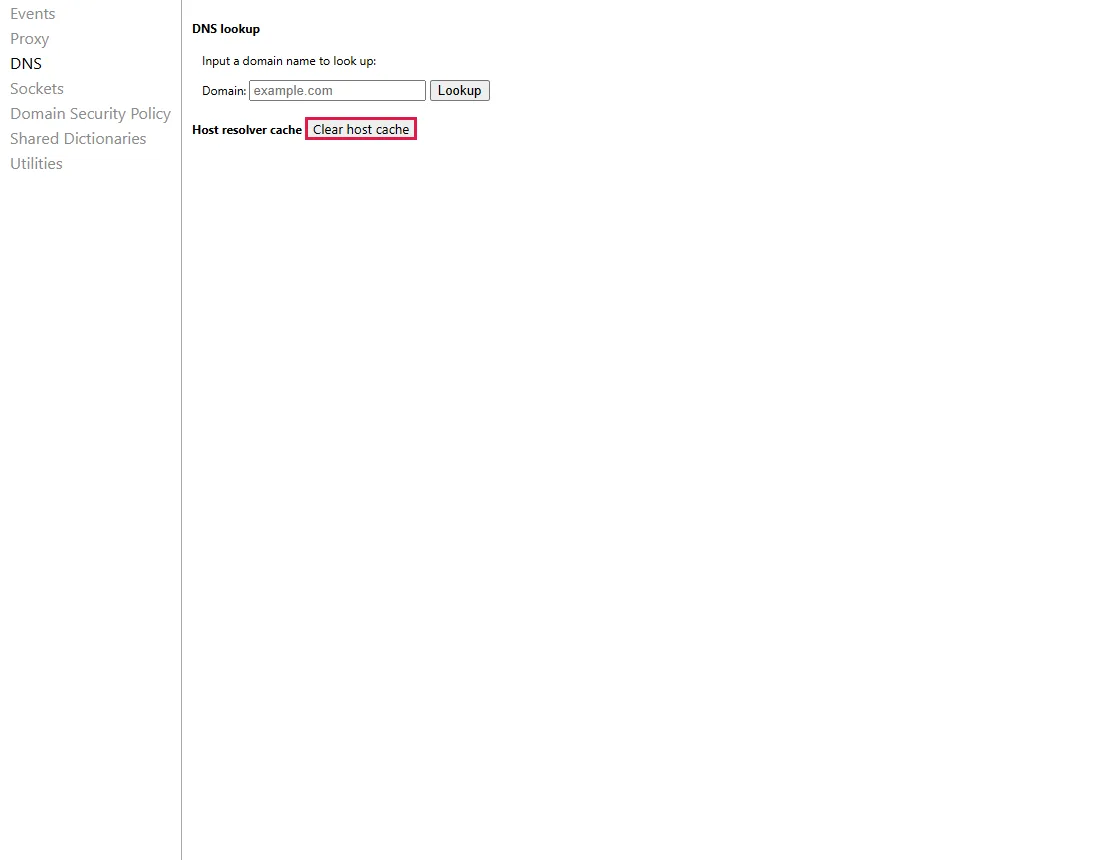
- "Clear host cache" button on chrome://net-internals/#dns
Result checked
Not tested in this run
Side effects checked
Not tested in this run
Not tested
- Whether switching the DNS provider fixes a real lookup failure (our test name does not exist anywhere, so nothing can fix it)
- The DNS_PROBE_FINISHED_NXDOMAIN code itself: our automated test browser showed ERR_NAME_NOT_RESOLVED for the same screen
- Windows-level steps (ipconfig /flushdns, router restart): not run on our test PC
Screenshots come from our own runs unless a step is marked otherwise.
Is this your error?
Seeing a different error code? ERR_CONNECTION_REFUSED means the server refused the connection. ERR_TOO_MANY_REDIRECTS means the page reloads in a loop.
This site can’t be reached
www.exampel.invalid’s server IP address could not be found.
Try:
Checking the connection
Checking the proxy, firewall, and DNS configuration
Running Windows Network Diagnostics
ERR_NAME_NOT_RESOLVED
On your screen the address of the site you opened appears instead of www.exampel.invalid. The code at the bottom can also read DNS_PROBE_FINISHED_NXDOMAIN: Chrome shows that after it checks your DNS in the background, for the same problem. From official docs, not tested here
How we reproduced it
We opened a mistyped address under .invalid, a name that is reserved so that it never exists. That is exactly what happens with a typo. Reproduced by simulating the condition: reserved .invalid name, guaranteed not to resolve
Steps
Check the address
Look for typos, a missing letter or the wrong ending (.com vs .co). Type the site name into the Google search box instead and open it from the results. In our test, a one-letter typo was enough to get this screen.
One site or all sites?
| What you see | What it means |
|---|---|
| Every site fails | Your internet connection or your DNS. Check Wi-Fi, then restart the router. From official docs, not tested here |
| Only this site, on your phone too (mobile data, not Wi-Fi) | The site's domain is probably down or expired. Only the site owner can fix it. |
| Only this site, only on this PC | Something local: DNS cache, proxy, VPN or security software. Try steps 3 and 4. |
Turn on secure DNS in Chrome and pick a provider
Open chrome://settings/security and scroll to Use secure DNS. In our fresh profile it was on, with OS default (when available) selected, which means Chrome uses your network's DNS.
Choose a provider from the list, for example Cloudflare (1.1.1.1) or Google (Public DNS). This changes DNS for Chrome only, not for the rest of the PC. From official docs, not tested here
Clear Chrome's host cache
Open chrome://net-internals/#dns and click Clear host cache. Chrome forgets the addresses it looked up and asks again. This page is in English in every language version of Chrome.
Then reload the site.
If every site fails: Windows and router
These steps act on the whole PC; we did not run them on our test PC. From official docs, not tested here
- Restart the router and the PC.
- In Command Prompt, run
ipconfig /flushdnsto clear the Windows DNS cache. - Turn off a VPN or proxy for a moment, then try again.
Common questions
Is the site gone for good?
Not necessarily. Domains can be down for a few minutes or expire and come back once renewed. If it fails on every device and network for days, the domain may really be gone.
Is secure DNS safe to turn on?
It encrypts the lookups Chrome makes, and the providers in the list are large public DNS services. Some company or school networks block it; Chrome then falls back to the network's DNS when OS default is selected. From official docs, not tested here
If it didn't help
| Situation | What to check |
|---|---|
| Works in another browser on the same PC | Chrome-specific: extensions or Chrome's proxy. Try an Incognito window. From official docs, not tested here |
| Error says "refused to connect" instead | That is a different problem: Chrome ERR_CONNECTION_REFUSED |
Related guides
Sources
Google Chrome Help: Fix connection and loading errors in Chrome
How we make guides: we run each step in a real browser or operating system, capture every screen, and have a person review the result. AI assists with drafting.