Chrome ERR_SSL_PROTOCOL_ERROR: How to Fix "can’t provide a secure connection"
- Chrome shows "This site can't provide a secure connection"
- The page fails with ERR_SSL_PROTOCOL_ERROR and "sent an invalid response"
- A router, printer or local server page won't open with https://
localhost server, the device may not offer HTTPS at that address or port.What this test does and doesn't cover
Procedure checked
- Chrome 157 error page text when a server answers https:// with plain HTTP (heading, "sent an invalid response", ERR_SSL_PROTOCOL_ERROR)
- The same address opened with http:// loads normally
- Location of "Always use secure connections" in Settings → Privacy and security → Security, off by default in a fresh profile
Result checked
Not tested in this run
Side effects checked
Not tested in this run
Not tested
- A wrong system clock (we do not change the PC clock)
- Antivirus HTTPS scanning, proxies or VPNs that intercept HTTPS
- Windows "Clear SSL state" in Internet Options
Screenshots come from our own runs unless a step is marked otherwise.
Is this your error?
Seeing a different error code? ERR_CONNECTION_REFUSED means nothing accepted the connection at all. ERR_NAME_NOT_RESOLVED means the address could not be found.
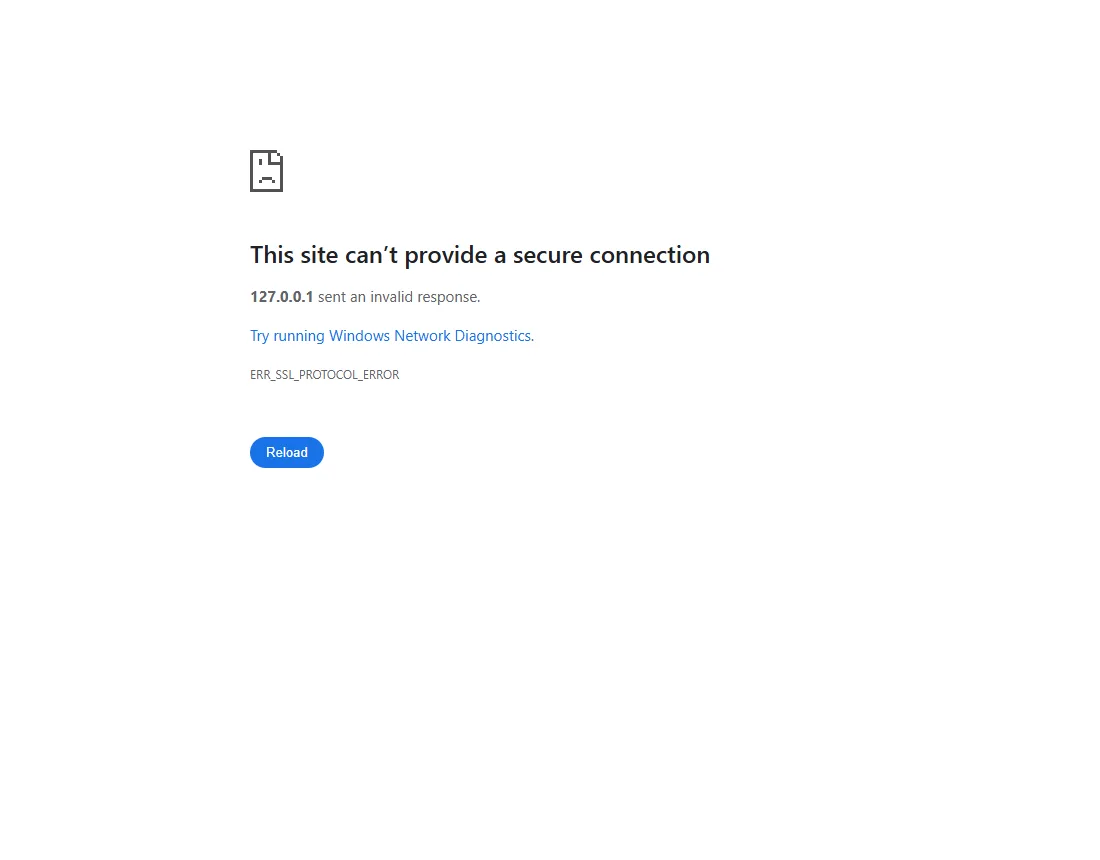
This site can’t provide a secure connection
127.0.0.1 sent an invalid response.
Try running Windows Network Diagnostics.
ERR_SSL_PROTOCOL_ERROR
On your screen the site's address appears instead of 127.0.0.1.
How we reproduced it
We ran a small web server on our own PC that only speaks plain HTTP, then opened it with https://. Chrome expected a secure (TLS) answer, got ordinary web traffic instead, and stopped with this error. A website whose HTTPS is misconfigured fails the same way. Reproduced by simulating the condition: local test site, https:// to a plain-HTTP port (127.0.0.1:8765)
Steps
Reload and check the address
Press F5. Then look at the address bar: a port number after a colon (for example :8080) usually points to a service that may not use HTTPS. A typo in the address can also land you on a server that doesn't speak HTTPS.
Test from another device or network
| What you see | What it means |
|---|---|
| Fails on your phone with mobile data too | A problem on the site's side is likely. Wait, or report the address and error code to the site. |
| Works on your phone, fails on this PC | Something on this PC or network is interfering. Go to step 3. |
Your own router, printer, NAS or localhost server |
The device may only offer http:// at that address. See step 4. |
Pause VPN, proxy or antivirus HTTPS scanning
Some security programs and VPNs inspect secure connections, and a fault there breaks the handshake. On a personal PC, pause one suspected VPN, proxy or HTTPS-scanning feature for a moment, reload without signing in or entering anything sensitive, then turn it back on right away. If that changes the result, update the program or contact its vendor. On a work or school PC, ask IT instead of changing security settings. From official docs, not tested here
For your own device: open it with http://
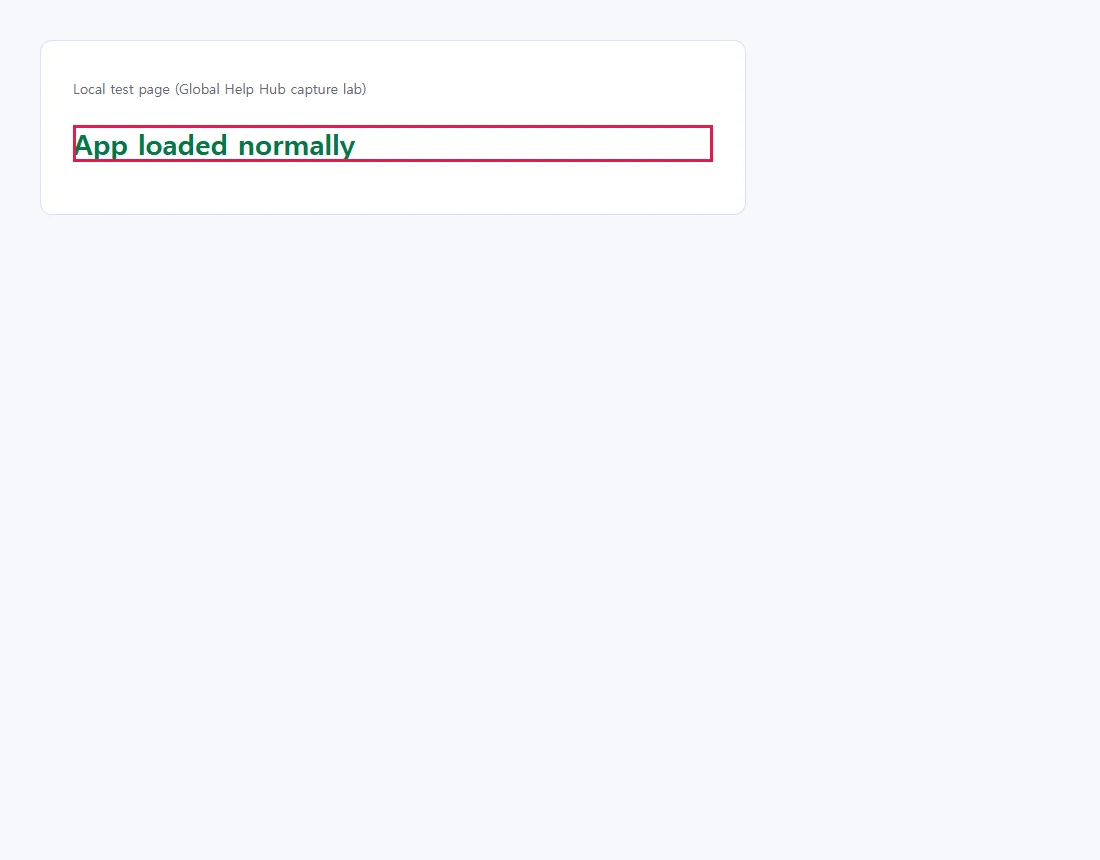
On our test server, the same address with http:// instead of https:// loaded normally. That shows plain HTTP works on that port; check the device's manual or server settings for the correct HTTPS address and port.
Use http:// only for a development server on your own PC, or a device whose manual says so, on a network you trust. HTTP doesn't encrypt anything, even for your own router, so avoid entering sensitive information and prefer HTTPS when the device supports it. Never use http:// for a public website where you sign in or pay.
Check Chrome's "Always use secure connections"
Open Settings → Privacy and security → Security, or paste chrome://settings/security. Under Secure connections you'll find Always use secure connections. In a fresh profile it was off.
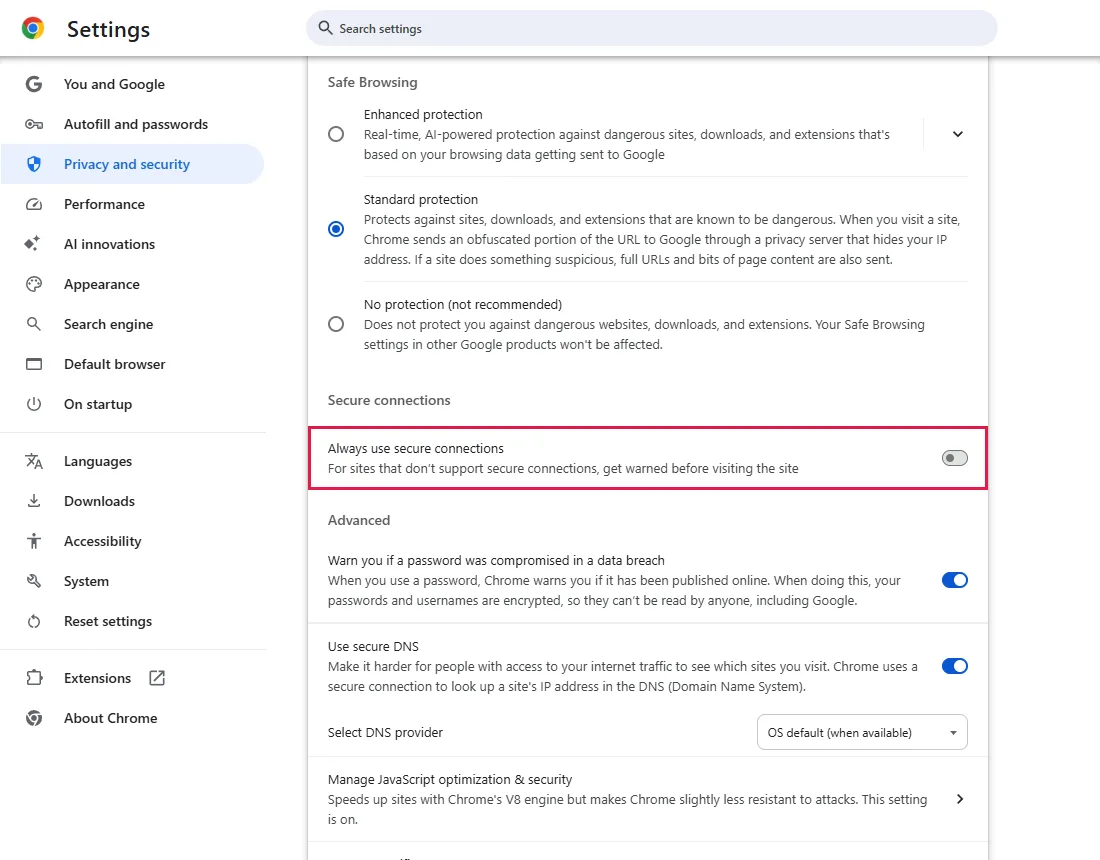
When it's on, Chrome tries the secure version of an address first and warns before falling back to an insecure one. Chrome can also upgrade some addresses to HTTPS while it's off. Turning it off does not repair an address that already starts with https://, so it's rarely the fix for this error; leave it as it is unless you know why. From official docs, not tested here
Common questions
Is my internet down?
Usually not; with no connection at all Chrome shows a different error. But on hotel, airport or café Wi-Fi, the network may be waiting for you to sign in. Complete the network's sign-in page (Windows usually shows a notification), then retry. Never install a certificate that an unexpected page asks you to install. From official docs, not tested here
Can a wrong date or time cause this?
A wrong clock usually causes certificate errors with a different code instead. If the date and time in Windows are wrong, fix them anyway (Windows Settings → Time & language → set time automatically) and reload. From official docs, not tested here
Should I clear my cache?
It rarely helps with this error, because the problem is the handshake, not a stored page. If you want to try, see how to clear only the cache in Chrome, which keeps you signed in.
If it didn't help
| Situation | What to check |
|---|---|
| Only one site, on every device | Likely the site's side. Wait or contact the site. |
| Many sites fail on this PC | Security software, VPN or a proxy intercepting HTTPS. Try another network to confirm. From official docs, not tested here |
| Your own server | Check that the port really serves HTTPS (TLS) and that any reverse proxy or CDN talks to it with the right protocol. From official docs, not tested here |
| An older router, printer or NAS | Look for a firmware update. Don't turn on old SSL/TLS versions or switch off certificate checks to make it work. From official docs, not tested here |
Related guides
Sources
Google Chrome Help: Fix connection and loading errors in Chrome
Google Chrome Help: Choose your privacy settings (Always use secure connections)
How we make guides: we run each step in a real browser or operating system, capture every screen, and have a person review the result. AI assists with drafting.