Chrome NET::ERR_CERT_AUTHORITY_INVALID: How to Fix "Your connection is not private"
- Chrome shows "Your connection is not private" before a site opens
- The warning page shows NET::ERR_CERT_AUTHORITY_INVALID
- Every HTTPS site shows the warning on one PC or one Wi-Fi network
What this test does and doesn't cover
Procedure checked
- Chrome 157 warning text for a self-signed certificate: "Your connection is not private", the site name, and NET::ERR_CERT_AUTHORITY_INVALID
- After clicking Advanced, Chrome says the certificate "is not trusted by your computer's operating system" and shows a "Proceed to self-signed.badssl.com (unsafe)" link
Result checked
Not tested in this run
Side effects checked
Not tested in this run
Not tested
- Proceeding to the site (we never clicked the proceed link)
- Antivirus HTTPS scanning, company proxies, VPNs and public Wi-Fi sign-in pages
- A wrong system clock (we did not change the PC clock)
Screenshots come from our own runs unless a step is marked otherwise.
Is this your error?
Seeing a different error code? ERR_SSL_PROTOCOL_ERROR means the secure connection itself failed. ERR_CONNECTION_REFUSED means nothing accepted the connection. From official docs, not tested here
Your connection is not private
Attackers might be trying to steal your information from self-signed.badssl.com (for example, passwords, messages, or credit cards).
NET::ERR_CERT_AUTHORITY_INVALID
On your screen the site's address appears instead of self-signed.badssl.com.
How we reproduced it
We opened a public certificate test page that uses a "self-signed" certificate, one the site made for itself instead of getting it from a trusted issuer. Chrome stopped with this warning. A site with a broken certificate setup, or software that intercepts secure connections, can trigger the same warning. Reproduced by simulating the condition: public test site self-signed.badssl.com From official docs, not tested here
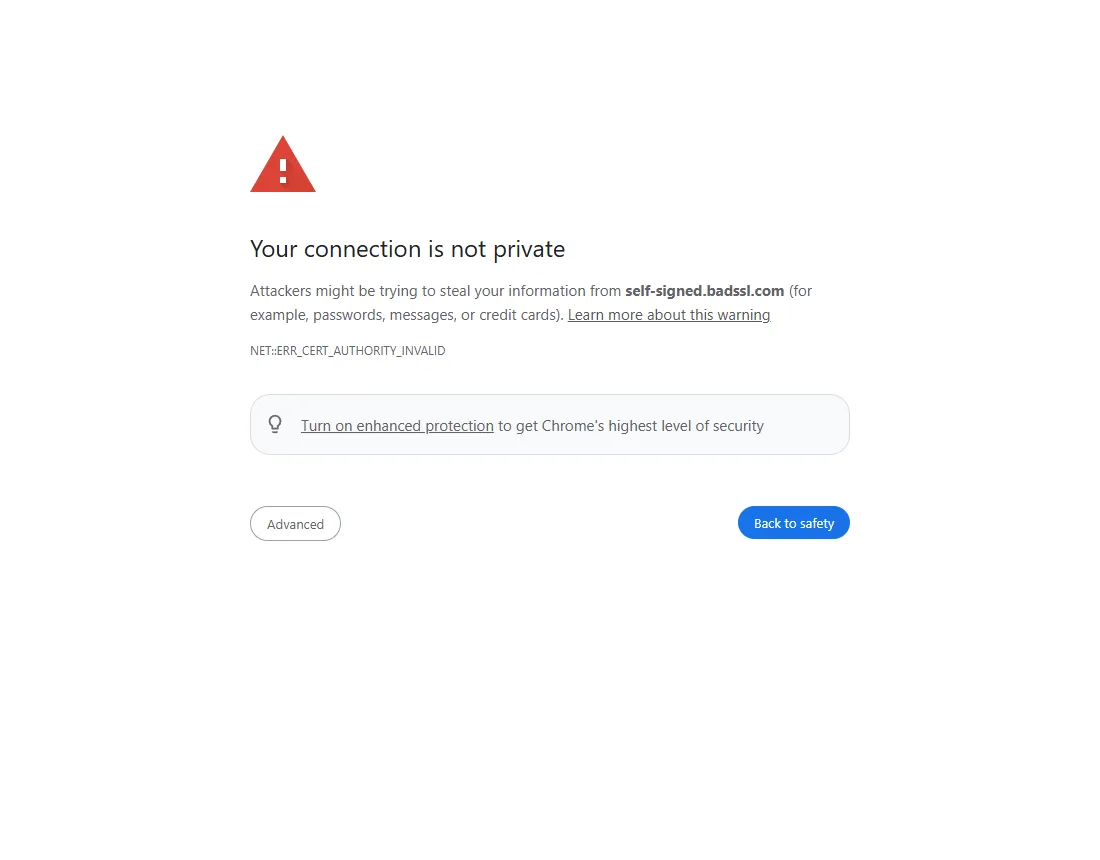
What the warning means
An HTTPS site shows Chrome a certificate that says which site it is. Chrome checks that the certificate links back to an authority it trusts. Here it couldn't, so Chrome can't tell whether you're talking to the real site or to someone in between. From official docs, not tested here
Clicking Advanced shows Chrome's explanation and a link to continue anyway:
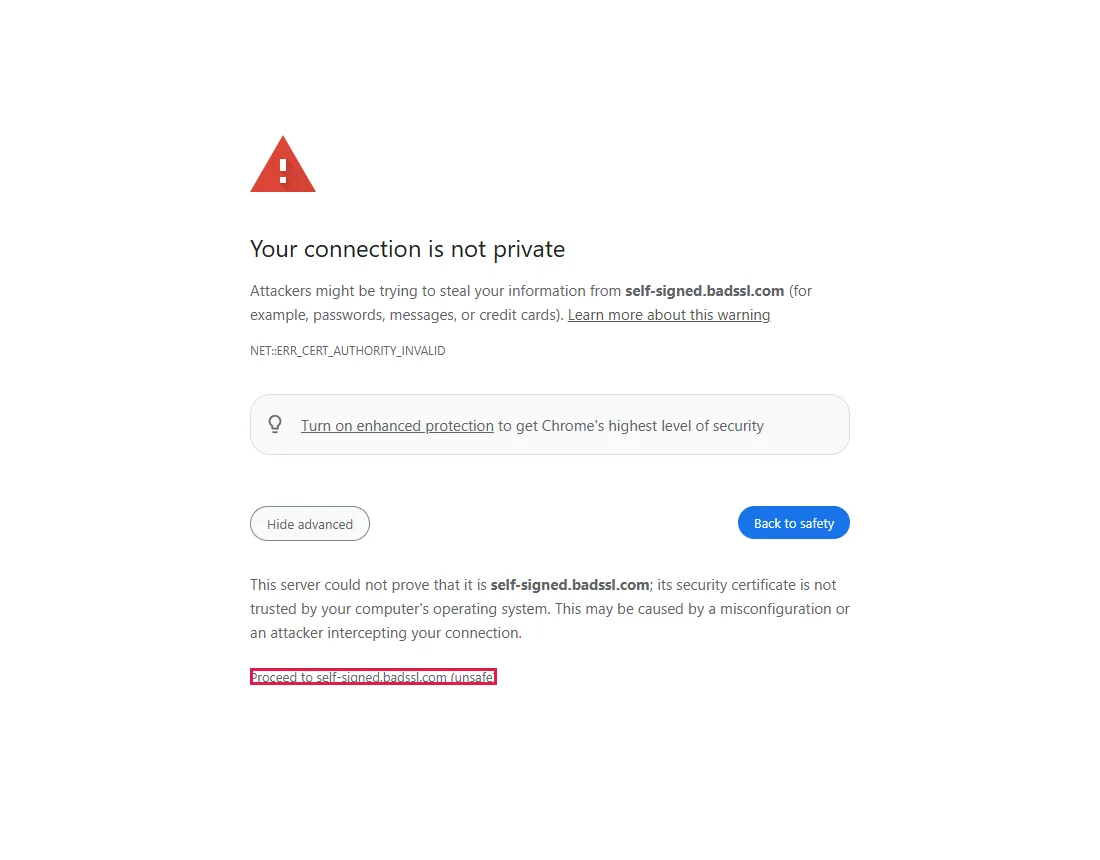
We never clicked that link. Read step 6 before you ever do.
Steps
Don't type anything; check the address
Click Back to safety if you're unsure. Look at the address bar: a typo or a look-alike domain can lead to a server with the wrong certificate. Type the address again carefully, or open the site from a bookmark you saved earlier. From official docs, not tested here
On public Wi-Fi, finish the sign-in page first
Hotel, airport and café Wi-Fi can redirect you to a sign-in page, which can cause this warning on secure sites. Wait for Windows' "sign in to network" notice, or open a plain http:// address such as http://neverssl.com to bring up the sign-in page. Complete it, then reload. Don't bypass a certificate warning on the sign-in page itself, and never install a certificate it offers. From official docs, not tested here
Test from another device or network
| What you see | What it suggests |
|---|---|
| Fails on your phone with mobile data too | The site's certificate is likely the problem. Don't continue; wait or tell the site. From official docs, not tested here |
| Works on your phone, fails only on this PC | Something on this PC may be interfering. Go to step 4. From official docs, not tested here |
| Fails on every device on one Wi-Fi network | The network may be intercepting secure traffic. Use another network for anything sensitive. From official docs, not tested here |
Check the PC clock and updates
- Clock: if Windows' date or time is wrong, certificates can look invalid. Open Settings → Time & language → Date & time and turn on Set time automatically, then reload. A wrong clock usually shows a different code, ERR_CERT_DATE_INVALID. From official docs, not tested here
- Updates: install pending Chrome and Windows updates. They also update the list of trusted authorities. From official docs, not tested here
Check security software, VPN or proxy
Antivirus "HTTPS scanning" or "web shield" features, VPNs and proxies sit between Chrome and the site. If they break, every secure site can show this warning. Update or repair the software, or follow its maker's instructions for HTTPS scanning problems, then contact the vendor if it continues. On a work or school PC, ask IT instead of changing security settings. From official docs, not tested here
Continuing anyway: only in narrow cases
Only for a device or server you set up yourself, such as a test server, when you already know it uses a self-signed certificate and you can confirm the certificate is the one you expect. Owning the device or being on your home network doesn't prove the connection is safe. Never continue on a bank, shop, email or login page, and never type passwords or card details on a page you reached through this warning. From official docs, not tested here
Common questions
Is my computer hacked?
Not necessarily. A misconfigured site, a public Wi-Fi sign-in page or security software can cause this. If it appears on many well-known sites on one network, treat that network as unsafe and use another. From official docs, not tested here
Another browser opens the site without a warning
Browsers can use different trust settings, and the other browser may have its own certificate exceptions. Don't take that as proof the site is safe. Check the other steps first. From official docs, not tested here
There's no "Proceed" link
Some warnings can't be bypassed, for example on sites that require a secure connection, or when your organisation blocks it. That's intentional. Use Back to safety. From official docs, not tested here
Will clearing the cache or cookies fix it?
Clearing cache or cookies doesn't normally fix certificate trust problems, because the problem is the certificate the site presents, not something Chrome saved. From official docs, not tested here
What does "Turn on enhanced protection" on the warning do?
It's a Chrome Safe Browsing setting offered on the page. It doesn't fix the certificate; the site still shows the warning. From official docs, not tested here
If it didn't help
| Situation | What to check |
|---|---|
| One site, on every device | The site's certificate. Wait, or contact the site. From official docs, not tested here |
| Many sites, only on this PC | Security software HTTPS scanning, VPN, proxy, updates or the system clock. From official docs, not tested here |
| Your own server | Install a certificate from a trusted authority, including the intermediate certificates. From official docs, not tested here |
| Work or school PC | The organisation may inspect secure traffic or need to install its own certificate. Ask IT. From official docs, not tested here |
Related guides
Sources
Google Chrome Help: Fix connection errors (Your connection is not private)
How we make guides: we run each step in a real browser or operating system, capture every screen, and have a person review the result. AI assists with drafting.