How to Clear Only the Cache in Microsoft Edge and Keep Cookies (Tested)
- A page shows an old version in Edge and refresh doesn't help
- You want to clear Edge's cache but stay signed in
- Images or styles load broken until cached files are cleared
edge://settings/clearBrowserData, uncheck everything except Cached images and files and click Clear now. Keeping Cookies and other site data unchecked keeps your cookies. On our local test site the cached stylesheet was downloaded again on the next page load and we stayed signed in.What this test does and doesn't cover
Procedure checked
- Dialog "Delete browsing data" opened with Browsing history, Download history, Cookies and other site data, Cached images and files checked (fresh test profile)
- Only "Cached images and files" can be left checked; the button reads "Clear now"
Result checked
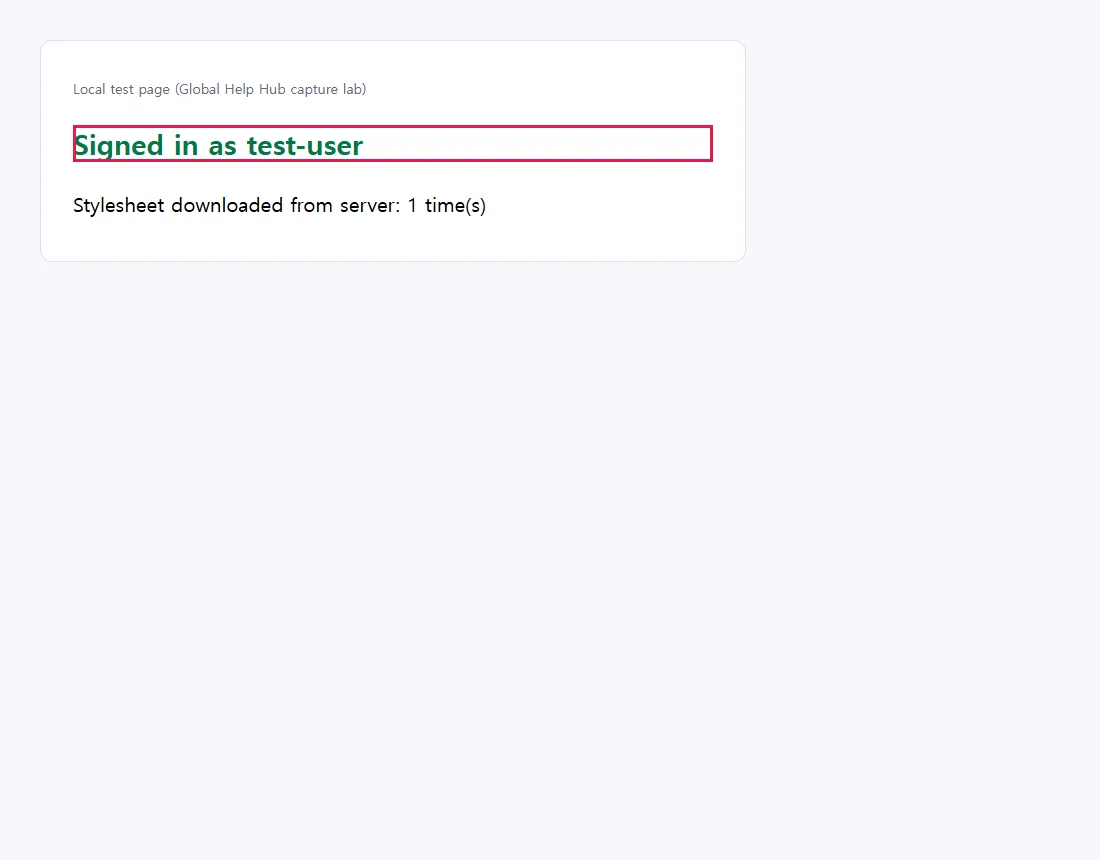
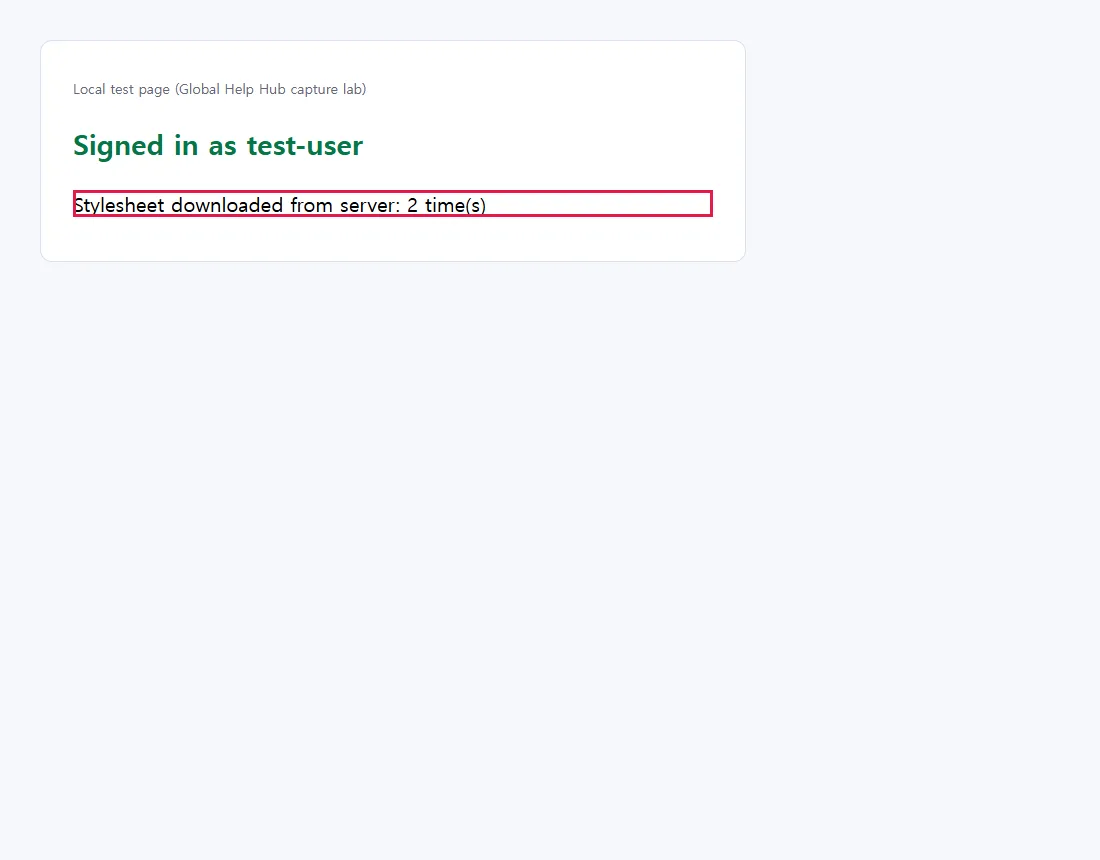
- Before clearing, the stylesheet came from the cache (count 1); right after clearing it was downloaded again (2) and the page still showed "Signed in as test-user"
Side effects checked
Not tested in this run
Not tested
- Real websites with other sign-in methods
- Edge sync across devices
Screenshots come from our own runs unless a step is marked otherwise.
When to use this
Use it when a site looks out of date or half broken after it changed, for example missing styles or old images, and you don't want to be signed out. The cache only holds saved copies of site files; sites download them again, as our test showed. If old files weren't the cause, clearing the cache won't fix it.
How we tested
Same method as our Chrome guide: a test site on our own PC that signs you in with a session cookie and counts stylesheet downloads.
Steps
Open Delete browsing data
Paste edge://settings/clearBrowserData into the address bar. The Delete browsing data dialog opens over Privacy, search, and services / Clear browsing data.
In our fresh test profile, Browsing history, Download history, Cookies and other site data (outlined) and Cached images and files were checked. Autofill form data and Site permissions were not.
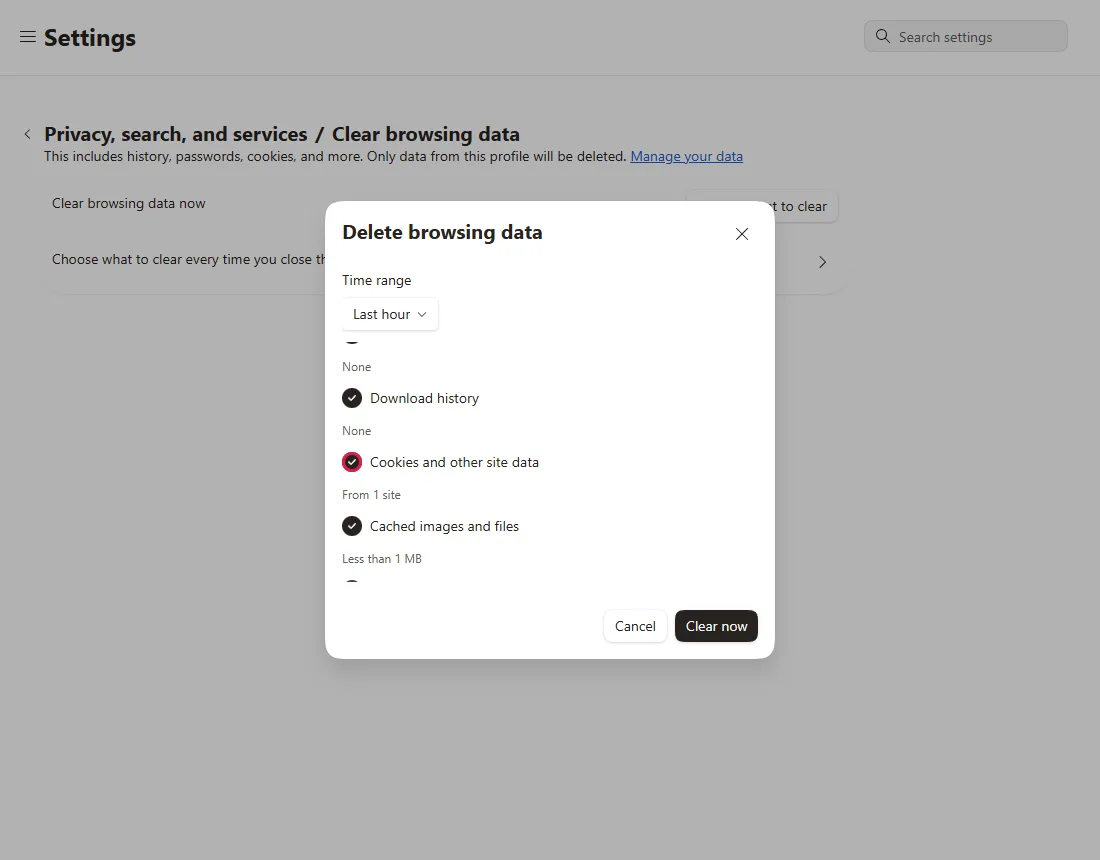
Deleting Cookies and other site data can sign you out of sites. Uncheck it in the next step.
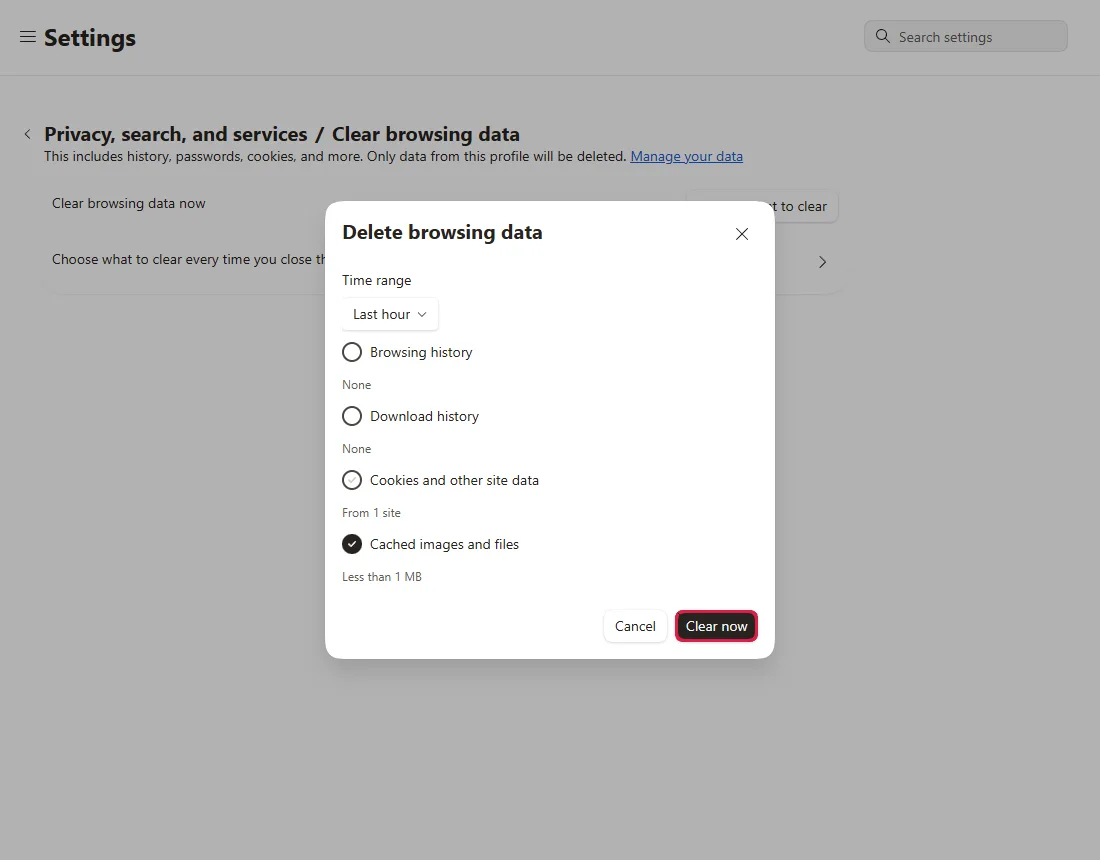
Keep only "Cached images and files", then Clear now
Uncheck Browsing history, Download history and Cookies and other site data. Pick a Time range and click Clear now.
Check the result
Open the page again. On our test site the stylesheet was downloaded again right away (2 times) and we were still signed in.
Common questions
Will I lose passwords, history or open tabs?
Only the checked items are deleted. With only Cached images and files checked, history, saved passwords and open tabs stay. In our test we also stayed signed in. From official docs, not tested here
Which time range should I choose?
If the problem started recently, a short range is enough. If it doesn't help, repeat with the longest range. From official docs, not tested here
Can I clear the cache for one site only?
This dialog clears the cache for all sites within the time range. For a single page, a hard reload (Ctrl+F5 or Ctrl+Shift+R) skips the cache for that one load, though it doesn't empty the cache. From official docs, not tested here
Is there a shortcut?
Ctrl+Shift+Delete opens the same delete browsing data settings. From official docs, not tested here
Pages may load a little slower afterwards
That's normal: files are downloaded again on the first visit and then cached again.
If it didn't help
| Situation | What to check |
|---|---|
| Page still looks old | Choose a longer Time range, or delete only that site's cookies (signs you out of that site). |
| Broken in every browser | Compare on another network or device; the cause may be the site, your network, DNS or security software. |
Using Chrome? See Clear only Chrome's cache and keep cookies.
Related guides
Sources
How we make guides: we run each step in a real browser or operating system, capture every screen, and have a person review the result. AI assists with drafting.