How to Make Microsoft Edge Reopen Your Tabs at Startup
- Edge opens a new tab or MSN page instead of the tabs you had
- Your tabs are gone after you close and reopen Edge
- You want Edge to bring everything back after a restart
edge://settings/startHomeNTP (Settings → Start, home, and new tab page). Under On startup, choose Open tabs from the previous session. From then on Edge reopens your last tabs every time it starts. The default is a new tab page, so Edge only restores tabs once you pick this.What this test does and doesn't cover
Procedure checked
- Edge's On startup options include "Open tabs from the previous session"
- The default is "Open the new tab page", not restoring tabs
Result checked
- Selecting "Open tabs from the previous session" took effect on the radio right away
Side effects checked
Not tested in this run
Not tested
- Whether tabs actually reopen after a real browser restart (not exercised in this capture run)
Screenshots come from our own runs unless a step is marked otherwise.
When to use this
Use it when Microsoft Edge starts with a blank new tab page (or an MSN page) instead of the tabs you had open last time, and you'd rather pick up where you left off. By default Edge opens a new tab page, so it won't restore tabs until you choose to. This is one setting and it sticks.
If Edge still ignores it, a policy on a work or school device or a conflicting start-page setting can override it; the checks below cover that. From official docs, not tested here
Steps
Open the startup settings
Open the Edge menu (⋯, top-right) → Settings → Start, home, and new tab page, or paste edge://settings/startHomeNTP into the address bar.
Under On startup you'll see three choices. By default Open the new tab page is selected.
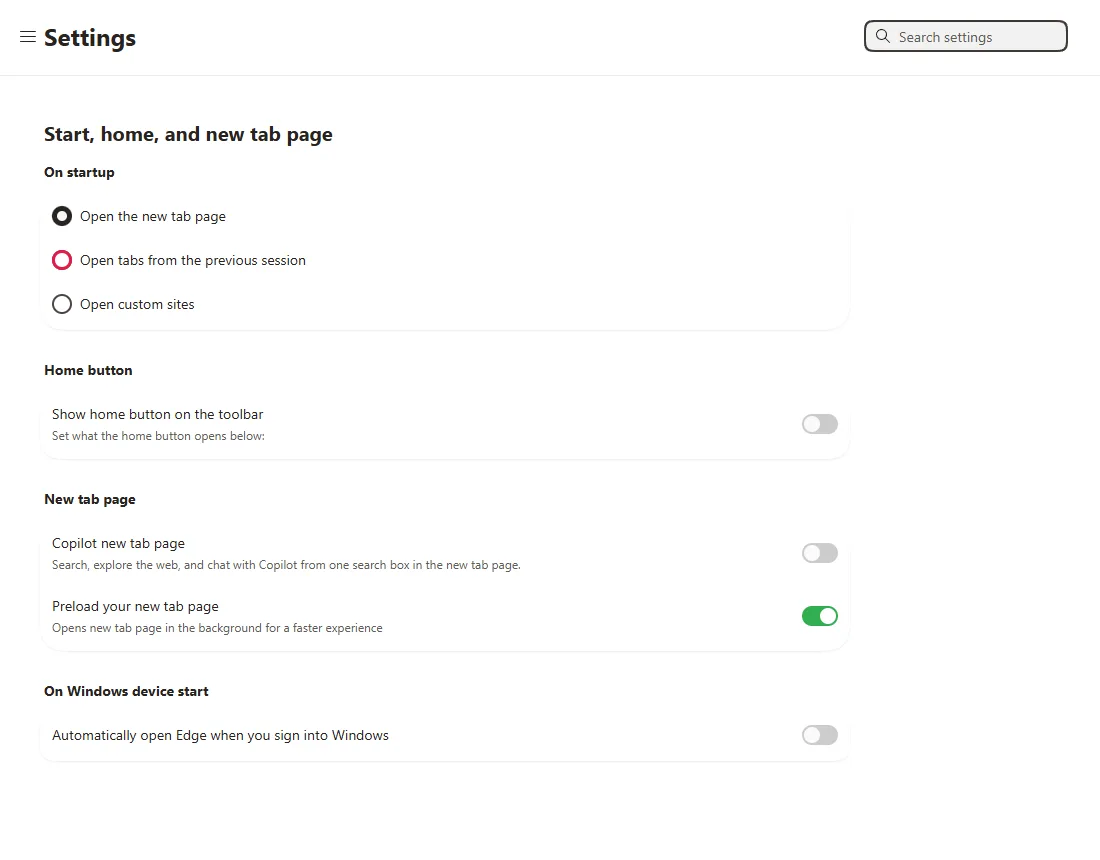
Choose "Open tabs from the previous session"
Click Open tabs from the previous session. The change applies right away, with no Save button.
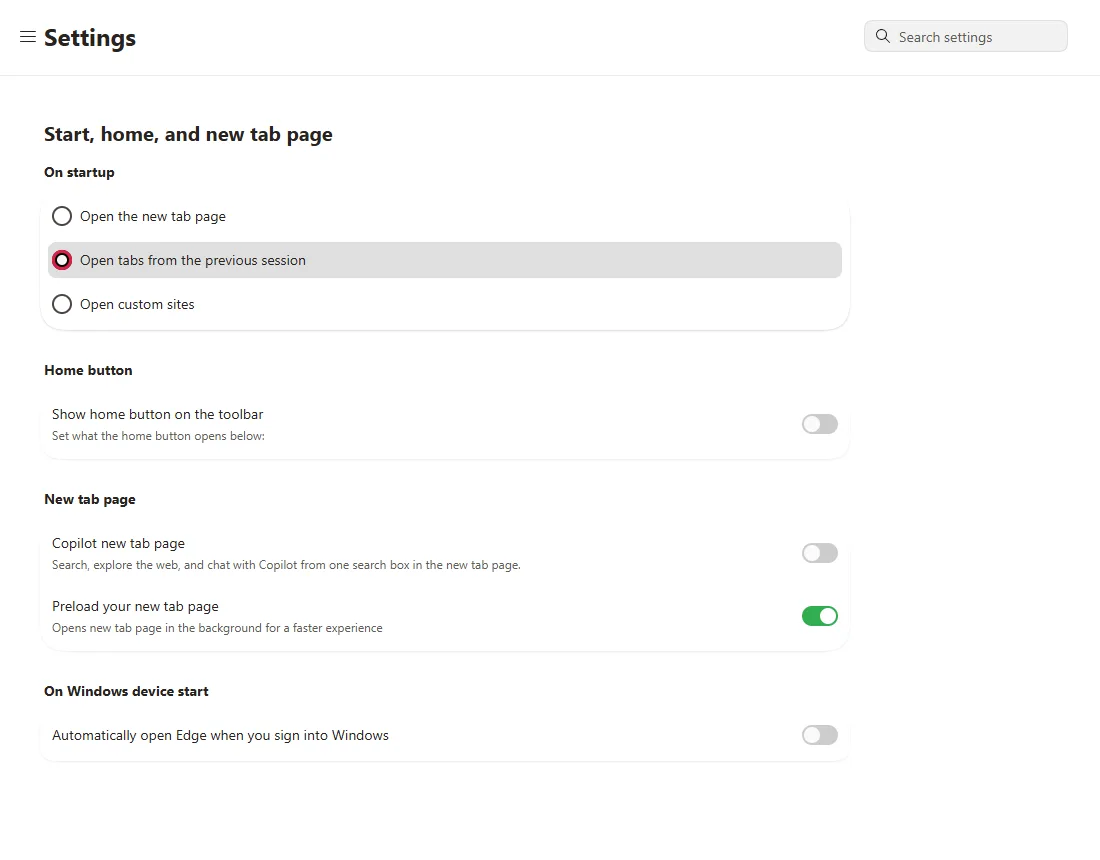
Now close and reopen Edge: it brings back the tabs you had. To go back, pick Open the new tab page again.
Common questions
What's the difference between the three options?
Open the new tab page starts with the new tab page, the default (a search box and shortcuts, not your old tabs). Open tabs from the previous session restores whatever you had open when you last closed Edge. Open custom sites opens a fixed list you set, the same pages every time. From official docs, not tested here
Edge didn't restore my tabs even after I chose this
This setting restores tabs when you close and reopen Edge normally. After a crash, Edge may instead offer a Restore pages prompt to bring the pre-crash tabs back. If you force-ended the Edge process, there may be nothing to restore. On a managed device, a policy may force a start page (see below). From official docs, not tested here
Will this slow Edge down?
Restoring many tabs makes startup a bit heavier. Edge can put inactive background tabs to sleep to save memory, but that only kicks in after a period of inactivity and can be turned off, so it isn't guaranteed. From official docs, not tested here
If it didn't help
| Situation | What to check |
|---|---|
| A fixed page opens instead of my tabs | Open custom sites may be selected, or a policy sets startup pages. Check the On startup choice, then edge://policy for RestoreOnStartup and RestoreOnStartupURLs. From official docs, not tested here |
| The option is greyed out or managed | A work or school policy controls startup. Check edge://policy, or ask your administrator. From official docs, not tested here |
| Tabs open but in a new window each time | A window opened from a link or shortcut can start its own session instead of restoring. Open Edge from its normal icon to get the restored tabs. From official docs, not tested here |
Related guides
Sources
Microsoft Edge documentation: RestoreOnStartup (startup behavior)
How we make guides: we run each step in a real browser or operating system, capture every screen, and have a person review the result. AI assists with drafting.