How to Change Chrome's Default Search Engine (Google, Bing and More)
- The address bar searches with the wrong search engine
- Your search engine keeps changing back to one you didn't choose
- You want Chrome to search with Google, Bing or another engine
chrome://settings/search, click Change next to the current search engine, pick one and click Set as default. Chrome confirms it at the bottom of the screen (in our test: "Microsoft Bing is now your default search engine"). The list depends on your country. If your search engine changes again by itself, an extension or program is probably changing it.What this test does and doesn't cover
Procedure checked
- Settings → Search engine → "Change" opens a list of search engines with a "Set as default" button
- The list includes Google, Microsoft Bing and other search engines; it depends on the country
Result checked
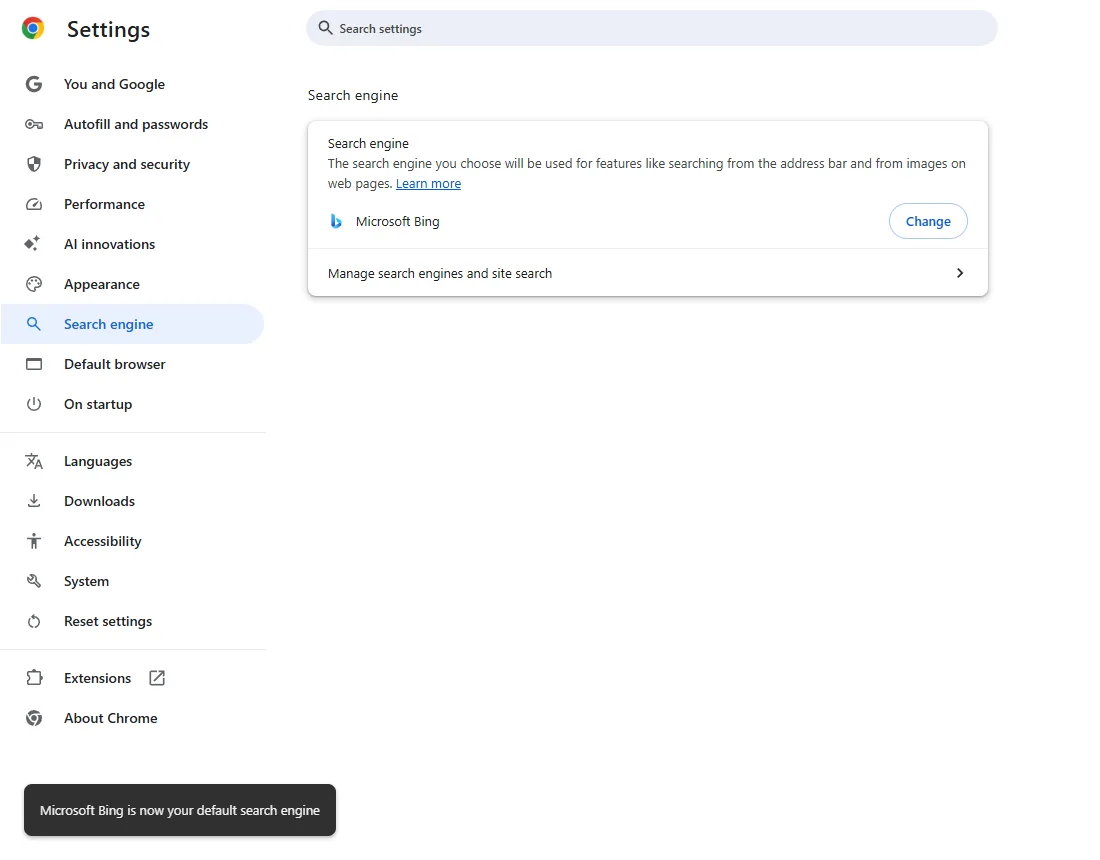
- After "Set as default", the page showed Microsoft Bing and the confirmation "Microsoft Bing is now your default search engine"
Side effects checked
Not tested in this run
Not tested
- Lists shown in other countries
- Searching from the address bar after the change
- Search engines changed by extensions or programs
Screenshots come from our own runs unless a step is marked otherwise.
When to use this
Use it when typing in Chrome's address bar searches with a search engine you didn't choose, or when you simply prefer another search engine.
Steps
Open the search engine setting
Chrome menu (⋮) → Settings → Search engine, or paste chrome://settings/search. The current search engine is shown with a Change button.
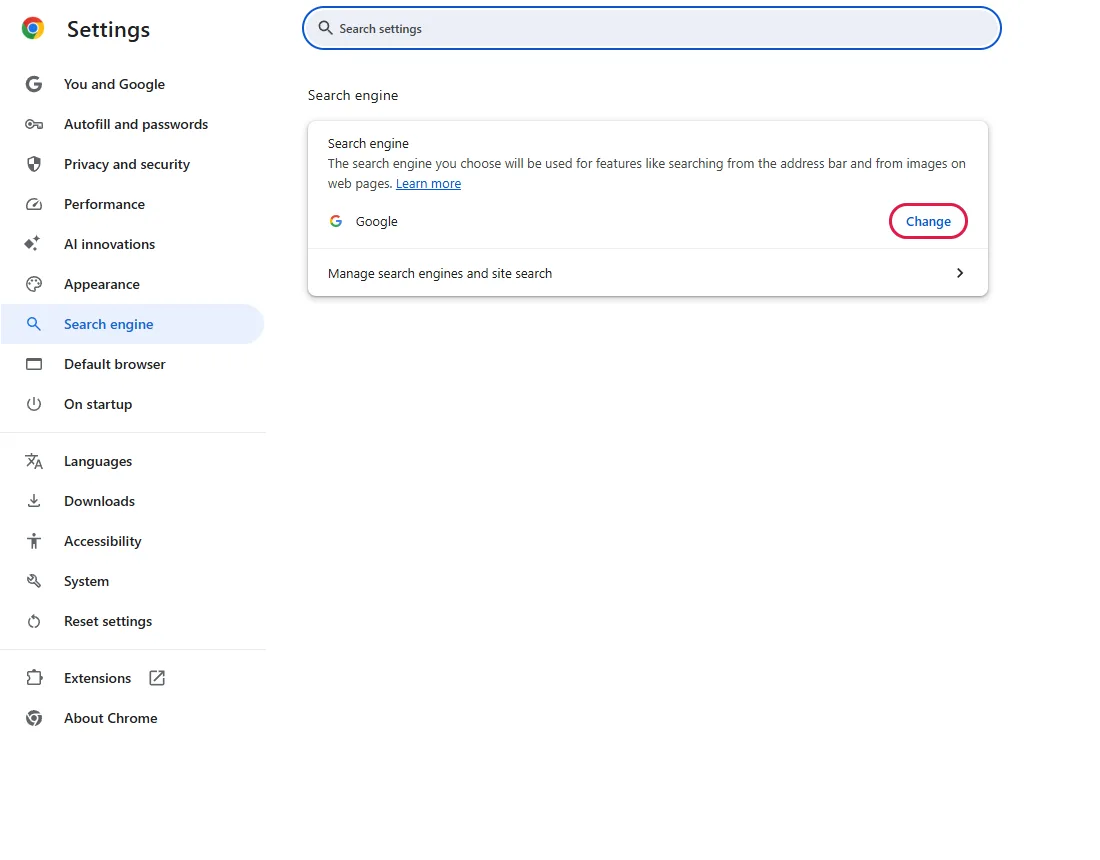
Click Change
A list of search engines opens. Which search engines appear, and in what order, depends on your country, so your list may look different. From official docs, not tested here
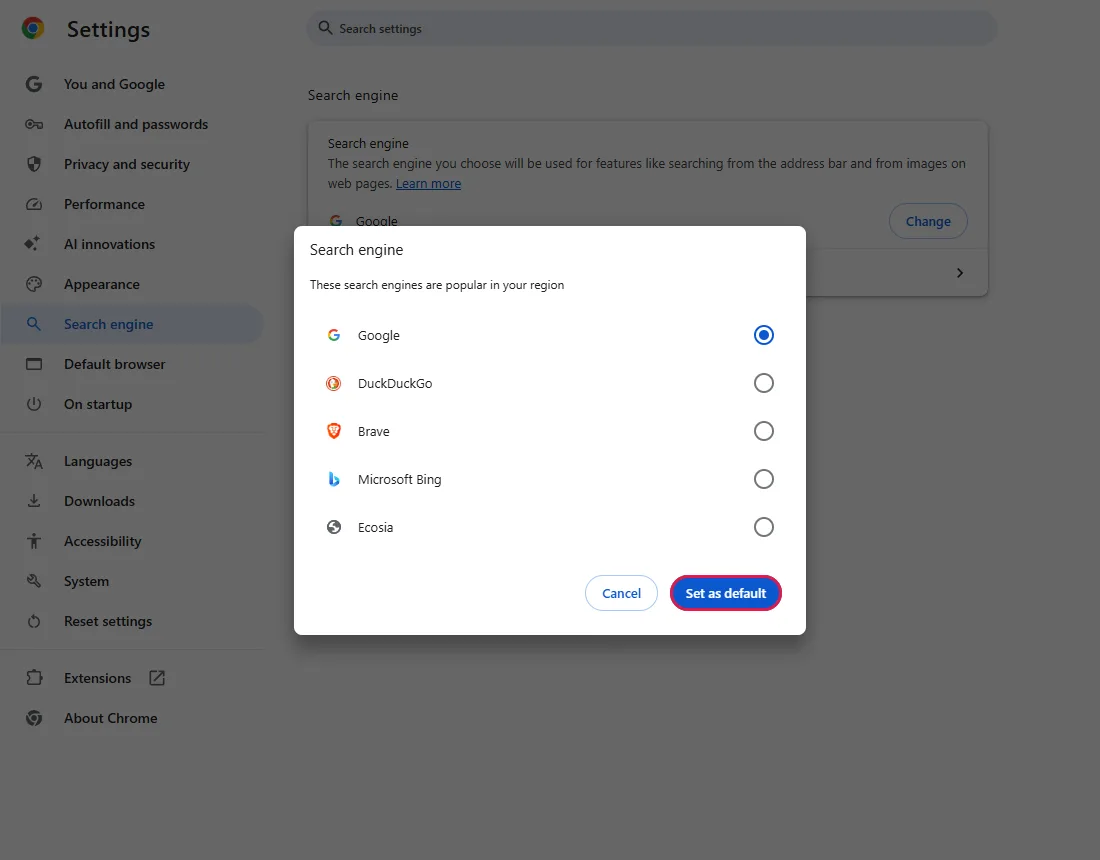
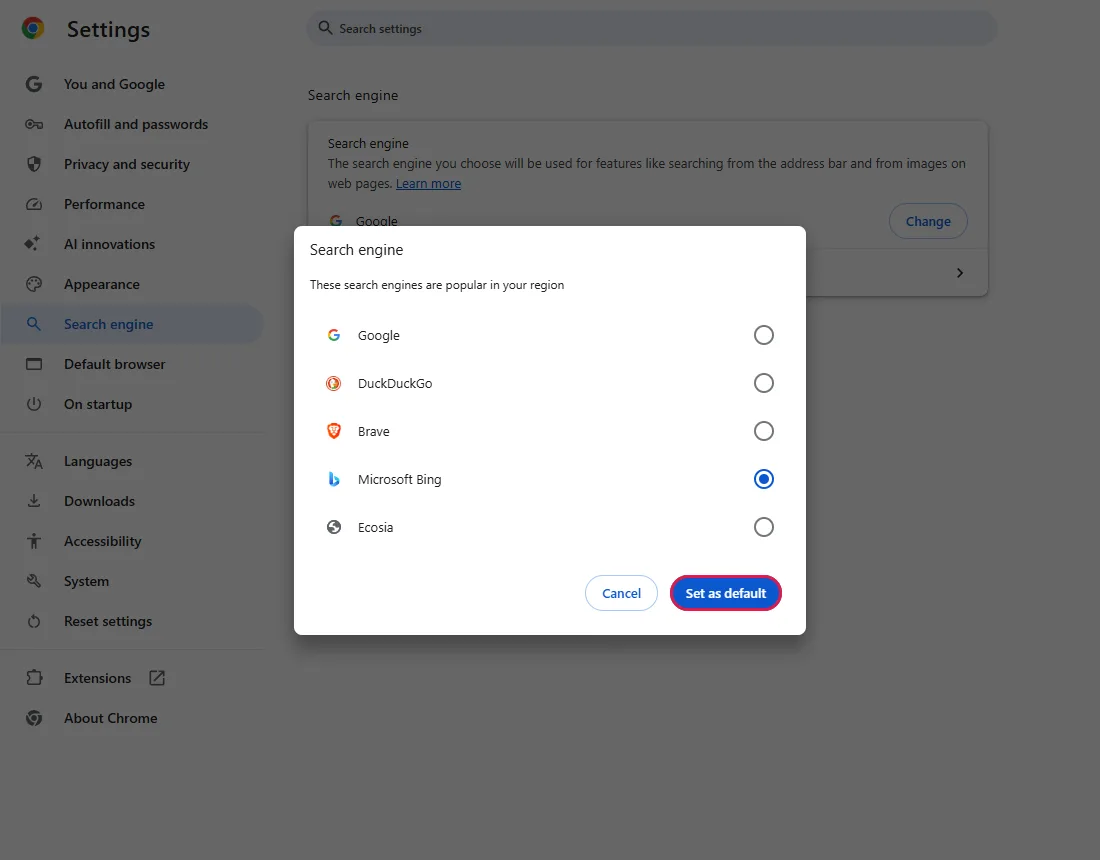
Pick one and click Set as default
Select the search engine you want. In our test we picked Microsoft Bing. Then click Set as default.
Check the result
The settings page now shows the new search engine, and a message appears at the bottom: "Microsoft Bing is now your default search engine".
To go back to Google, repeat the steps and choose Google.
Common questions
My search engine isn't in the list
Use Manage search engines and site search on the same page. There you can add other search engines and make one the default. From official docs, not tested here
Does this change the start page too?
No. The start page is a separate setting: Make Chrome reopen your tabs.
Can I search with a different engine just once?
Yes. Each engine in Manage search engines and site search has a shortcut; some entries must be activated first. Type the shortcut in the address bar, press Tab, then type your search. The default stays the same. From official docs, not tested here
How do I remove a search engine from the list?
In Manage search engines and site search, open the three-dot menu next to the engine and delete it, if that option is offered. To delete the current default, make another engine the default first. From official docs, not tested here
If it didn't help
| Situation | What to check |
|---|---|
| It changes back by itself | An extension or program is changing it. Reset Chrome settings restores the search engine and turns off all extensions. |
| The setting is grey and says it's managed | Your organisation or a program set a policy. Resetting won't change it. From official docs, not tested here |
Related guides
Sources
Google Chrome Help: Set default search engine and site search shortcuts
How we make guides: we run each step in a real browser or operating system, capture every screen, and have a person review the result. AI assists with drafting.