How to Change Microsoft Edge's Search Engine from Bing to Google
- Typing a search in Edge's address bar always opens Bing
- You want Google results in Edge without typing google.com first
- You changed the search engine but the new tab search box still looks like Bing
edge://settings/privacy/services/search into the address bar (Settings → Privacy, search, and services → Search and connected experiences → Address bar and search). Open the Bing (Default) menu and choose Google; the row shows Google (Default) at once. A new-tab option then appears: set it to Address bar if you also want searches typed on a new tab to go through the address bar.What this test does and doesn't cover
Procedure checked
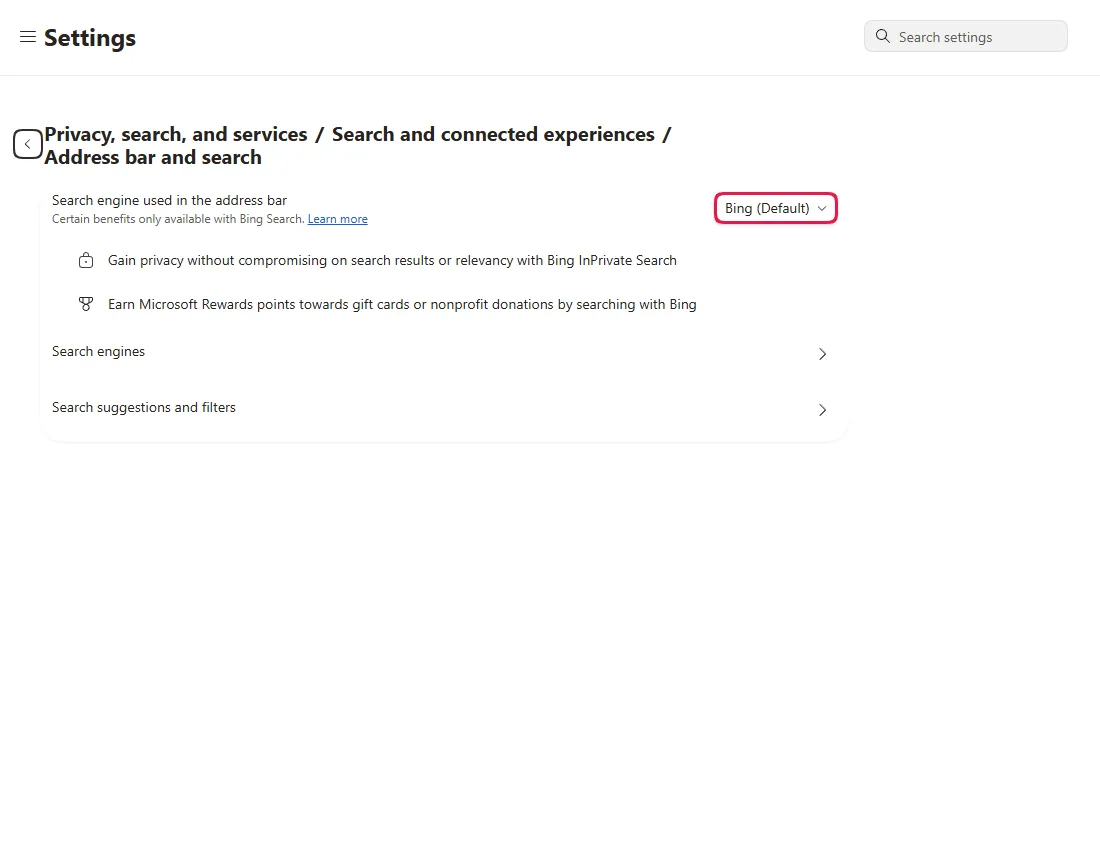
- Edge 157 shows "Bing (Default)" as the address-bar search engine in a fresh profile
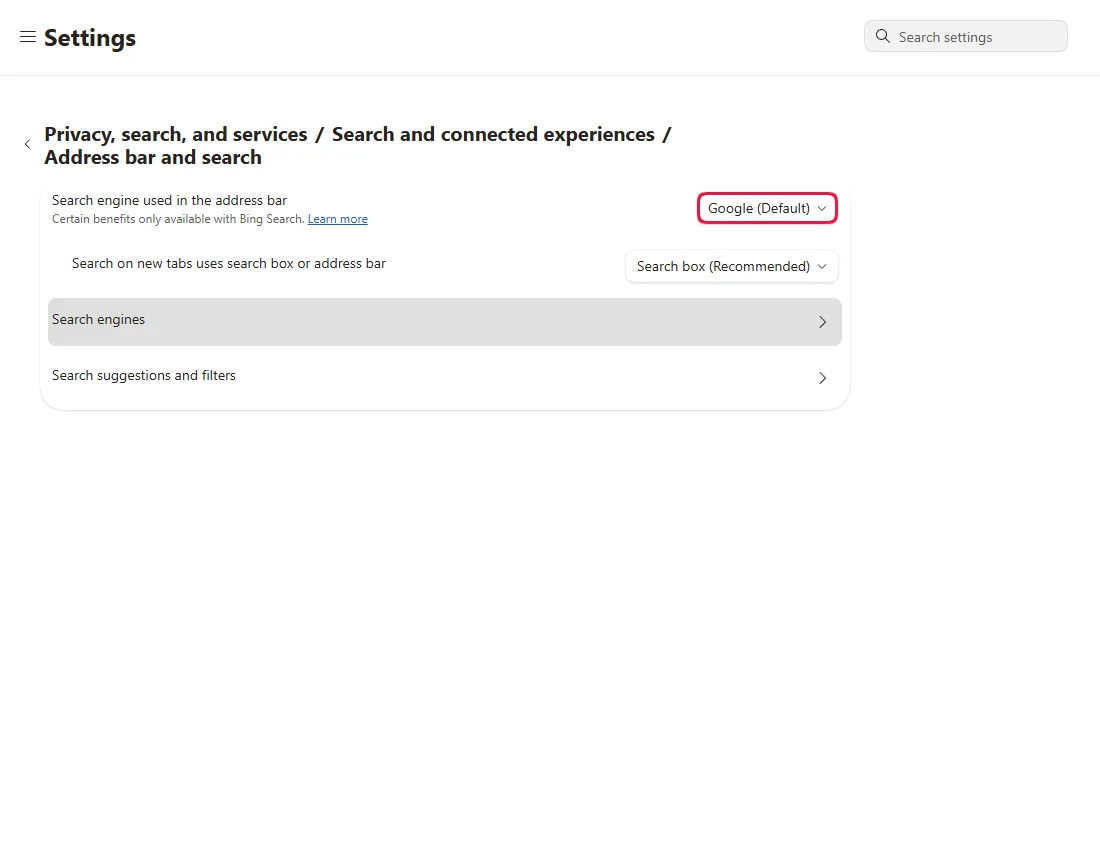
- The menu lists Google; choosing it shows "Google (Default)" at once, with no Save button
Result checked
- After choosing Google, a "Search on new tabs uses search box or address bar" option appears, set to "Search box (Recommended)"
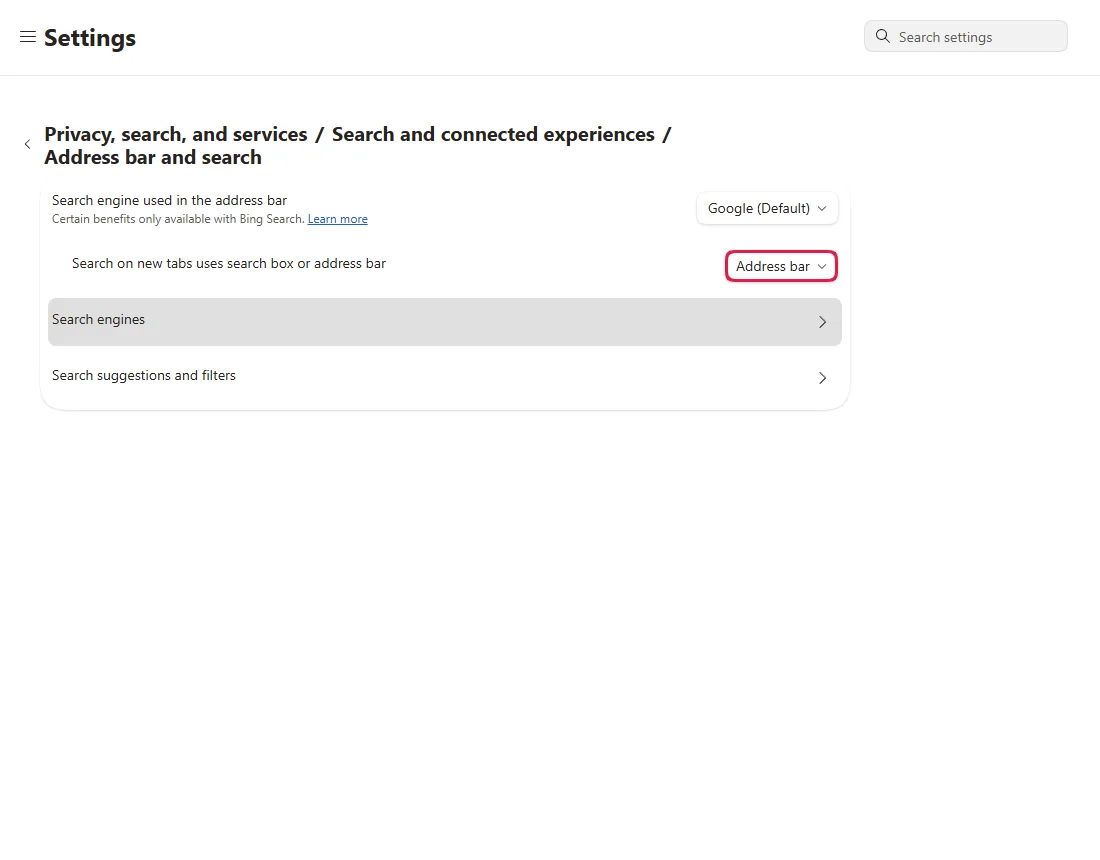
- That option can be switched to "Address bar"
Side effects checked
Not tested in this run
Not tested
- Searching from the address bar after the change (browser UI outside the page)
- What the new tab page search box actually searches with, before or after the change
Screenshots come from our own runs unless a step is marked otherwise.
When to use this
Use it when you type a search into Microsoft Edge's address bar and always land on Bing, but you'd rather get Google. In a fresh Edge 157 profile on Windows the setting is Bing (Default); yours may already show something else. It is one menu, and you can switch back any time.
Steps
Open "Address bar and search"
Paste edge://settings/privacy/services/search into the address bar. The page heading shows where it lives in Settings: Privacy, search, and services / Search and connected experiences / Address bar and search.
The first row, Search engine used in the address bar, showed Bing (Default) in our test.
Choose Google
Click Bing (Default) and pick Google from the menu. The row shows Google (Default) immediately; there's no Save button. The menu also lists other engines, and which ones appear can differ from PC to PC. From official docs, not tested here
To check, type a few words into the address bar and press Enter: the results should open on Google. From official docs, not tested here
Make new tabs use the address bar (optional)
After we chose Google, a new row appeared: Search on new tabs uses search box or address bar, set to Search box (Recommended). To send searches typed on a new tab through the address bar (and so to your chosen engine), open that menu and choose Address bar.
To go back to Bing for address-bar searches, choose Bing again in step 2.
Common questions
Why does the new tab page still look like Bing?
The new tab page has its own search box, and changing the address-bar engine doesn't necessarily change it. We didn't test what that box searches with. Step 3 is the setting Edge offers for it; after that, type into the address bar and check which results open. From official docs, not tested here
Google isn't in the list
Go to google.com in Edge, run a search, then reopen the menu and check again; Edge can add sites you search on to its list of engines. On a work or school PC, an administrator policy may fix the search engine. From official docs, not tested here
Will I lose anything by leaving Bing?
Under the setting Edge notes "Certain benefits only available with Bing Search", such as Microsoft Rewards points for Bing searches. Your bookmarks, passwords and history aren't affected. From official docs, not tested here
If it didn't help
| Situation | What to check |
|---|---|
| The menu is greyed out or says it's managed | A work or school policy may set the search engine. Check edge://policy for DefaultSearchProviderEnabled or DefaultSearchProviderSearchURL, or ask your administrator. From official docs, not tested here |
| It switches back to Bing by itself | An extension may control your search engine. Check edge://extensions, turn off any extension you don't recognise, then choose Google again. From official docs, not tested here |
| The change seems to be missing | Settings are per profile. Make sure you changed it in the Edge profile you actually use (profile picture, top-left). From official docs, not tested here |
| You use Chrome too | Chrome has its own setting: change Chrome's default search engine. |
Related guides
Sources
Microsoft Support: Change your default search engine in Microsoft Edge
How we make guides: we run each step in a real browser or operating system, capture every screen, and have a person review the result. AI assists with drafting.