How to Make Chrome Reopen Your Tabs After a Restart
- Chrome opens a blank New Tab page instead of your last tabs
- Your tabs are gone after you restart Chrome or the PC
- You want specific pages to open every time Chrome starts
chrome://settings/onStartup and select Continue where you left off. In our fresh Chrome 157 test profile, Open the New Tab page was selected; with that option Chrome starts without your previous tabs. To open fixed pages instead, choose Open a specific page or set of pages and use Add a new page or Use current pages.What this test does and doesn't cover
Procedure checked
- The three On startup options; "Open the New Tab page" was selected in our fresh test profile
- "Add a new page" and "Use current pages" appear for the third option
Result checked
- Selecting "Continue where you left off" takes effect immediately on the page
Side effects checked
Not tested in this run
Not tested
- Actually closing and reopening Chrome to see tabs restored
- Chrome sync, policies or Incognito windows
Screenshots come from our own runs unless a step is marked otherwise.
When to use this
Use it when Chrome starts with an empty New Tab page and your previous tabs are gone, or when it opens a page you don't recognise on startup.
To get back tabs you just closed, press Ctrl+Shift+T. From official docs, not tested here
Steps
Open On startup
Chrome menu (⋮) → Settings → On startup, or paste chrome://settings/onStartup.
There are three options. In our fresh profile Open the New Tab page was selected. Continue where you left off is outlined.
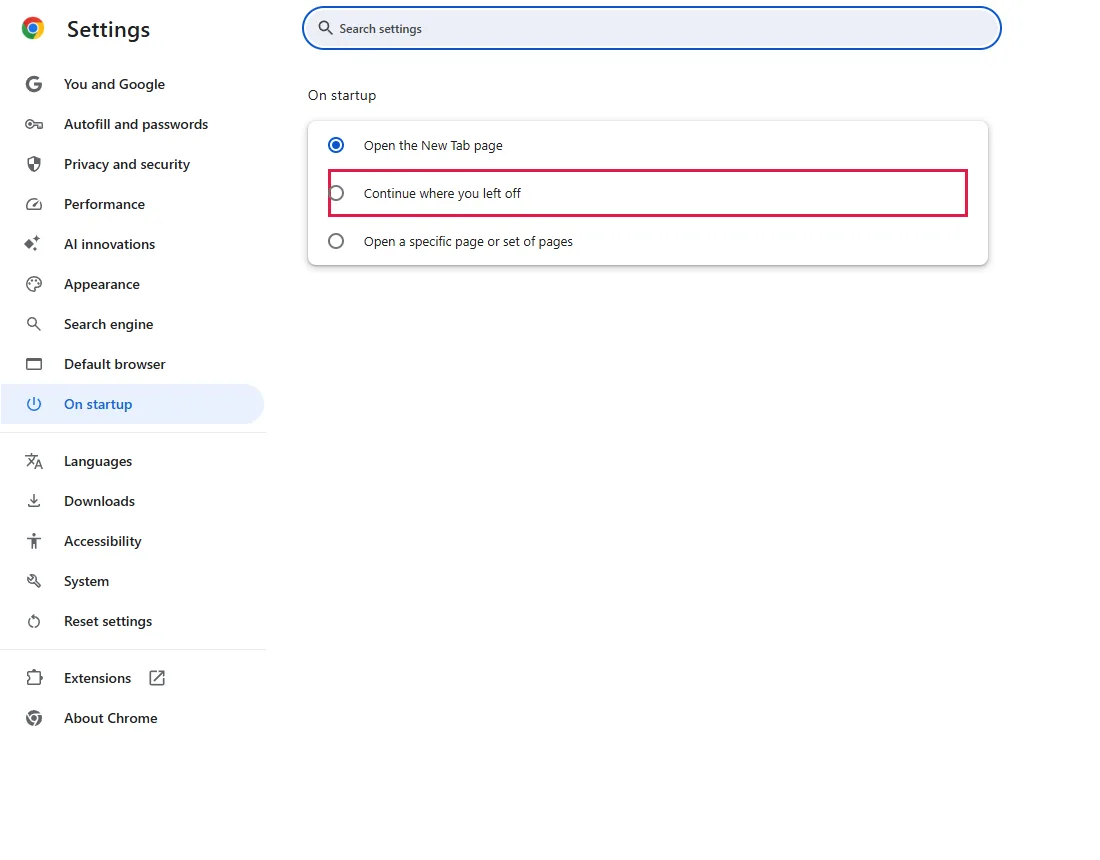
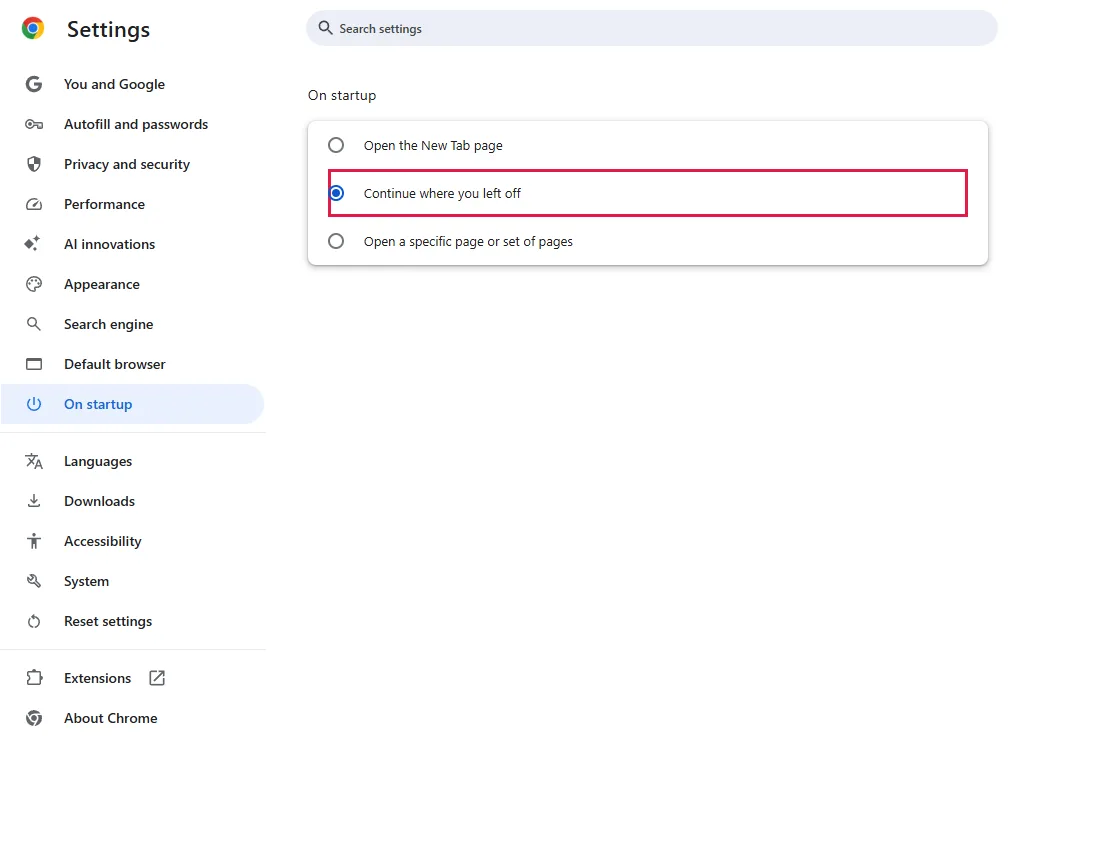
Select "Continue where you left off"
Click it. The setting is saved right away; there's no Save button.
Or open specific pages
Select Open a specific page or set of pages. Two links appear: Add a new page to type an address, and Use current pages to use the tabs you have open now.
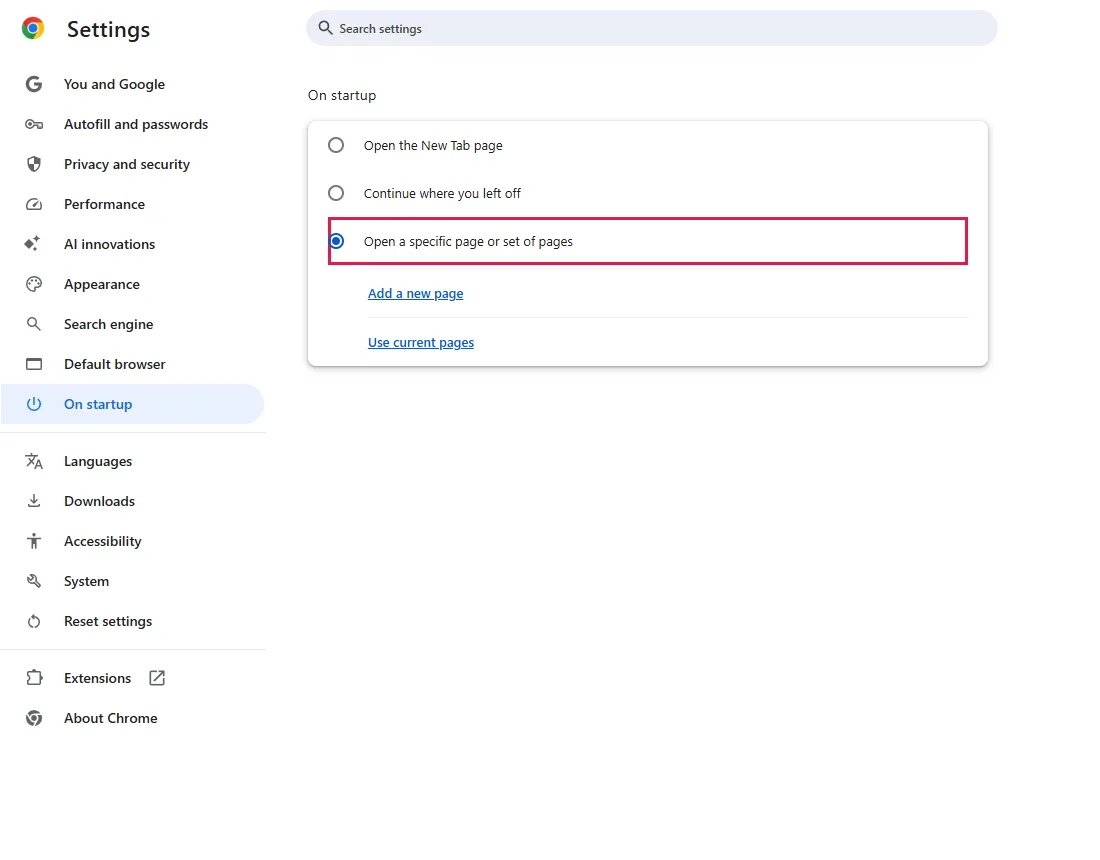
If Chrome opens a page you don't recognise, check this list and remove it. If it comes back, see Reset Chrome settings.
Common questions
Can I use both: my tabs and a fixed page?
Not with this setting; you choose one of the three options. From official docs, not tested here
Chrome closed unexpectedly and my tabs are gone
Open the Chrome menu (⋮) → History and look under Recently closed. A closed window is listed with its number of tabs; click it to reopen them all. Ctrl+Shift+T reopens the most recently closed tab or window; press it again for earlier ones. After a crash, recovery is not guaranteed. From official docs, not tested here
How do I remove a start page I don't want?
With Open a specific page or set of pages selected, click the three dots next to the page and remove it. From official docs, not tested here
Does "Continue where you left off" keep me signed in to sites?
It can, because it restores your session. Sites may still sign you out when their session expires or when cookies are cleared. From official docs, not tested here
If it didn't help
| Situation | What to check |
|---|---|
| Setting changes back by itself | An extension or program may control it: Reset Chrome settings. |
| Tabs still don't come back | Chrome may not have closed normally, or you were in an Incognito window, whose tabs aren't restored. From official docs, not tested here |
| The options are greyed out | Your organisation may manage this setting. Open chrome://management to check. From official docs, not tested here |
Related guides
Sources
Google Chrome Help: Choose your homepage & startup page
How we make guides: we run each step in a real browser or operating system, capture every screen, and have a person review the result. AI assists with drafting.