How to Reopen Closed Tabs in Chrome (Even After Closing the Window)
- You closed a Chrome tab by mistake and want it back
- You closed the whole Chrome window and lost all your tabs
- Chrome opened a blank new tab instead of your previous tabs
chrome://history (Ctrl+H, Mac: Cmd+Y), type part of the address in the search box and click the page. So Chrome reopens your previous session when it starts, choose Continue where you left off in chrome://settings/onStartup.What this test does and doesn't cover
Procedure checked
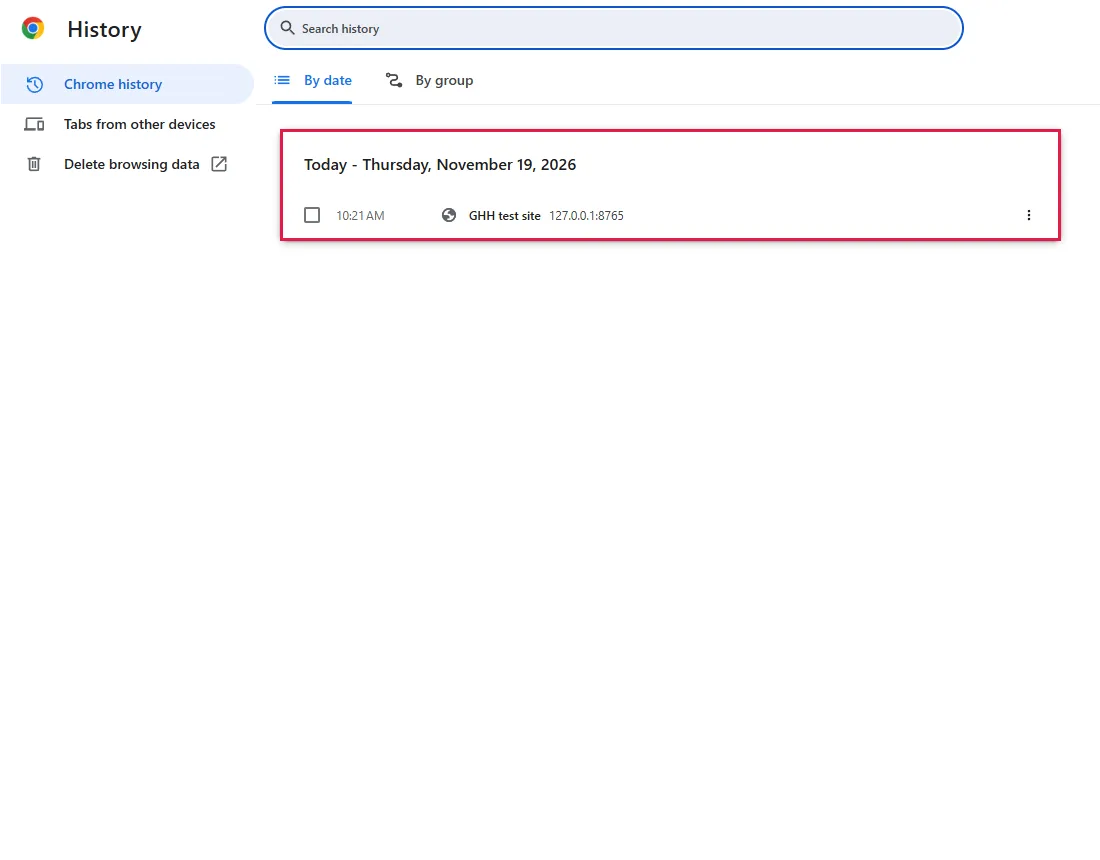
- A page that was visited and then left is listed in chrome://history under today's date, with its title and address
- The History page sidebar has "Chrome history", "Tabs from other devices" and "Delete browsing data"
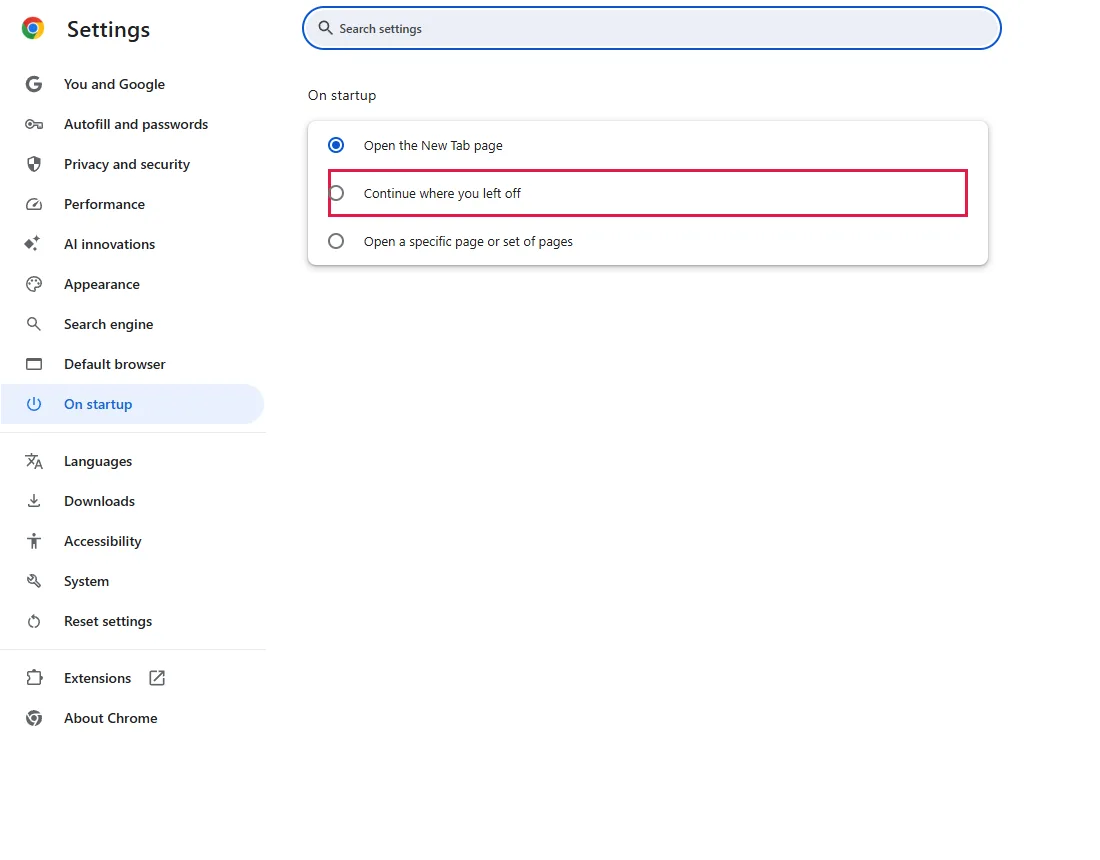
- The On startup setting has "Continue where you left off"; in a fresh profile it is not selected (the first option is)
Result checked
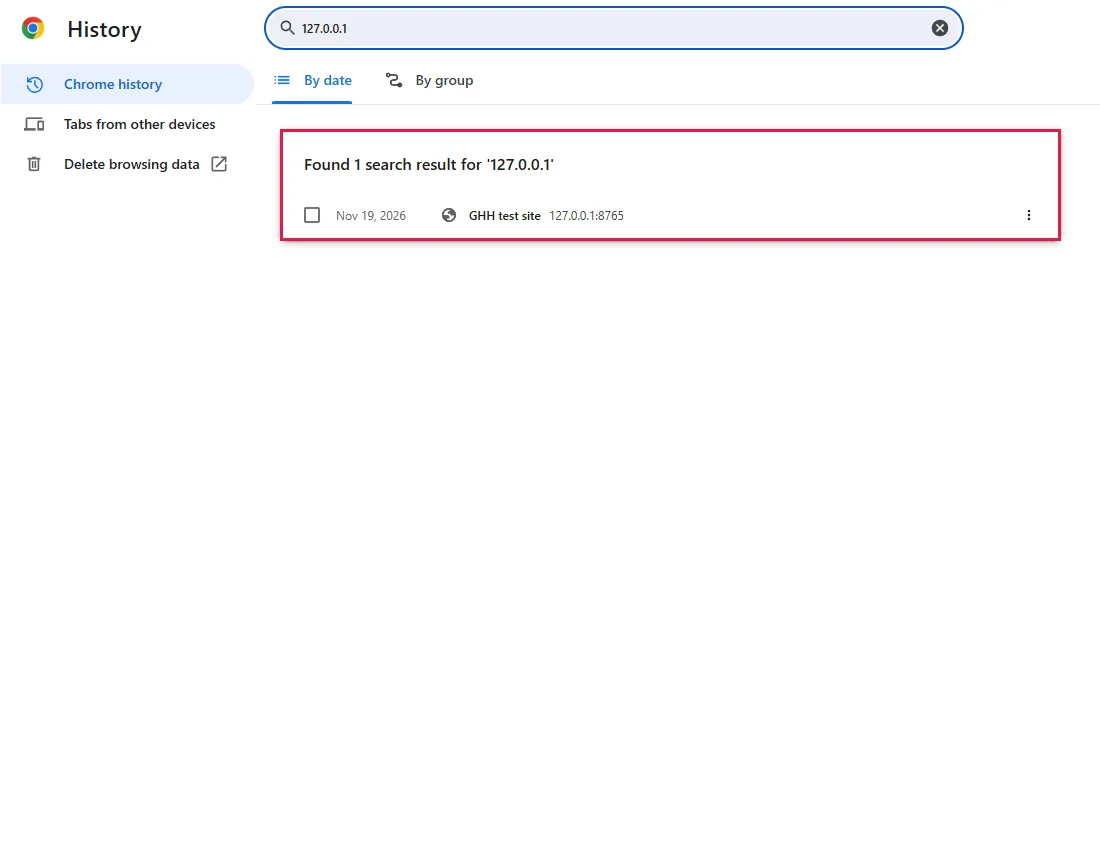
- Typing part of the address into the History search box narrowed the list to that site (1 result)
Side effects checked
Not tested in this run
Not tested
- Ctrl+Shift+T and the ⋮ > History "Recently closed" menu (browser menu and shortcut, not captured)
- Restoring tabs after actually quitting and restarting Chrome
- Tabs from other devices (needs a signed-in, synced profile)
Screenshots come from our own runs unless a step is marked otherwise.
When to use this
Use it when you closed a tab or a whole Chrome window by accident. Try the steps in order: the shortcut is fastest, history finds older pages, and the startup setting can reopen your previous session the next time Chrome starts.
Steps
Press Ctrl+Shift+T
Press Ctrl+Shift+T on Windows, ChromeOS or Linux, or Cmd+Shift+T on a Mac. Chrome reopens the last tab you closed. Press it again to reopen the one before that. If the last thing you closed was a whole window, the shortcut brings back the window with its tabs. From official docs, not tested here
You can do the same from the menu: ⋮ (top-right) → History, where Chrome lists recently closed tabs and windows. A closed window can appear there as one entry with its tab count. From official docs, not tested here
Closed Incognito tabs and windows can't be restored this way or from history: Chrome doesn't keep them. From official docs, not tested here
Find the page in your history
If the tab was closed a while ago, press Ctrl+H (Mac: Cmd+Y) or paste chrome://history into the address bar. History groups pages by visit date; our test page appeared under today with its title and address. Click a page to open it again.
Search history when the list is long
Type part of the address into the search box at the top. In our test, typing the address left only that site's page in the list. Searching for words from the page title also works. From official docs, not tested here
Have Chrome reopen your tabs when it starts
Open Settings → On startup, or paste chrome://settings/onStartup. Choose Continue where you left off. Chrome then reopens the tabs you had open when you last closed it. Turning this on now won't bring back a session that's already lost; use steps 1 to 3 for that. In a fresh profile this option was not selected; the first option, which opens the New Tab page, was. From official docs, not tested here
For more on this setting, see how to make Chrome reopen your tabs after a restart.
Common questions
Can I reopen a tab from my phone or another computer?
Sign in to Chrome with the same Google Account on both devices and turn on sync for open tabs. Then open chrome://history and click Tabs from other devices. It shows tabs that are open on your other devices, not every tab you closed there. From official docs, not tested here
Ctrl+Shift+T reopened nothing
If you closed the last Chrome window, open Chrome again first, then press the shortcut or check ⋮ → History. If that list is empty, search chrome://history. If the page isn't in history either, try the site's own history, your bookmarks, or searching for the page again. From official docs, not tested here
Will this bring back what I typed into a form?
Don't count on it. Reopening a tab loads the page again, and text you typed into a form may or may not come back. Some sites save drafts on their own. From official docs, not tested here
If it didn't help
| Situation | What to check |
|---|---|
| History is empty | History was cleared, or you were in an Incognito window. From official docs, not tested here |
| Tabs don't come back after a restart | Choose Continue where you left off in step 4. From official docs, not tested here |
| The startup option is grey | The setting may be controlled by your organisation. Ask your IT admin. From official docs, not tested here |
Related guides
Sources
Google Chrome Help: Open a closed tab or window
Google Chrome Help: Set your homepage and startup page
How we make guides: we run each step in a real browser or operating system, capture every screen, and have a person review the result. AI assists with drafting.