Chrome ERR_CONNECTION_TIMED_OUT: How to Fix "took too long to respond"
- Chrome shows "This site can't be reached" and the site took too long to respond
- A page loads for a long time and then fails with ERR_CONNECTION_TIMED_OUT
- One site never opens in Chrome while other sites work
What this test does and doesn't cover
Procedure checked
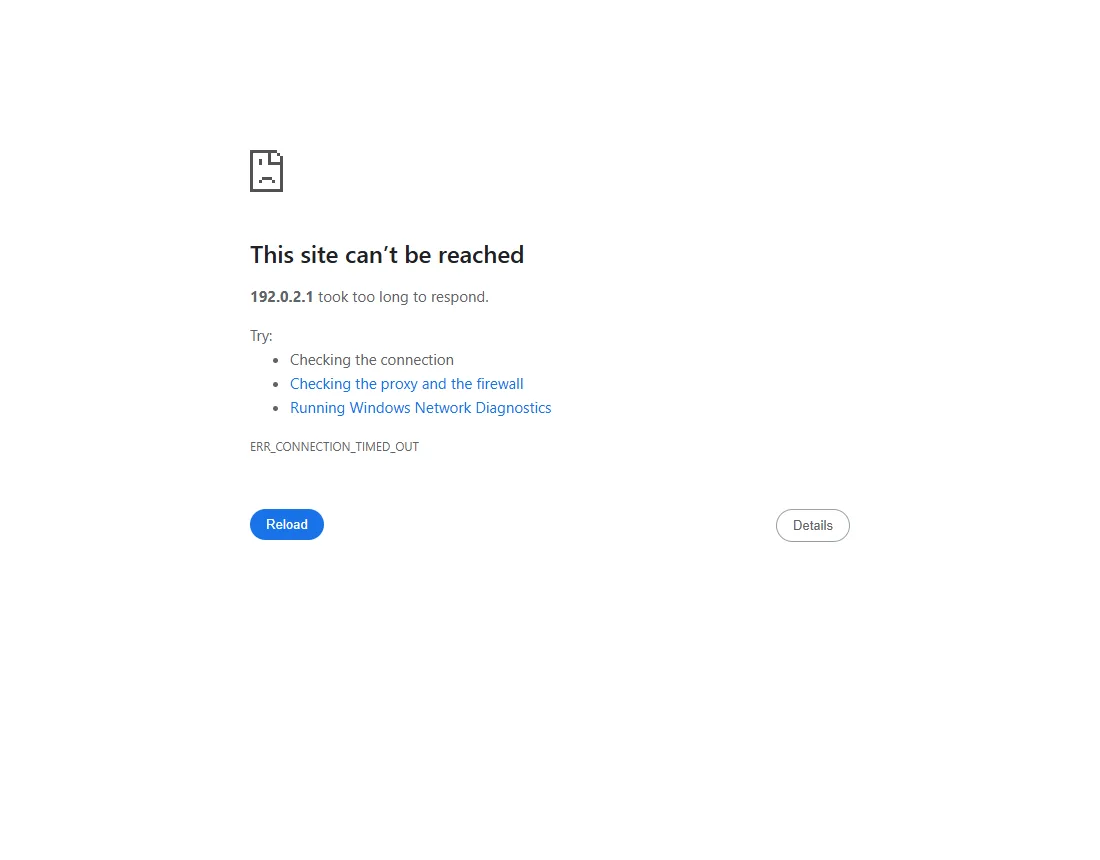
- Chrome 157 error page text when an address never answers (heading, "took too long to respond", three suggestions, ERR_CONNECTION_TIMED_OUT)
- Text of the error page's Details section (internet connection, firewall or antivirus, proxy server)
- Location of Open your computer's proxy settings in Settings → System
Result checked
Not tested in this run
Side effects checked
Not tested in this run
Not tested
- Running Windows Network Diagnostics from the error page
- The Windows proxy window that the setting opens (outside the browser)
- Timeouts caused by a real firewall, VPN or security software, and real public websites
Screenshots come from our own runs unless a step is marked otherwise.
Is this your error?
Seeing a different error code? ERR_CONNECTION_REFUSED means the server answered "no". ERR_NAME_NOT_RESOLVED means the address could not be found.
This site can’t be reached
192.0.2.1 took too long to respond.
Try:
Checking the connection
Checking the proxy and the firewall
Running Windows Network Diagnostics
ERR_CONNECTION_TIMED_OUT
On your screen the site's address appears instead of 192.0.2.1.
How we reproduced it
We opened 192.0.2.1, an address reserved for documentation that never answers. In our test Chrome waited about 21 seconds, then showed this page. A server that is down or overloaded, or a firewall that silently drops the connection, looks the same to Chrome. Reproduced by simulating the condition: 192.0.2.1 (TEST-NET-1), connect timeout ~21 s on Windows 11
The difference from "refused": refused means something answered and said no. Timed out means Chrome got no answer before it gave up.
Steps
Reload once and check the address
Press F5. A busy site may answer on the second try. Check the address too, including any port number after a colon (for example :8080). A port that a firewall blocks can time out instead of being refused. From official docs, not tested here
Test from another device or network
| What you see | What it means |
|---|---|
| Fails on your phone with mobile data too | The site is down, overloaded or unreachable. Wait and try later, or contact the site. |
| Works on your phone, fails on this PC | Probably something on this PC: firewall, antivirus, VPN or proxy. Go to step 3. From official docs, not tested here |
| Fails on every device on your Wi-Fi, works on mobile data | Your router or network may be blocking the site. Restart (don't factory-reset) the router, or ask your internet provider or network admin. From official docs, not tested here |
Read the error page's own advice
Click Checking the proxy and the firewall on the error page. A details section opens below; in our test it listed three things to check:
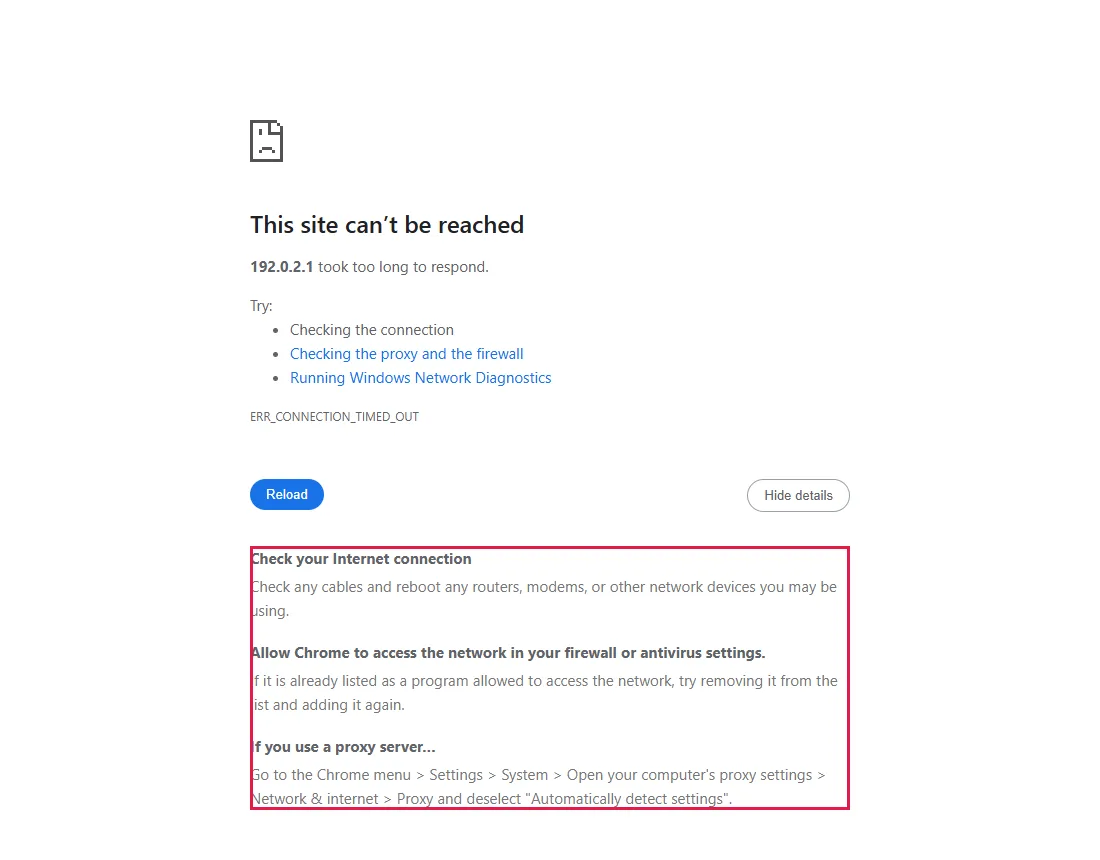
- Check your Internet connection: check cables and restart your router or modem.
- Allow Chrome to access the network in your firewall or antivirus settings. If Chrome is already allowed, Chrome suggests removing it from the list and adding it again.
- If you use a proxy server…: Chrome points to the proxy setting in step 4.
Check the proxy setting
Open Chrome's Settings → System, or paste chrome://settings/system. Click Open your computer's proxy settings. Chrome uses the Windows proxy; the window that opens belongs to Windows, so it is not in our screenshot.
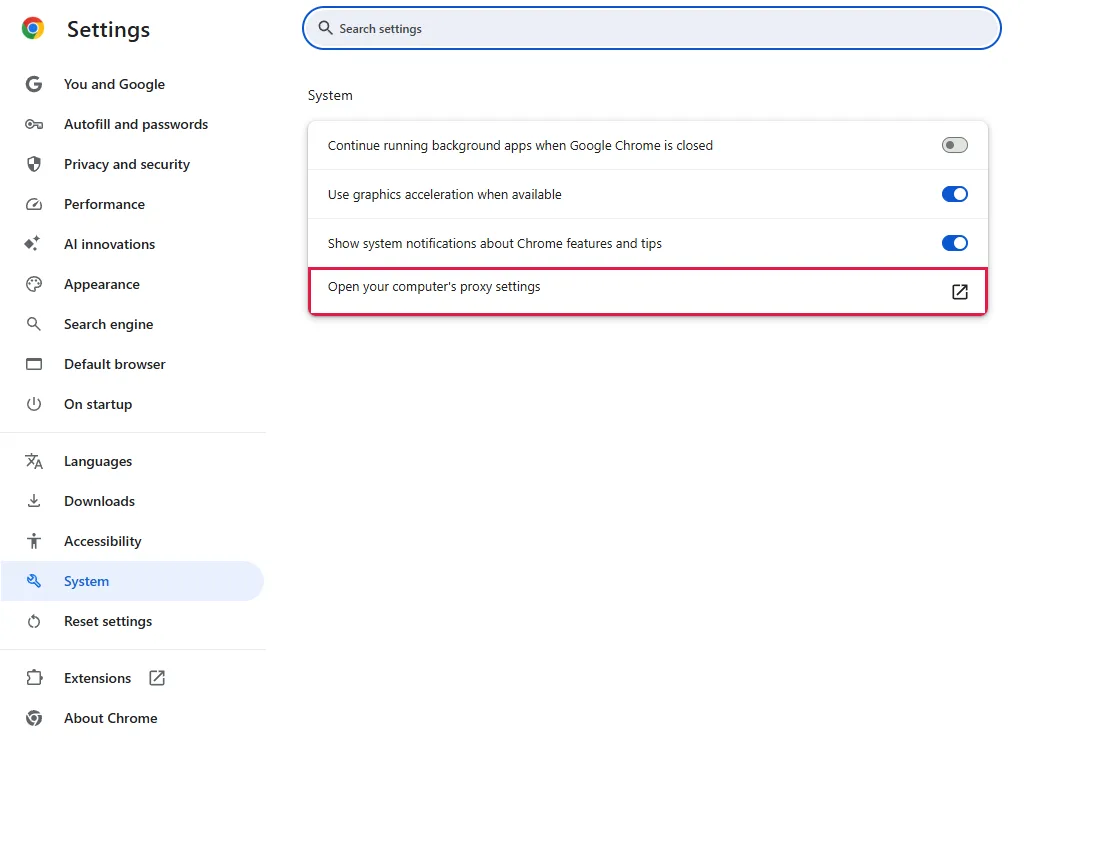
If a proxy is set that you don't recognise, turn it off and reload. From official docs, not tested here
Pause VPN or security software for a moment
Disconnect the VPN or pause the web protection of your security program, reload, then turn it back on right away. If the site opens while it is off, add an exception there instead of leaving protection off. On a work or school PC, ask your IT team before changing proxy or security settings. From official docs, not tested here
Common questions
Is my internet down?
Probably not, if other sites open. Your connection works, but this one address is not answering, or something on the way (a firewall, your network or the site's provider) is dropping the connection. With no connection at all, Chrome shows a different error. From official docs, not tested here
What is "Running Windows Network Diagnostics"?
It is the third suggestion on the error page. It opens a Windows troubleshooter that checks your network adapter and connection. We didn't run it in our test. From official docs, not tested here
It's my own server. Why does it time out?
Check that the service is running, listens on the public address (not only 127.0.0.1) and the right port, and that firewall rules, cloud security groups and any port forwarding let the traffic through. A firewall that drops traffic gives a timeout; one that rejects it gives a refusal. From official docs, not tested here
Can DNS or my hosts file cause this?
Yes. An old DNS answer or an entry in the Windows hosts file can send a site name to an address that no longer answers. Check the hosts file for entries you didn't add. Our test used a numeric address, so it didn't involve DNS. From official docs, not tested here
Should I clear Chrome's cache?
It rarely helps with a timeout, because the connection fails before anything is loaded. Try an Incognito window first; if the site opens there, an extension may be involved. From official docs, not tested here
If it didn't help
| Situation | What to check |
|---|---|
| Only one site, for days | The site may block your network or region, or be gone. Try another network. From official docs, not tested here |
| Many sites time out | Firewall, antivirus or VPN on this PC, or your router. Restart the router and test with security software paused. From official docs, not tested here |
| Pages load very slowly before failing | Your connection may be overloaded. Pause large downloads and test again. From official docs, not tested here |
Related guides
Sources
Google Chrome Help: Fix connection and loading errors in Chrome
How we make guides: we run each step in a real browser or operating system, capture every screen, and have a person review the result. AI assists with drafting.