How to Reset Chrome Settings When Your Search Engine or Start Page Changed
- Your search engine or start page changed by itself
- Chrome behaves oddly after installing an extension
- You want defaults back without losing bookmarks and passwords
chrome://settings/reset, click Restore settings to their original defaults, then Reset settings. According to Chrome's own dialog, this resets your startup page, new tab page, search engine and pinned tabs, disables extensions, deletes cookies and other temporary site data, and resets Chrome shortcuts. Bookmarks, history and saved passwords are not affected.What this test does and doesn't cover
Procedure checked
- Path to Reset settings
- Exact dialog text listing what changes and what is kept
- "Help make Chrome better by reporting the current settings" was checked in our test and can be unchecked
Result checked
- Clicking Reset settings closes the dialog
Side effects checked
Not tested in this run
Not tested
- A real hijacked profile before and after the reset
- Whether extensions really end up disabled and cookies deleted (dialog text only)
Screenshots come from our own runs unless a step is marked otherwise.
When to use this
Use it when Chrome's search engine, start page or new tab page changed without you choosing it, or unwanted pages open on start. A reset puts those settings back and switches off every extension in one go, which is useful when you don't know which extension made the change.
If you know which setting changed, fixing just that is less disruptive. For start pages, see Make Chrome reopen your tabs or a set page.
Steps
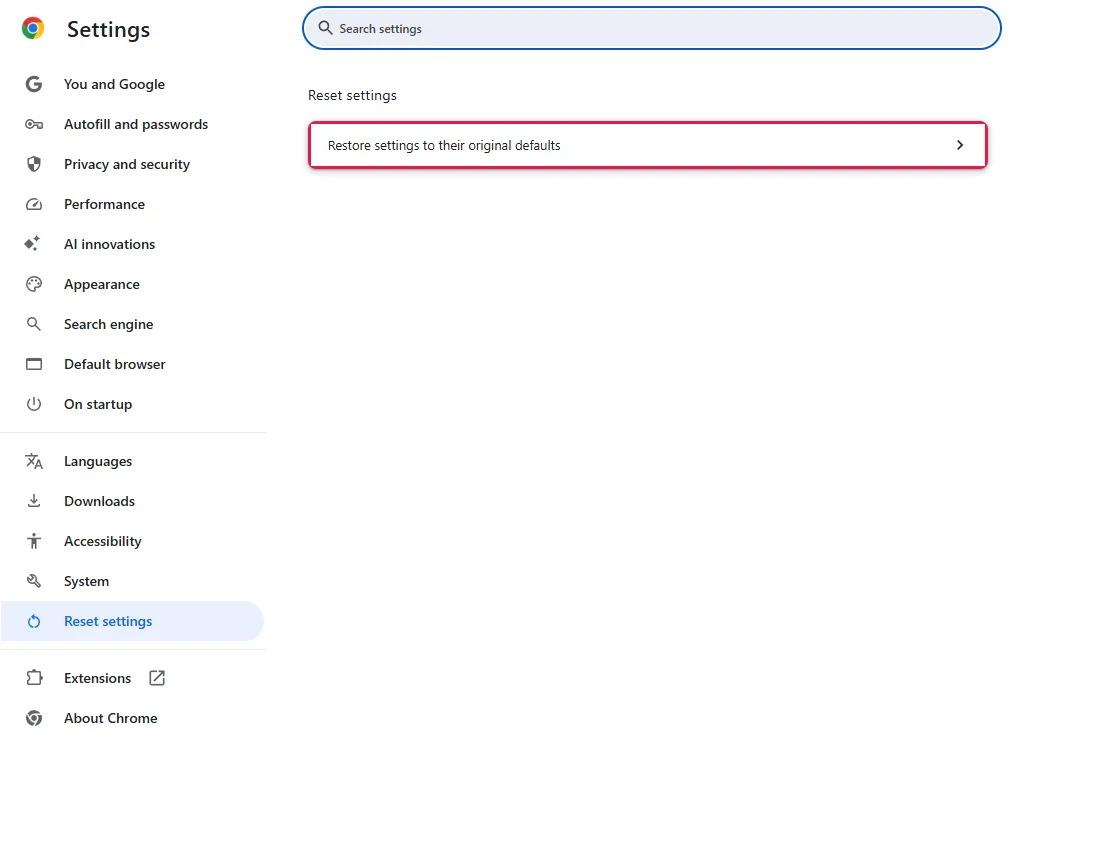
Open Reset settings
Chrome menu (⋮) → Settings → Reset settings, or paste chrome://settings/reset. Click Restore settings to their original defaults.
Read what will change
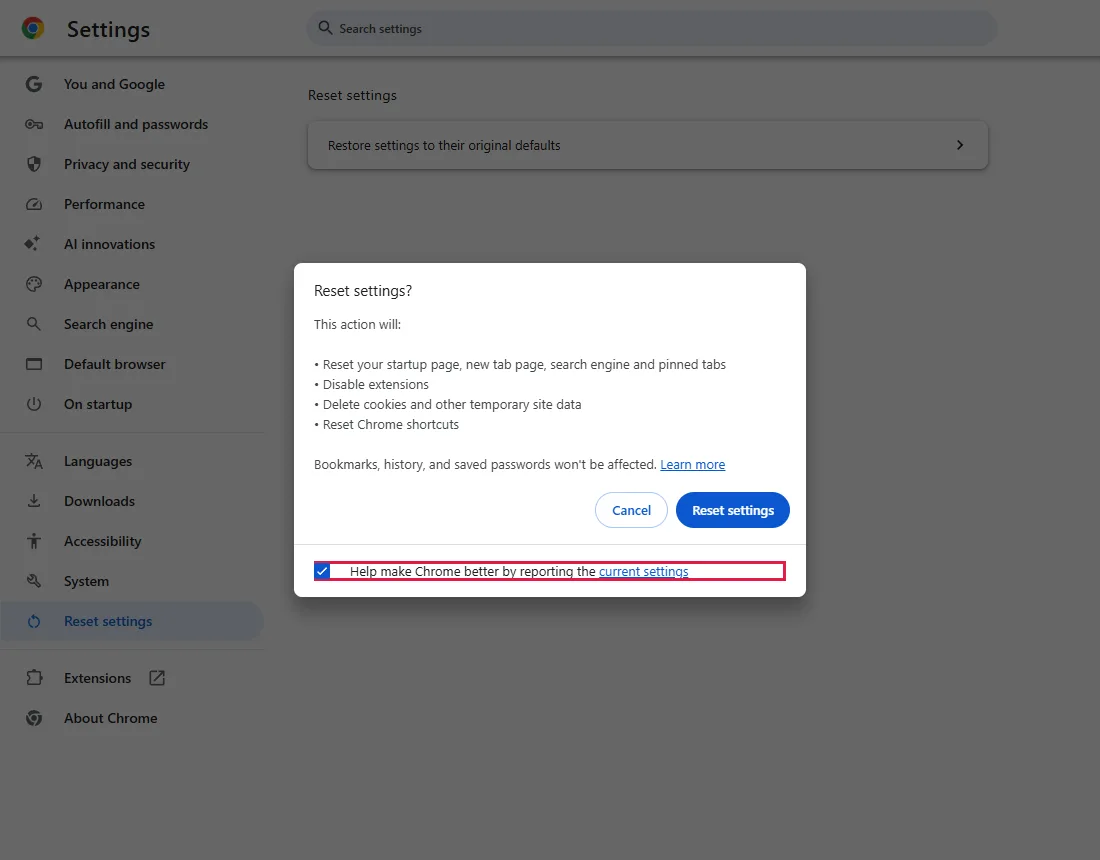
The dialog "Reset settings?" lists exactly what happens:
This action will: • Reset your startup page, new tab page, search engine and pinned tabs • Disable extensions • Delete cookies and other temporary site data • Reset Chrome shortcuts
Bookmarks, history, and saved passwords won't be affected.
At the bottom, Help make Chrome better by reporting the current settings (outlined) was checked in our test.
Decide on reporting, then reset
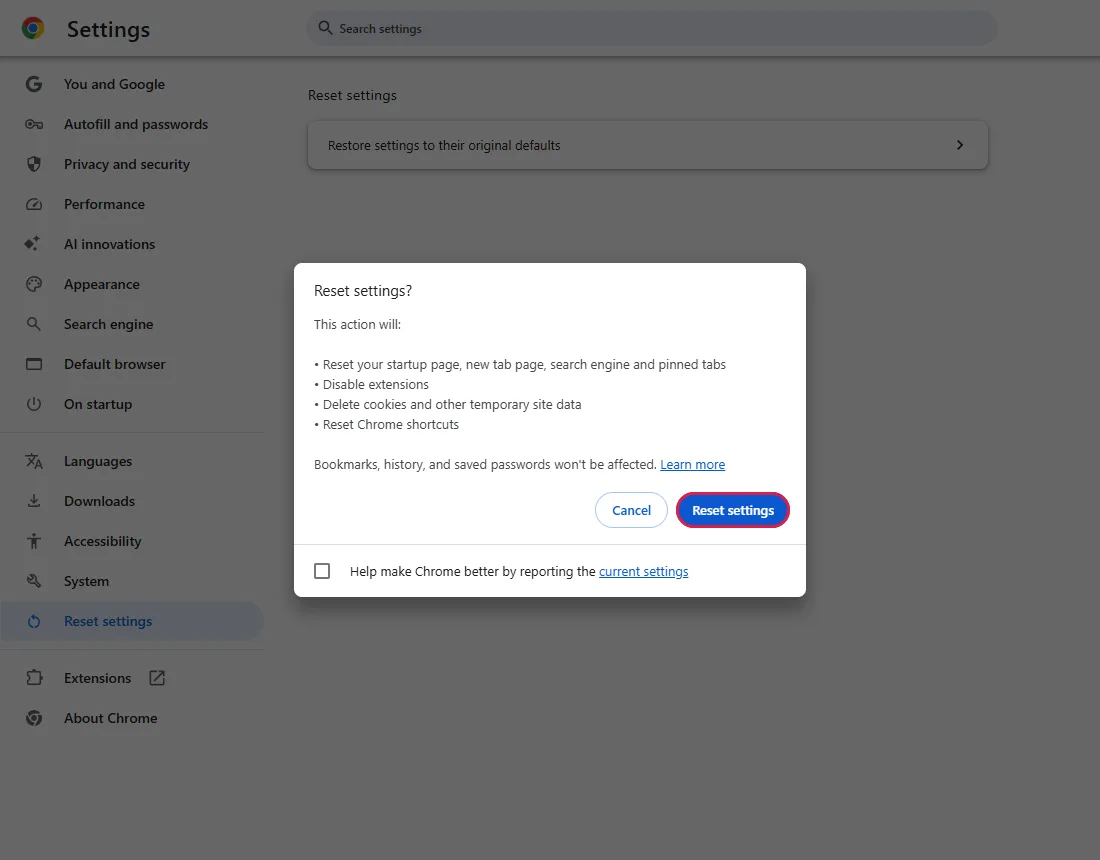
Uncheck the reporting box if you don't want your current settings sent to Google. Then click Reset settings.
Back on the settings page
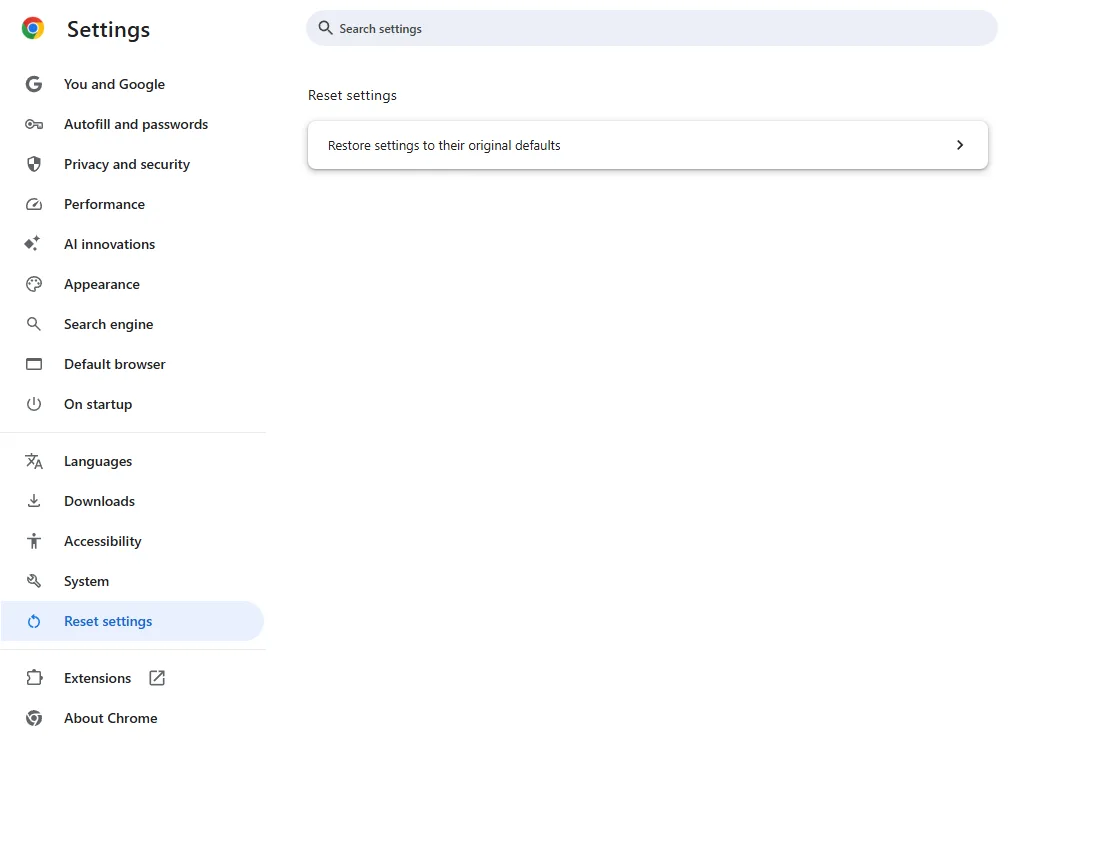
The dialog closes and you're back on Reset settings.
Common questions
Are my extensions deleted?
No, they're disabled, per the dialog ("Disable extensions"). Turn back on only the ones you recognise at chrome://extensions. From official docs, not tested here
Will I be signed out of websites?
Probably yes. The dialog says the reset will "Delete cookies and other temporary site data", and cookies are what keep you signed in.
If it didn't help
| Situation | What to check |
|---|---|
| The search engine changes back again | A program on your PC or a re-enabled extension may be changing it. Keep extensions off and check installed programs. From official docs, not tested here |
| Settings show "managed by your organization" | A policy is setting them; a reset can't override it. From official docs, not tested here |
| Only the start page is wrong | Change just that: On startup settings. |
Related guides
Sources
Google Chrome Help: Reset Chrome settings to default
How we make guides: we run each step in a real browser or operating system, capture every screen, and have a person review the result. AI assists with drafting.