How to Clear Browsing History in Chrome (All of It, or One Page)
- You want to delete one page from Chrome history without clearing everything
- You want to clear your Chrome history but stay signed in to websites
- Pages still show up in Chrome's history or address bar suggestions
chrome://history (Ctrl+H), click ⋮ next to the page and choose Delete from history. To clear more, open chrome://settings/clearBrowserData, pick a time range at the top, tick only Browsing history, and click Delete from this device. Leave Cookies and other site data unticked if you want to stay signed in to websites.What this test does and doesn't cover
Procedure checked
- Each chrome://history entry has a ⋮ menu with "More from this site" and "Delete from history"
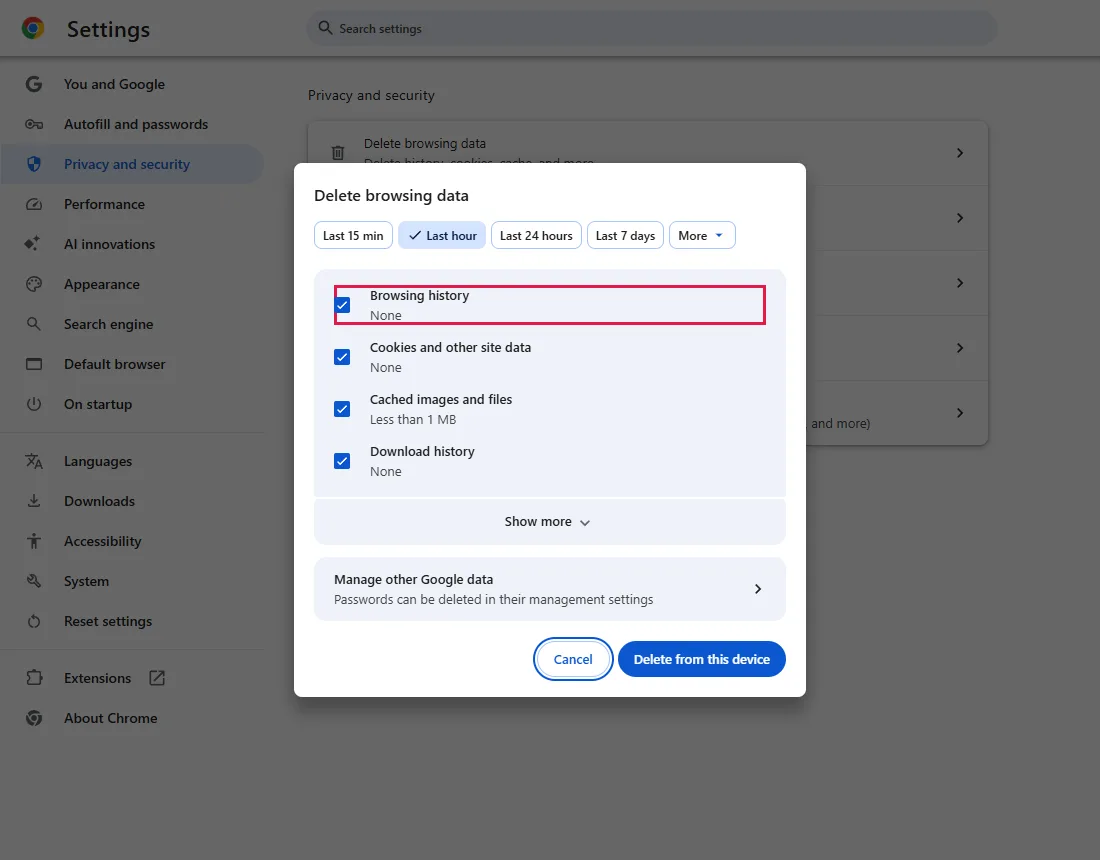
- The Delete browsing data dialog has time-range chips (Last 15 min, Last hour, Last 24 hours, Last 7 days, More); Last hour was selected by default and all four boxes were ticked
Result checked
- "Delete from history" removed that one entry; the other stayed (2 → 1)
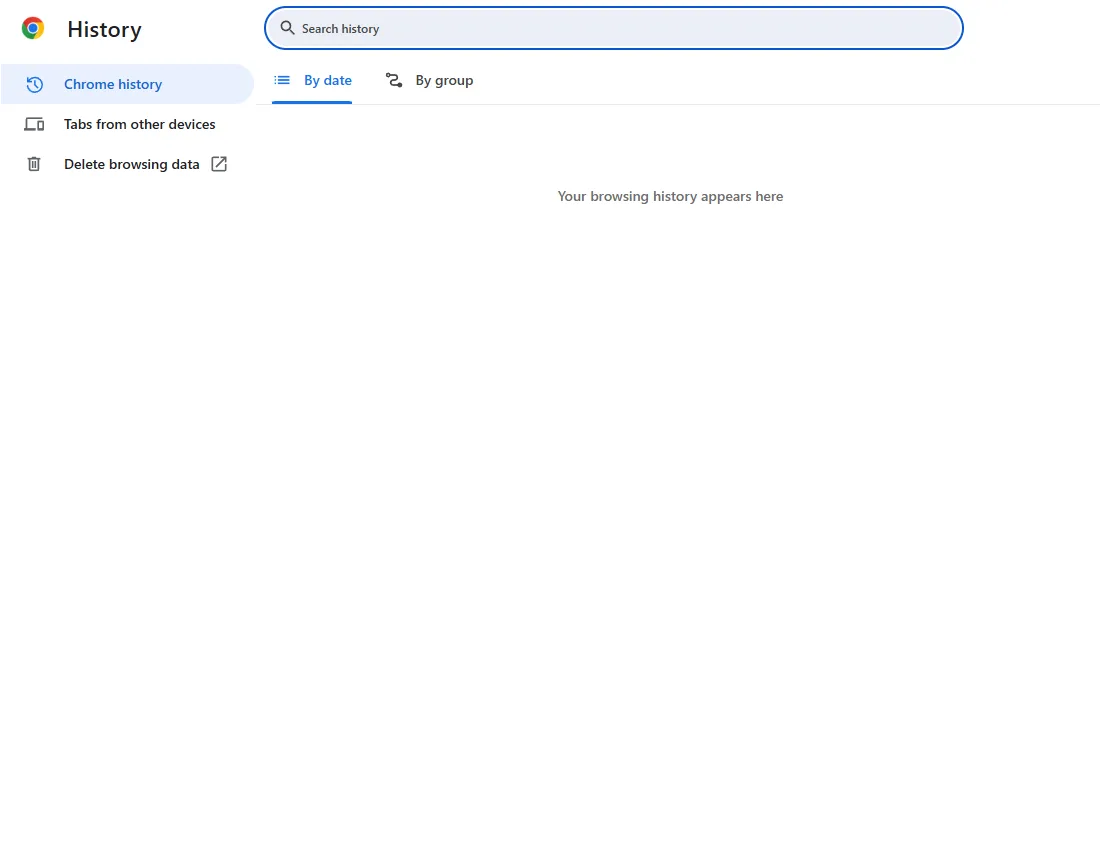
- With only Browsing history ticked, Delete from this device showed "Last hour deleted" and the History page was empty afterwards
Side effects checked
Not tested in this run
Not tested
- History synced to other devices when signed in to Chrome
- Google account activity (My Activity) outside Chrome
- Time ranges other than the default
Screenshots come from our own runs unless a step is marked otherwise.
When to use this
Use it to remove pages from Chrome's history: one page you don't want listed, the last hour, or everything. Clearing only browsing history leaves cookies untouched, so it normally keeps you signed in to websites. From official docs, not tested here
Steps
Delete one page from history
Press Ctrl+H (Mac: Cmd+Y) or paste chrome://history into the address bar. From official docs, not tested here Find the page, click ⋮ on its right and choose Delete from history.
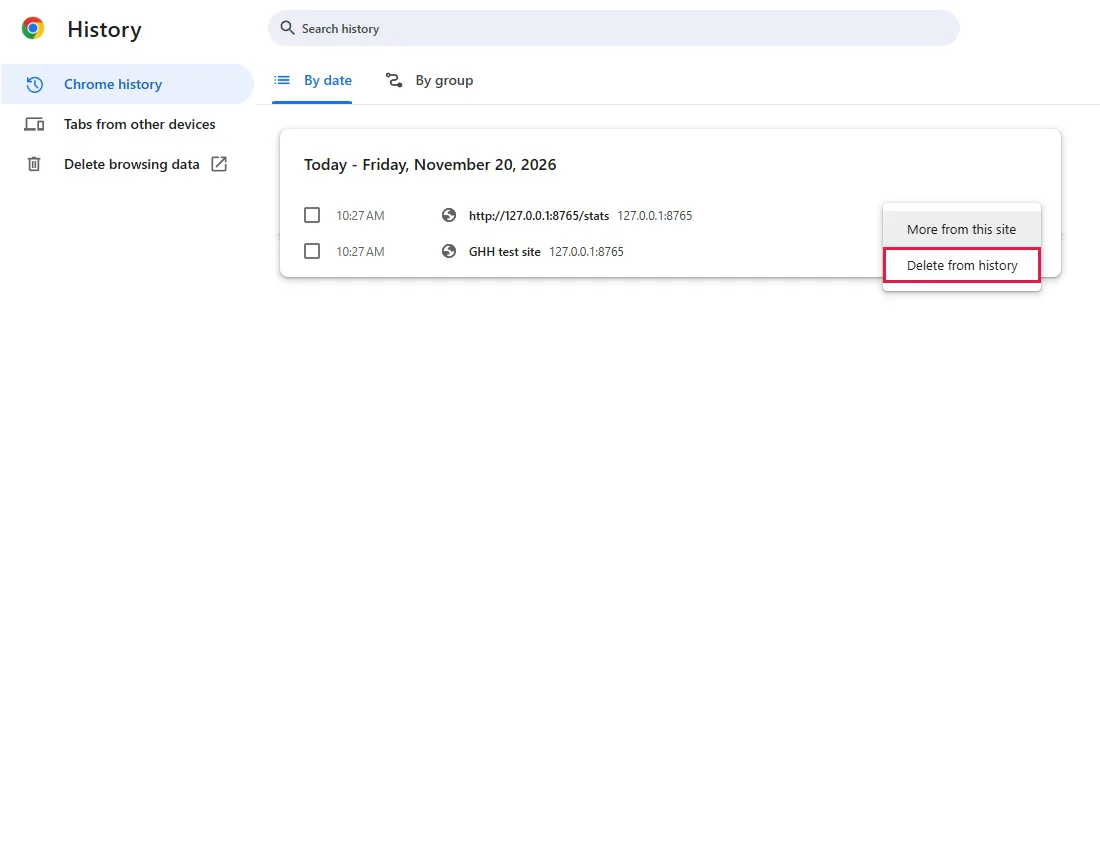
In our test the page disappeared from the list right away and the other page stayed.
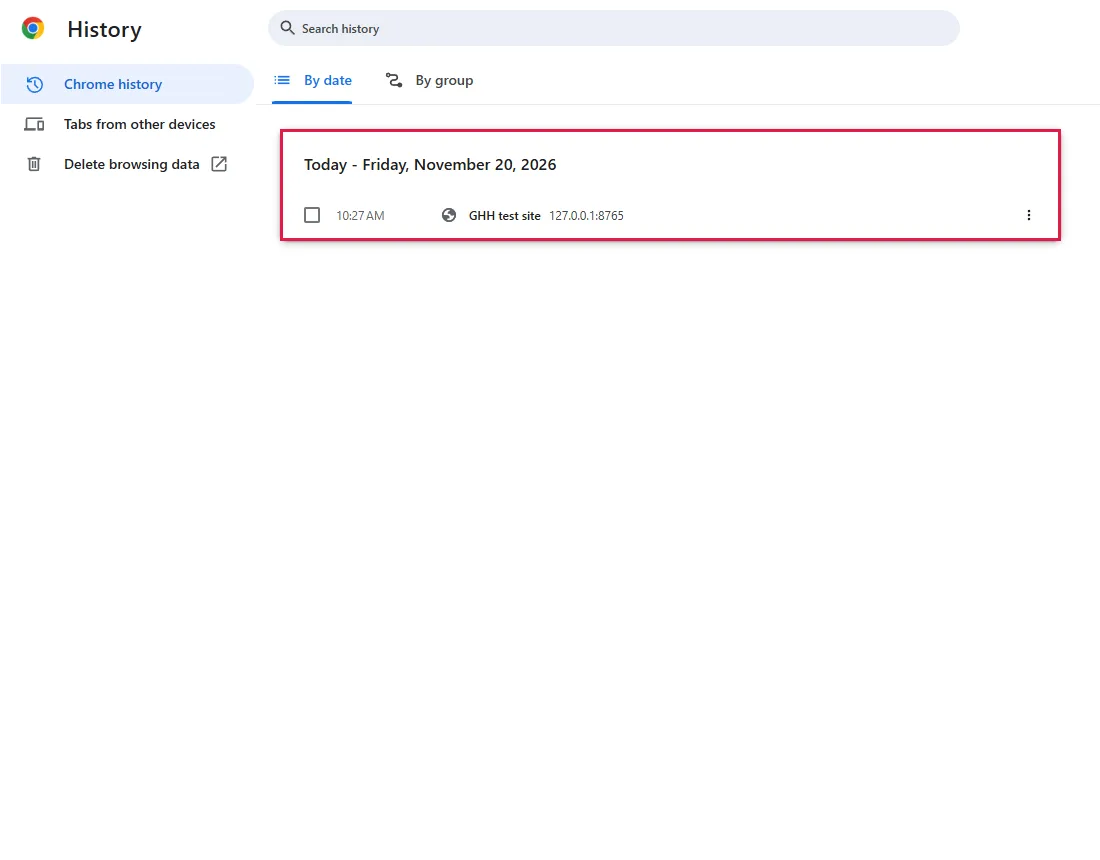
To delete several pages at once, tick the box next to each one and use the delete button that appears at the top. From official docs, not tested here
Open Delete browsing data
To clear more than a few pages, paste chrome://settings/clearBrowserData, press Ctrl+Shift+Delete, or click Delete browsing data in the History page sidebar. From official docs, not tested here
When we opened it, Last hour was selected and all four boxes were ticked: Browsing history, Cookies and other site data, Cached images and files and Download history.
Pick the time range
Click a time range at the top: Last 15 min, Last hour, Last 24 hours, Last 7 days, or More for longer ranges. With only Browsing history ticked, the range limits which history entries are deleted. We only tested the default, Last hour. From official docs, not tested here
Tick only Browsing history, then delete
Untick Cookies and other site data, Cached images and files and Download history, so only Browsing history stays ticked. Then click Delete from this device.
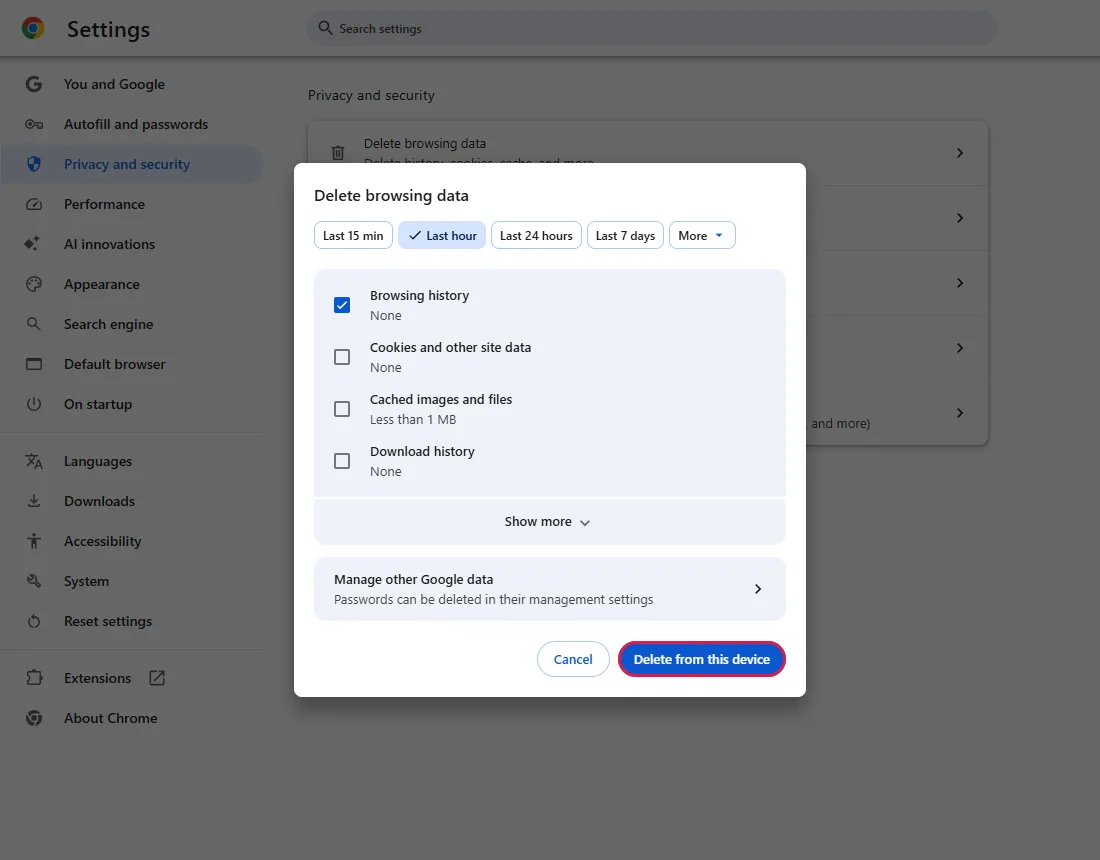
Chrome confirmed with "Last hour deleted", and the History page was empty afterwards.
In our test the line under Browsing history said "None" even though a page from a local test address was still in history, and it was deleted anyway. Don't rely on that summary alone.
Common questions
Will this sign me out of websites?
Clearing only browsing history leaves cookies untouched, so it normally keeps you signed in. Untick Cookies and other site data as in step 4. From official docs, not tested here To clear stored files but stay signed in, see clear only the cache in Chrome.
I deleted history, but sites still appear when I type in the address bar
Suggestions can also come from bookmarks, open tabs, or your search engine. Check those, and delete a single suggestion with the remove option next to it if one appears. From official docs, not tested here
Does this delete history on my phone too?
If history sync is turned on in Chrome, deleting history can remove it on your other synced devices as well. Google account activity saved outside Chrome is managed separately in your Google Account. From official docs, not tested here
Does this delete my downloads, bookmarks or passwords?
No. Downloaded files, bookmarks and saved passwords stay unless you delete them separately. Unticking Download history also keeps the list of downloads. From official docs, not tested here
Can I get deleted history back?
Not from Chrome. If you deleted a page by mistake and still need it, see how to reopen closed tabs for what Chrome can still recover. From official docs, not tested here
If it didn't help
| Situation | What to check |
|---|---|
| The delete options are grey or missing | Your organisation may manage Chrome and block deleting history. Ask your IT admin. From official docs, not tested here |
| History comes back | Check the time range you picked and that you're in the right Chrome profile. A page you still see may be a bookmark or suggestion rather than history. With history sync on, check your other devices too. From official docs, not tested here |
| You don't want future history saved | Use an Incognito window: Chrome doesn't save its history. It doesn't erase existing history or hide your activity from websites or your network. From official docs, not tested here |
Related guides
Sources
Google Chrome Help: Check or delete your Chrome browsing history
Google Chrome Help: Delete browsing data in Chrome
How we make guides: we run each step in a real browser or operating system, capture every screen, and have a person review the result. AI assists with drafting.